EasyManua.ls Logo

Xerox B215 - User Manual

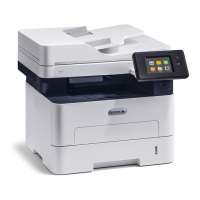
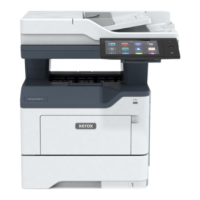
Xerox B215
306 pages
Print Icon
To Next Page IconTo Next Page
Loading...
Version 1.0
august 2019
702P07580
Xerox
®
B215
Multifunction Printer
User Guide

Table of Contents

Other manuals for Xerox B215

Questions and Answers

  • M
    Michael ChristensenAug 21, 2025
    Why does my Xerox B215 All in One Printer reset or power off frequently?
    • S
      Spencer MolinaAug 21, 2025
      Your Xerox All in One Printer might be resetting or powering off frequently because: * The power cord is not plugged into the outlet correctly: Power off the printer, confirm that the power cord is plugged in correctly to the printer and the outlet, then power on the printer. * A system error occurred: Power off the printer, then power on again. If the error persists, contact a service representative. * The printer is connected to an un interruptible power supply: Power off the printer, then connect the power cord to a suitable outlet. * The printer is connected to a power strip shared with other high-power devices: Plug the printer directly into the outlet or into a power strip that is not shared with other high-power devices.
  • W
    William MoralesAug 25, 2025
    What to do if the paper tray fails to close on my Xerox B215?
    • N
      Nicole TurnerAug 25, 2025
      If the paper tray on your Xerox All in One Printer fails to close, it may be due to debris or an object blocking the paper tray. Remove the debris or object that is blocking the paper tray.
  • A
    Anthony GonzalezAug 31, 2025
    What to do if my Xerox B215 document prints from the wrong tray?
    • S
      sara20Aug 31, 2025
      If your Xerox All in One Printer prints from the wrong tray, it might be because the application and print driver have conflicting tray selections. To resolve this: 1. In the print driver, ensure that you have selected the correct tray. 2. Access the application from which you are printing, then go to the page setup or printer settings. 3. Set the paper source to match the tray selected in the print driver, or set the paper source to Auto Select.
  • R
    Reginald MarshallSep 3, 2025
    How to fix automatic 2-sided printing problems on Xerox All in One Printer?
    • J
      James RodriguezSep 3, 2025
      If you're experiencing issues with automatic 2-sided printing on your Xerox All in One Printer: * Unsupported or incorrect paper: Ensure that you are using a supported paper size and weight for 2-sided printing. Do not use 2- sided printing for envelopes and labels. * Incorrect setting: In the print driver, for Printer Settings, select Print on Both Sides. Note: The setting varies depending on the application from which you are printing.
  • M
    Mrs. Erin WebbSep 6, 2025
    Why my Xerox B215 All in One Printer makes unusual noises?
    • D
      Daisy PearsonSep 6, 2025
      If your Xerox All in One Printer is making unusual noises, there might be an obstruction or debris inside the printer. To resolve this: 1. Power off the printer. 2. Remove the obstruction or debris. Note: If you cannot remove the obstruction or debris, contact a service representative.
  • L
    Linda JonesSep 10, 2025
    What causes condensation inside my Xerox B215?
    • M
      Mrs. Paula Reed MDSep 10, 2025
      Condensation might form inside your Xerox All in One Printer due to: * The printer has been sitting in a cold room: Before operating the printer, allow it to acclimate for several hours. Allow the printer to operate for several hours at room temperature. * The relative humidity of the room is too high: Reduce the humidity in the room. Move the printer to a location where the temperature and relative humidity are within the operating specifications.
  • G
    gordonmichaelNov 13, 2025
    What to do if my Xerox All in One Printer print job fails?
    • M
      Michelle BishopNov 13, 2025
      If your Xerox All in One Printer fails to print, there might be several reasons: * The printer has an error: Power off the printer, then power it on again. If the error persists, contact a service representative. * The printer is out of paper: Load paper into the tray. * The toner cartridge is empty: Replace the empty toner cartridge. * The power cord is not plugged in correctly: Power off the printer, confirm that the power cord is plugged in correctly to the printer and the outlet, then power on the printer. * The printer is busy: Determine if a previous print job is the problem. If necessary, delete the previous print job. Load paper in the tray. At the printer control panel, touch Jobs. If the print job is not in the Active Jobs or Completed Jobs list, check the Ethernet/USB...
  • L
    lorimillsNov 16, 2025
    Why my Xerox All in One Printer fails to power on?
    • A
      Adam WilliamsNov 16, 2025
      Your Xerox All in One Printer may fail to power on for several reasons: * The power switch is not switched on: Press the Power On/Off button on the printer control panel. * The power cord is not plugged in correctly: Power off the printer, confirm that the power cord is plugged in correctly to the printer and the outlet, then power on the printer. * The printer requires a full reset: Power off the printer, then unplug the power cord and wait 30 seconds. Plug the power cord into the outlet securely, then press the Power On/Off button. * Something is wrong with the outlet connected to the printer: Plug another electrical appliance into the outlet and check if it operates properly. Try a different outlet. * The printer is connected to an outlet with a voltage or frequency that does...
  • N
    Nathaniel AlexanderNov 27, 2025
    Why is printing taking too long on my Xerox All in One Printer?
    • G
      garzamarissaNov 27, 2025
      Printing may take longer on your Xerox All in One Printer due to several factors: * The printer is set to a slower printing mode: It takes more time to print on certain types of special paper. Ensure that the paper type is set properly in the print driver and at the printer control panel. * The printer is in power saver mode: It takes time for printing to start when the printer is exiting power saver mode. * The way the printer was installed on the network: Determine if a print spooler or a computer sharing the printer is buffering all print jobs, then spooling the jobs to the printer. Spooling can slow print speeds. To test the speed of the printer, print information pages. If the page prints at the rated speed of the printer, check for a network or printer installation issue. * ...

Summary

Safety

Electrical Safety

General guidelines and warnings for safe electrical handling and use.

Operational Safety

Guidelines for safe operation and handling of the printer to prevent injury.

Maintenance Safety

Precautions for safe printer maintenance and cleaning procedures.

Getting Started

Power Options

How to power the printer on, off, and use power saver modes.

Installation and Setup

Installation and Setup Overview

Steps for initial printer installation and configuration.

Initial Setup

Procedures for physically connecting and setting up the printer.

General Setup

Configuring date, time, display, power, and measurement settings.

Network Connectivity

Configuring TCP/IP, DNS, SNMP, WINS, and wireless network settings.

Installing Printer Software

Instructions for installing drivers and software on Windows, Mac, and Linux.

Setting Up the Services

Email Settings

Configuring SMTP server, email receipts, and message settings.

Fax Settings

Configuring fax line settings, reports, and incoming/outgoing policies.

Scan to Network Settings

Configuring scan destinations and address book entries for network scanning.

Using the Services

Email

Scanning documents and sending them via email.

Scan To

Scanning documents to PC, network, WSD, or USB.

Printing

Printing Using Windows

Detailed steps and options for printing from Windows.

Printing Using Macintosh

Detailed steps and options for printing from Macintosh.

Printing Using Linux

Detailed steps and options for printing from Linux.

Printing Using Xerox CentreWare Internet Services

Printing documents via the web interface.

Maintenance

General Precautions

Safety warnings and precautions for printer maintenance.

Cleaning the Printer

Procedures for cleaning printer exterior and interior components.

Troubleshooting

Paper Jams

Causes and solutions for paper jams in various printer locations.

Printing Problems

Troubleshooting issues related to print jobs and quality.

Print-Quality Problems

Diagnosing and fixing issues affecting print output quality.

Security

Xerox CentreWare Internet Services

Using the web interface for security configurations.

Xerox B215 Specifications

General IconGeneral
Print technologyLaser
Maximum resolution1200 x 1200 DPI
Time to first page (black, normal)8.5 s
Print speed (black, normal quality, A4/US Letter)30 ppm
Maximum copy resolution600 x 600 DPI
Time to first copy (black, normal)14 s
Scan toE-mail, FTP, SMB, USB
Scanner typeFlatbed & ADF scanner
Maximum scan area216 x 356 mm
Image formats supportedJPG, TIFF
Maximum scan resolution4800 x 4800 DPI
Document formats supportedPDF
Optical scanning resolution (black)1200 x 1200 ppi
FaxingMono faxing
Fax forwarding toFax, PC
Fax coding methodsJBIG, MH, MMR (Fax coding method), MR
Digital sender-
Printing colorsBlack
Country of originChina
Maximum duty cycle30000 pages per month
Number of print cartridges1
Page description languagesPCL 5, PCL 6, PostScript 3, XPS
Sustainability certificatesENERGY STAR
Control typeTouch
Product colorBlack, White
Display diagonal3.5 \
Market positioningBusiness
Paper input typePaper tray
Total input capacity250 sheets
Total output capacity120 sheets
Multi-Purpose tray input capacity1 sheets
Auto document feeder (ADF) input capacity40 sheets
Paper tray media weight60 - 163 g/m²
Multi-purpose tray media typesBond paper, Envelopes, Heavyweight paper, Labels, Plain paper, Preprinted forms, Thicker paper, Transparencies
Maximum ISO A-series paper sizeA4
Multi-Purpose Tray media weight60 - 220 g/m²
Auto Document Feeder (ADF) media weight60 - 120 g/m²
CompatibilityXerox B215
Internal memory256 MB
Card reader integratedNo
USB connectorUSB Type-A / USB Type-B
USB 2.0 ports quantity2
Wi-Fi standards802.11b, 802.11g, Wi-Fi 4 (802.11n)
Cabling technology10/100Base-T(X)
Ethernet LAN data rates10, 100 Mbit/s
Mobile printing technologiesApple AirPrint, Google Cloud Print, Mopria Print Service
Power consumption (standby)46 W
Power consumption (PowerSave)2 W
Power consumption (average operating)417 W
Mac operating systems supportedMac OS X 10.10 Yosemite, Mac OS X 10.11 El Capitan, Mac OS X 10.12 Sierra, Mac OS X 10.13 High Sierra, Mac OS X 10.14 Mojave, Mac OS X 10.9 Mavericks
Server operating systems supportedWindows Server 2008, Windows Server 2008 R2, Windows Server 2012, Windows Server 2012 R2, Windows Server 2016, Windows Server 2019
Windows operating systems supportedWindows 10, Windows 7, Windows 8
Included cartridge capacity (black)1500 pages
Recommended monthly print volume3000 pages
Package weight14000 g
Operating temperature (T-T)10 - 32 °C
Operating relative humidity (H-H)20 - 80 %
Weight and Dimensions IconWeight and Dimensions
Depth460 mm
Width490 mm
Height480 mm

Related product manuals