Chapter Three - Installation
43
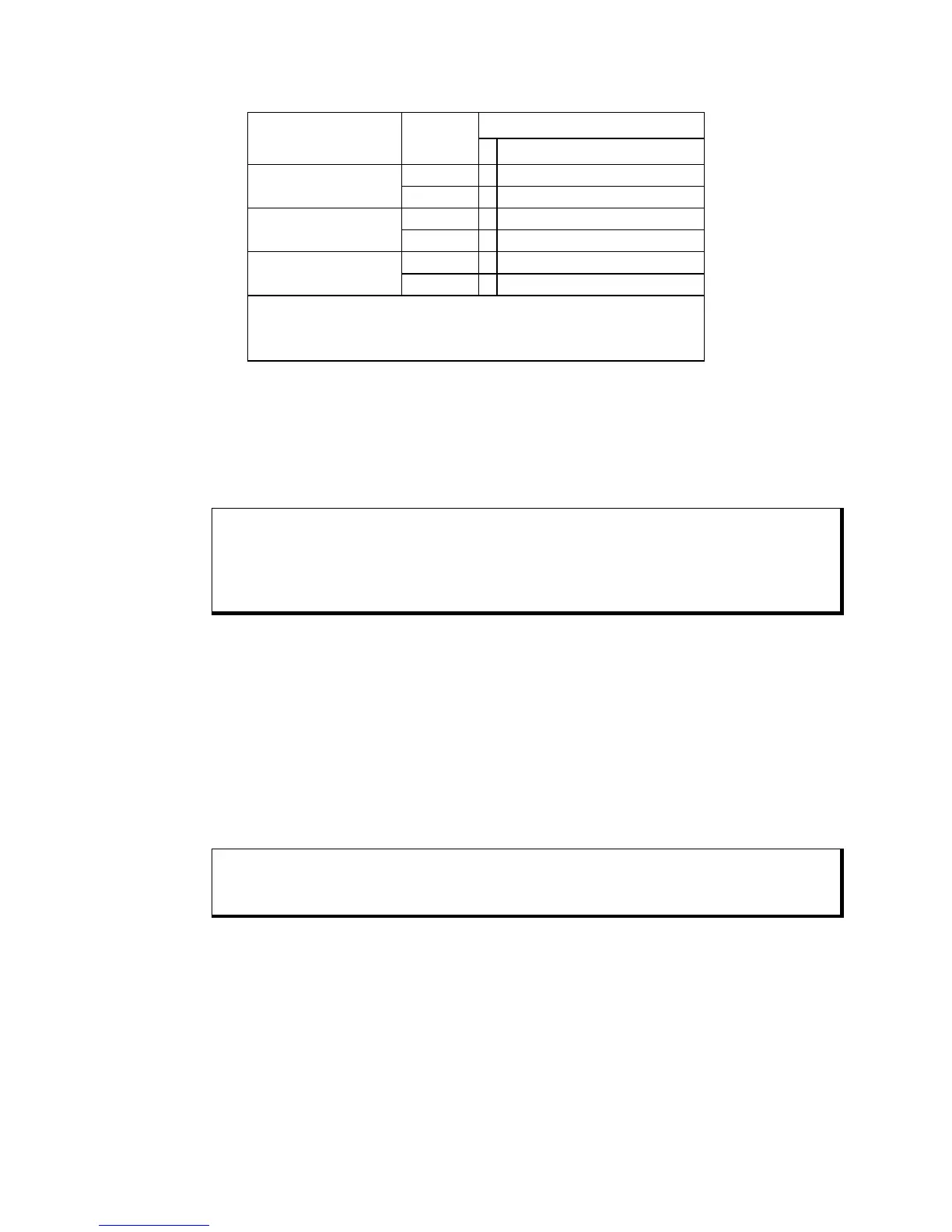
Utility Mode Panel Type/Size
12.1” TFT
EXP_ON.EXE Text Vert/Hor
Expansion On Graphics Vert/Hor
EXP_DEF.EXE Text Vert/Hor
Expansion Default Graphics Off
EXP_OFF.EXE Text Vert/Hor*
Expansion Off Graphics Off
Definitions:
Vert - Vertical only expansion is invoked
Vert/Hor - Vertical and Horizontal expansion is invoked
Expansion Default - The video BIOS default on power up
* Text expansion cannot be turned off
With an 800 x 600 display, the stretching algorithm does not completely fill the
display horizontally or vertically. A greater vertical text expansion can be achieved
by changing to VGA mode 3* (see Note below). This is also an 80 column, 25 row
text mode but with an effective resolution of 640 x 350. The 350 lines stretch better
to fill the 768-line display than does the default DOS mode 3+.
Note
The utility diskette includes a program titled MOD3_350.EXE, to allow switching to
the VGA mode 3*. Another utility program, MOD3_400.EXE, is provided to put the
mode back to the DOS default of 3+.
Windows may come up with a blank screen when using Windows 3.X with
expansion turned on either through the BIOS setup or the EXP_ON.EXE utility. The
two options (second option being the best) for this situation are listed below:
• Option 1 – Pressing the
CTRL-ALT-DEL keys simultaneously. A blue screen will
display, letting you know that pressing
CTRL-ALT-DEL again will reboot the
system or pressing any key will return you to Windows. At this point, press any
key and the normal Windows screen should appear.
• Option 2 – Turn off the expansion, set the BIOS default in the BIOS setup menus
using the appropriate utility as shown in the Video Expansion Options table.
Note
For further assistance, call Xycom Automation technical support at 1-800-289-9266.



 To Next Page