VIDEO MENU (CONTINUED)
COLOR
Adjusts the intensity
of
the colors in the picture.
When making picture adjustments, use a video input
source that you know provides a good color picture.
Let
the
TV
operate for a few minutes to stabilize the picture
before changing any adjustment.
To
Adjust the
COLOR
level:
1. Press
MENU
until the
VIDEO
menu is displayed.
2. Press SELECT until the
COLOR
option is
highlighted.
3.
Press
ADJUST
UP
or
DOWN
to get the
COLOR
LEVEL
display.
4.
If
all the colors seem faded
or
washed out, press
ADJUST
Up
to increase the color intensity.
5. Press SELECT
to
select the next menu option,
MENU
to return to the next menu, or
ENTER
to
return to normal
TV
viewing.
If
all the colors seem too vivid
or
intense, press
ADJUST
Down to decrease the color intensity.
Your adjustment will
be
remembered unless you use the
RESET option
of
the
FEATURES
Menu.
In
this case,
the original factory adjustment will
be
restored.
The
original factory adjustment will also
be
restored
if
the
TV
does not receive power for approximately one minute.
NOTE:
If
you try to adjust the
COLOR
level while
COLOR SENTRY
is
ON, a display will remind you that
COLOR SENTRY
is
active. Turn
OFF
COLOR
SENTRY
to
adjust the
COLOR
level. See the
COLOR
SNTR Y option of the
FEATURES
menu for details.
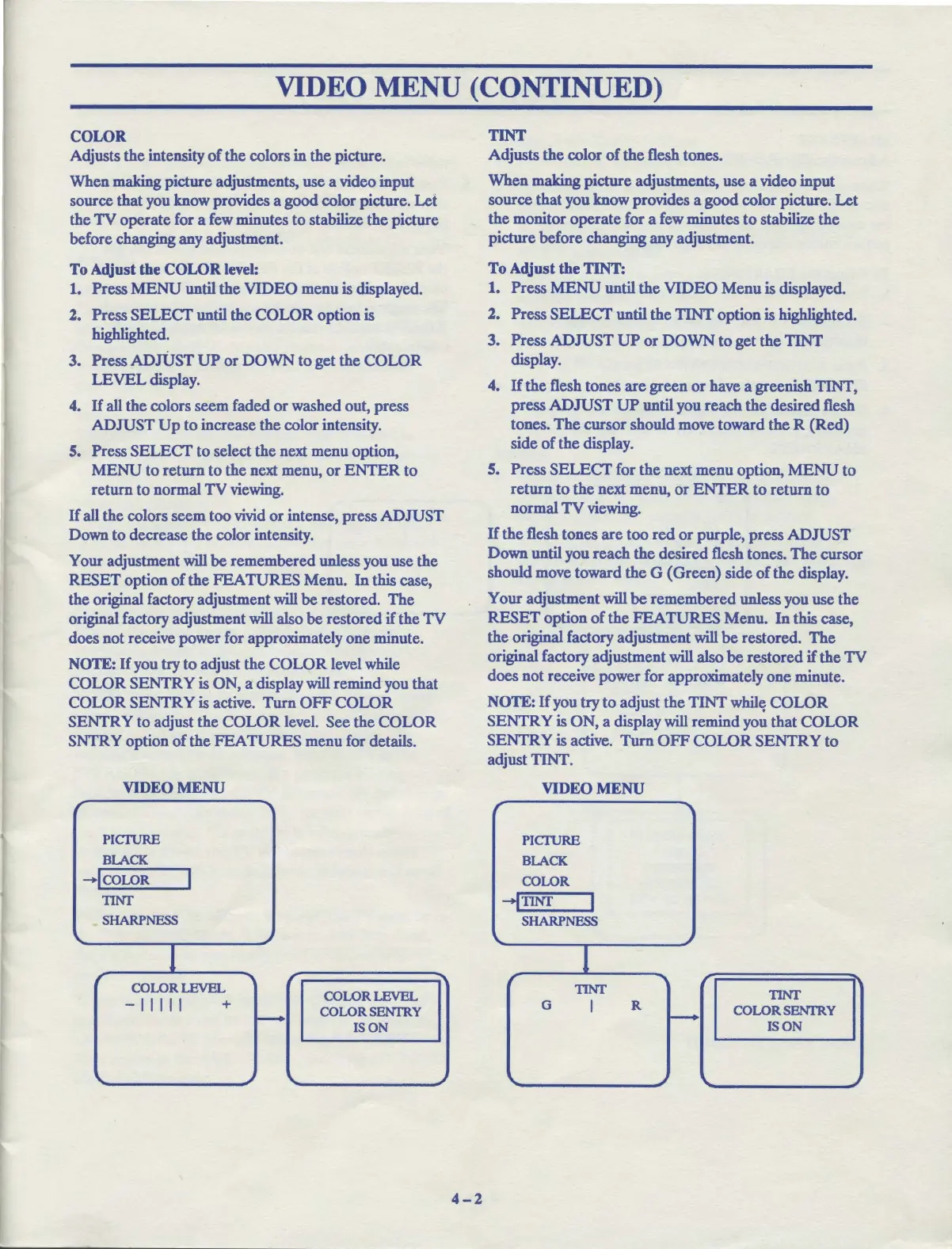
VIDEO
MENU
r
PICTURE
BLACK
-lcoLoR
I
TINI'
SHARPNESS
1
r
COLORLEVEL
COLORLEVEL
-11111
+
COLOR SENTRY
-
ISON
\.. ~
...
~
4-2
TINT
Adjusts the color
of
the flesh tones.
When making picture adjustments, use a video input
source that you know provides a good color picture.
Let
the monitor operate for a few minutes
to
stabilize the
picture before changing any adjustment.
To
Adjust the
TINT:
1. Press
MENU
until the
VIDEO
Menu is displayed.
2. Press SELECT until the TINT option is highlighted.
3. Press
ADJUST
UP
or
DOWN
to
get the TINT
display.
4.
If
the flesh tones are green
or
have a greenish TINT,
press
ADJUST
UP
until you reach the desired flesh
tones.
The
cursor should move toward the R (Red)
side
of
the display.
5. Press
SELECT
for the next menu option,
MENU
to
return
to
the next menu,
or
ENTER
to
return to
normal
TV
viewing.
If
the flesh tones are too
red
or
purple, press
ADJUST
Down until you reach the desired flesh tones. The cursor
should move toward the G (Green) side
of
the display.
Your adjustment will
be
remembered unless you use the
RESET
option
of
the
FEATURES
Menu.
In
this case,
the original factory adjustment will
be
restored.
The
original factory adjustment will also
be
restored
if
the
TV
does not receive power for approximately one minute.
NOTE:
If
you try to adjust the
TINT
whil~
COLOR
SENTRY is ON, a display will remind you that
COLOR
SENTRY is active.
Turn
OFF
COLOR
SENTRY
to
adjust TINT.
VIDEO
MENU
r
...,
PICTURE
BLACK
COLOR
-ITINr
I
SHARPNESS
\.
I
r
-,
r
TINI'
TINT
G
I
R
COLORSENTRY
~
ISON
\.
~
...
~



 To Next Page