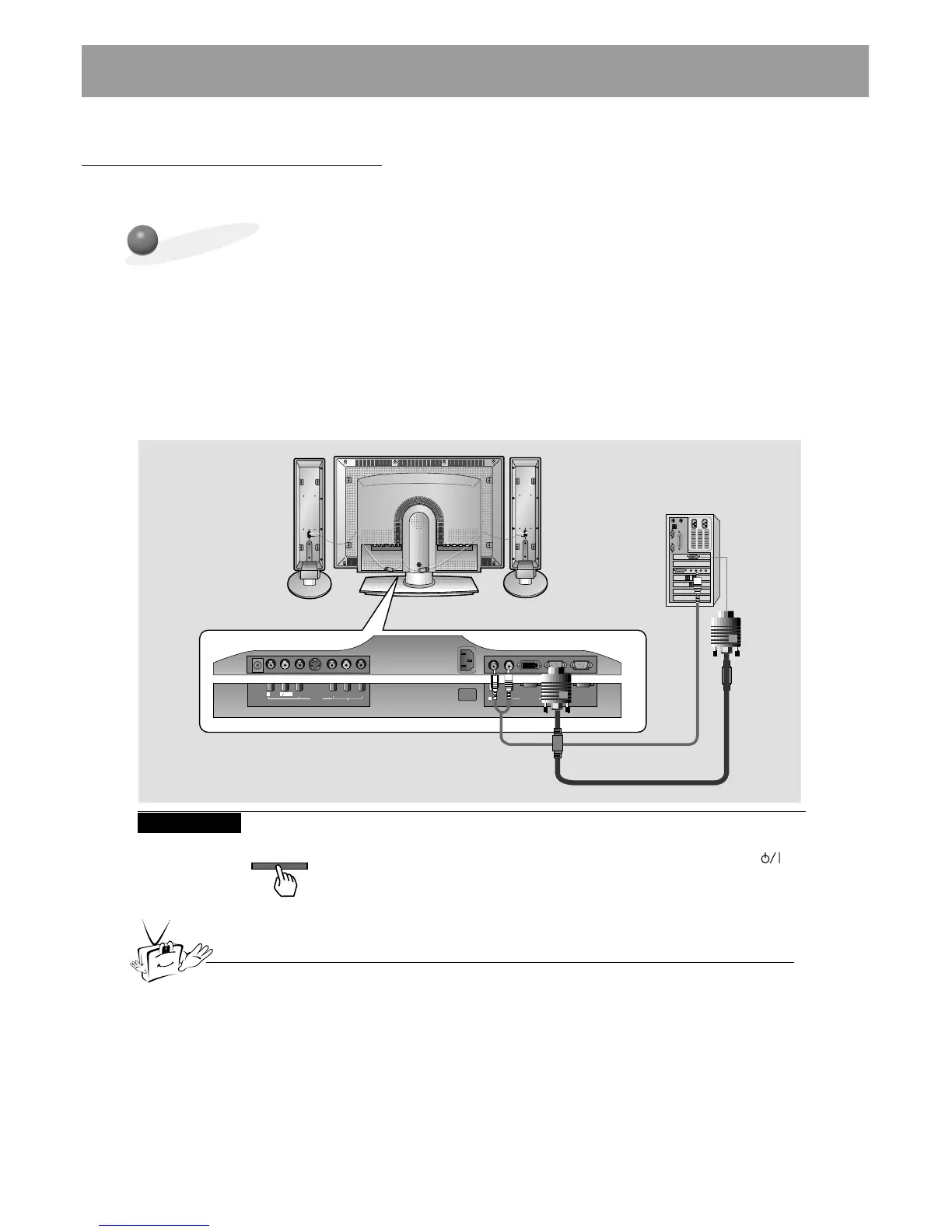
Monitor Connection Panel
Setup Instructions to Connect a PC to your Monitor
• To set up this monitor in your PC window environ-
ment, select Normal, Standard or Default Monitor.
This monitor does not support Plug and Play func-
tionality.
• An image is not visible if the resolution is set to
over UXGA.
• Connect the signal cable from the monitor Output
port on the PC to the RGB1(PC/DTV INPUT) port
on the Monitor.
• Connect the audio cable from the PC to the Audio
ports on the Monitor.
• If your PC is equipped with a sound card, adjust
the sound output on the PC.
• Set the display resolution of the PC to 1024X768
for the best picture. This monitor’s resolution is
1280X768.
PC Setup
• First, turn on the PC and press the ON/OFF button on the Monitor to
apply power to it. Second, turn on the display by pressing the
button on the Monitor or by pressing the POWER button on the
Monitor’s remote control.
• Use the INPUT SELECT button on the remote control to select the
RGB1 input source.
• Set the resolution output of the PC to SXGA or under (1280 x 1024,
75Hz).
• Avoid keeping a fixed image on the Monitor's screen for a long period of time. The fixed image may
become permanently imprinted on the screen; use a screen saver when possible.
• Change the output resolution of PC to a displayable mode (Refer to page 21) and connect to
RGB1/RGB2 Input (PC/DTV Input) on the monitor.



 To Next Page