36
Picture-In-picture (PIP)
How to use PIP
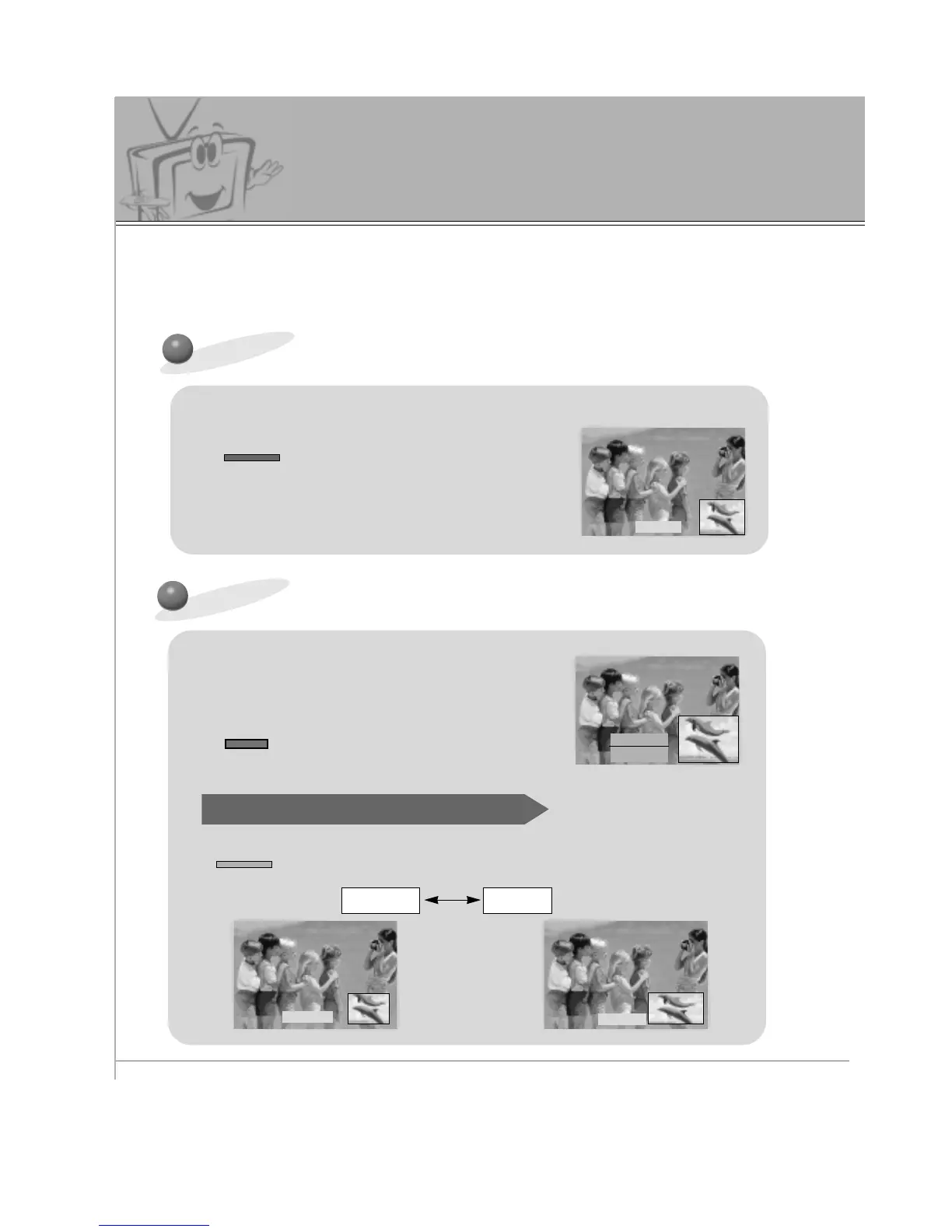
- PIP will let you view two separate source inputs on your monitor screen at the same time.
- Color of main picture may be different from PIP’s in PIP mode.
- When the main picture source is RGB1/RGB2/DTV (more than 480p), the PIP picture source is S-
video/ Video/DVD (480i). Conversely, if the main picture source is S-video/Video/DVD (480i), the PIP
picture source is RGB1/RGB2/DTV (more than 480p).
Press the PIP button.
Selecting PIP Picture Size
Press the WIN. SIZE button to
the PIP picture size menu.
FGAdjust A Exit
Watching PIP Picture as 4:3 or 16:9
• Press the PIP button again, to turn PIP off.
• Use VOL (
F
,
G
) button to change to desired size.
• WIN. SIZE doesn’t work without a PIP picture source signal.
Press the PIP ARC button in PIP mode.
• Each time you press PIP ARC, you switch between
Normal and Wide.
NORMAL WIDE
Window Size
WIDE
NORMAL
PIP : ON



 To Next Page