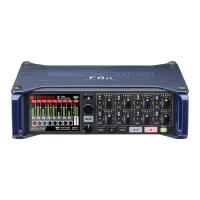
4. Connect the F8n Pro and computer with a USB cable.
NOTE:
• Use a USB cable that supports data transfer.
• The F8n Pro cannot operate on USB bus power. Use the internal batteries, the dedicated AC adapter or
an external DC power supply to power it.
HINT:
When the F8n Pro is connected to a computer, the SD cards loaded in slots 1 and 2 are recognized as
separate SD cards.
■ Disconnecting a computer
1. Disconnect on the computer.
• Windows:
Select F8n Pro from the “Safely Remove Hardware and Eject Media” icon on the bottom of the
computer screen.
• macOS:
Drag and drop the F8n Pro icon to the Trash.
2. Disconnect the cable from the computer and the F8n Pro, and press .
NOTE:
Always conduct the removal procedure in step 1 before disconnecting the USB cable.
232



 To Next Page