Recording process
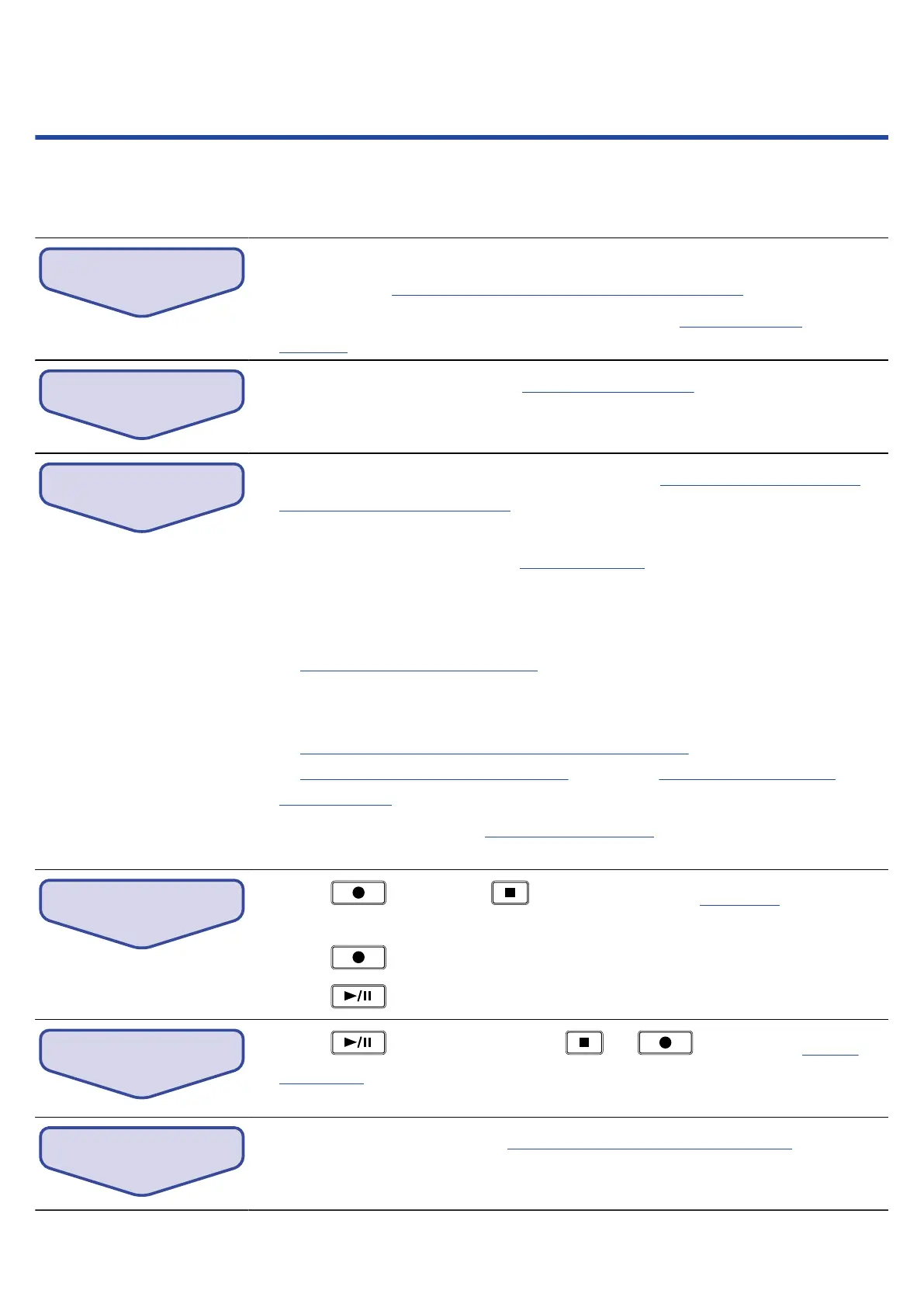
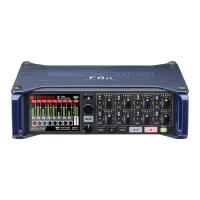
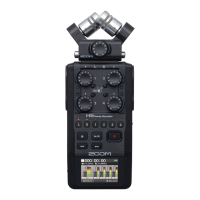
Recording with the F8n Pro follows the process shown below.
The data created for each recording occurrence is called a “take”.
• Connect mics, instruments, audiovisual equipment and other devices to
Inputs 1–8. (→Connecting mics/other devices to Inputs 1–8)
• Connect a mic capsule to the MIC IN connector. (→Connecting mic
capsules)
• Turn the F8n Pro power on. (→Turning the power on)
1. Set the SD card and file format for recording. (→Enabling recording on SD
cards and setting file formats)
Set the recording file format for each SD card separately.
2. Select the recording tracks. (→Selecting inputs)
Use track keys to select. The indicators for selected tracks light red and you
will be able to monitor input sounds.
Press two track keys simultaneously to link them as a stereo track.
(→Linking inputs as a stereo pair)
3. Make recording settings.
Make other settings, including for the following functions: Pre recording
(→Capturing audio before recording starts (Pre Rec)), High pass filter
(→Cutting low-frequency noise (HPF)), limiter (→Using the input limiter
(Input Limiter))
4. Adjust the input levels. (→Adjusting input levels)
The side mic level can also be adjusted when using a mid-side mic capsule.
• Press to start and to stop recording. (→Recording )
You can add marks during recording.
• Press to start recording a new track.
• Press to pause.
• Press to start playback and or to stop it. (→Playing
recordings)
You can add marks during playback.
• Check and edit metadata. (→Checking and editing take metadata)
28



 To Next Page