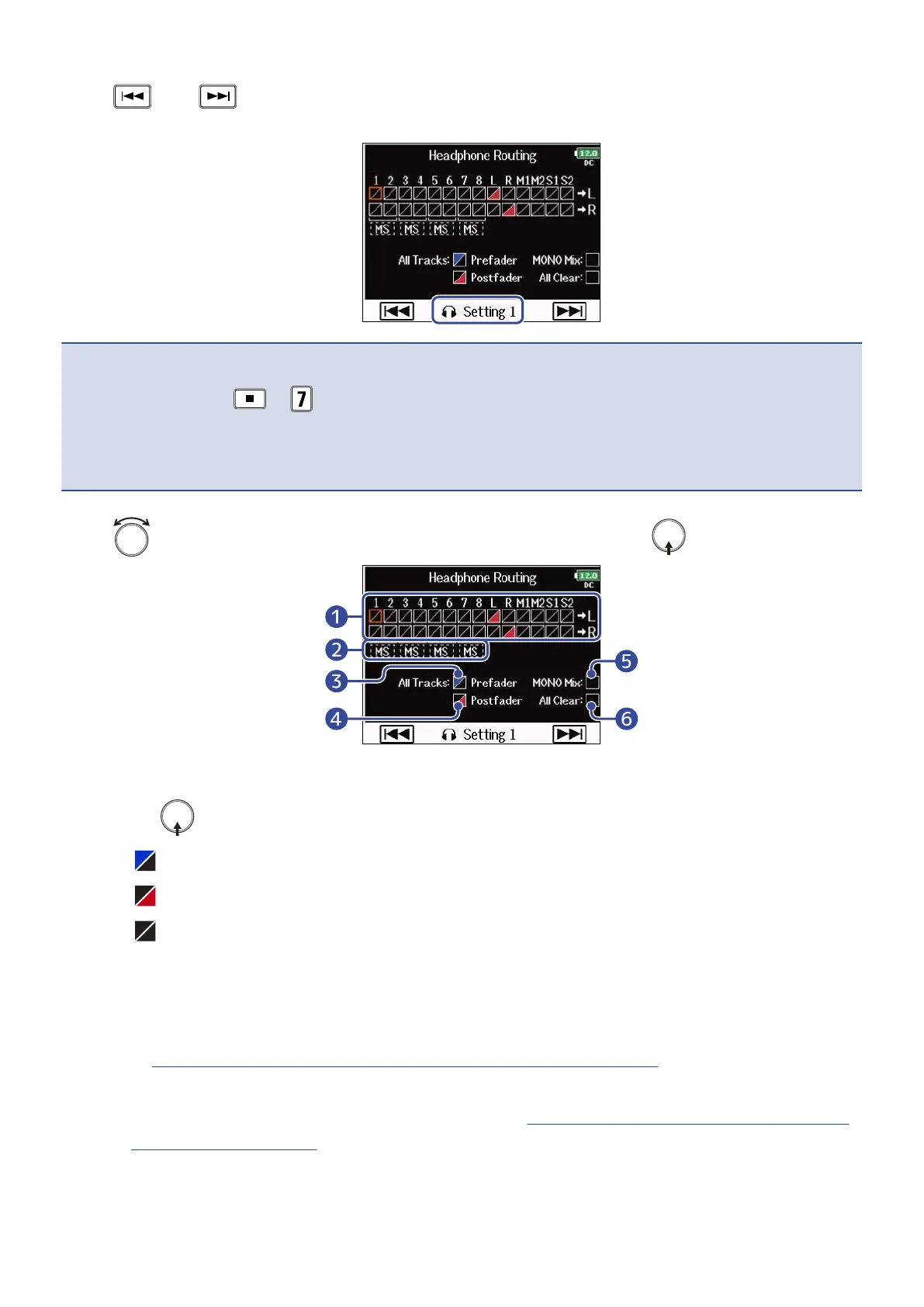
5. Use and to select the setting you want to change.
The selected “Setting” is displayed on the lower part of the screen.
NOTE:
• You can also press + to open the “Headphone Routing” screen.
• You can edit and save up to 10 signal settings.
• Settings are saved automatically.
6. Use to select the tracks/outputs for headphone routing and press .
❶
Tracks routed to the left or right headphone channel
Press to cycle through the options: “Prefader” → “Postfader” → “Off”.
• : Prefader selected
• : Postfader selected
• : Off
❷
Monitoring mid-side stereo signals
Signals from a mid-side stereo mic can be converted to an ordinary stereo signal for monitoring.
• This is disabled for stereo-linked tracks that have “Stereo Link Mode“ set to “MS Stereo Link”.
(→Converting mid-side input to ordinary stereo (Stereo Link Mode))
• This is only enabled for tracks that have a mid-side microphone or mid-side mic capsule
connected and the “Side Mic Level” set to RAW. (→Adjusting the side level of a mid-side mic
capsule (Side Mic Level))
94



 To Next Page