96 The PQF-Manager user interface Manual Power Quality Filter PQFM
In order to navigate through the menus of the PQF-Manager, the touch screen (Cf. Figure
69)has to be used. The starting point for the navigation after a power up is the
‘Welcome’ screen. The item selected is activated and its submenu appears on the screen
(e.g. the ‘Measurements’ menu in Figure 69). The name of the parent menu is displayed
at the top of the screen.
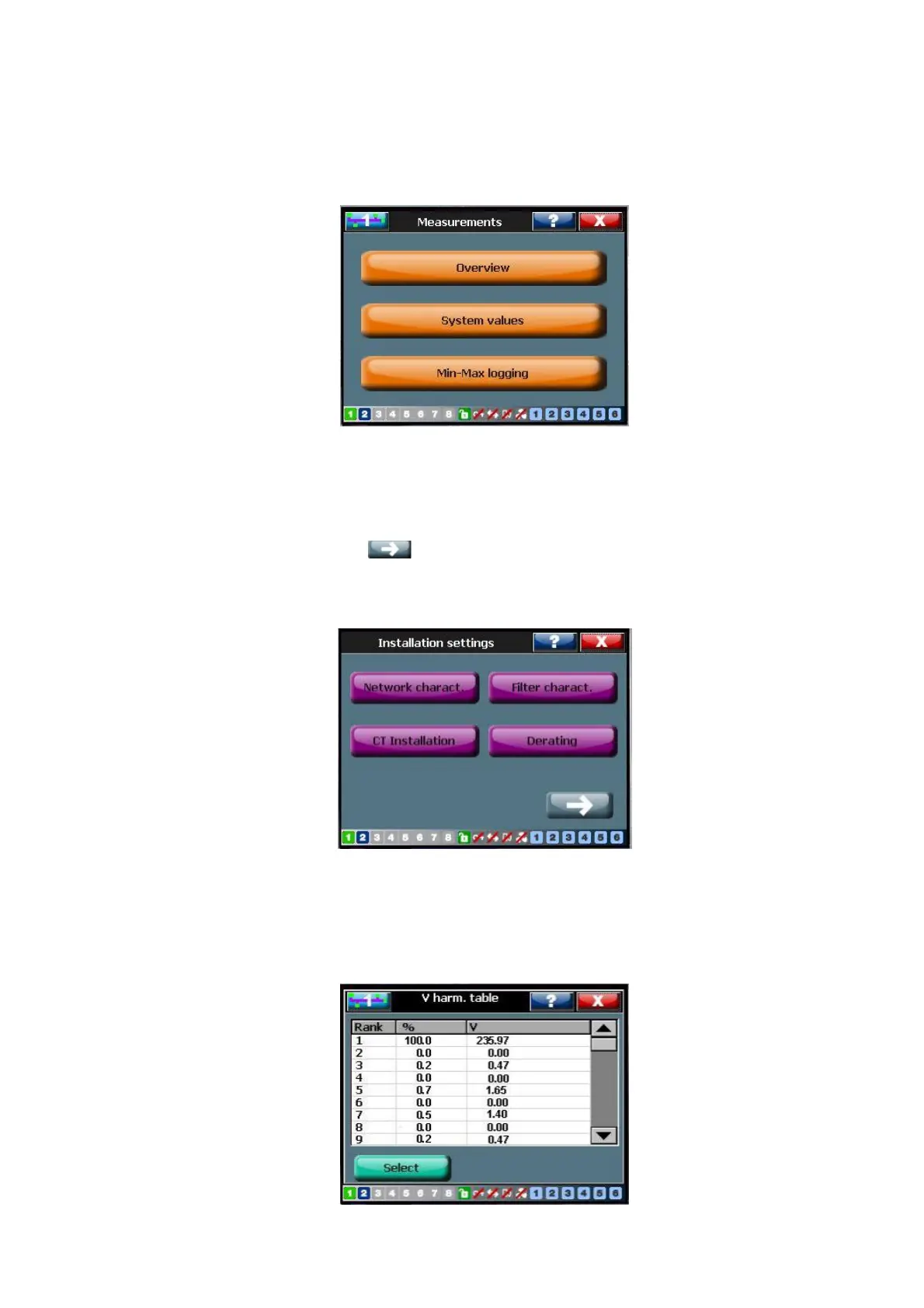
Figure 72: Sub-menu Measurements
Please note that:
− Sometimes the complete item list in a menu cannot be shown on the display. This
is indicated by a small symbol that appear(s) at the bottom right (Cf. Figure
73). Pressing this button takes the menu to the next screen where more items are
available to choose from.
Figure 73: Illustration of arrow symbol on the PQF-Manager display
− Sometimes, when the number of items or variables exceeds the limit of full screen
size, a sliding bar appears on the side of the screen. Sliding down (up) this bar
displays the remaining (previous) items as shown below:
Figure 74: Illustration of sliding bar on the PQF-Manager display


 To Next Page