CHAPTER 16. WORKING WITH INSTRUMENTS AND EFFECTS 218
tracks or following instruments. Please see the previous section, Using the Live Devices, for
details.
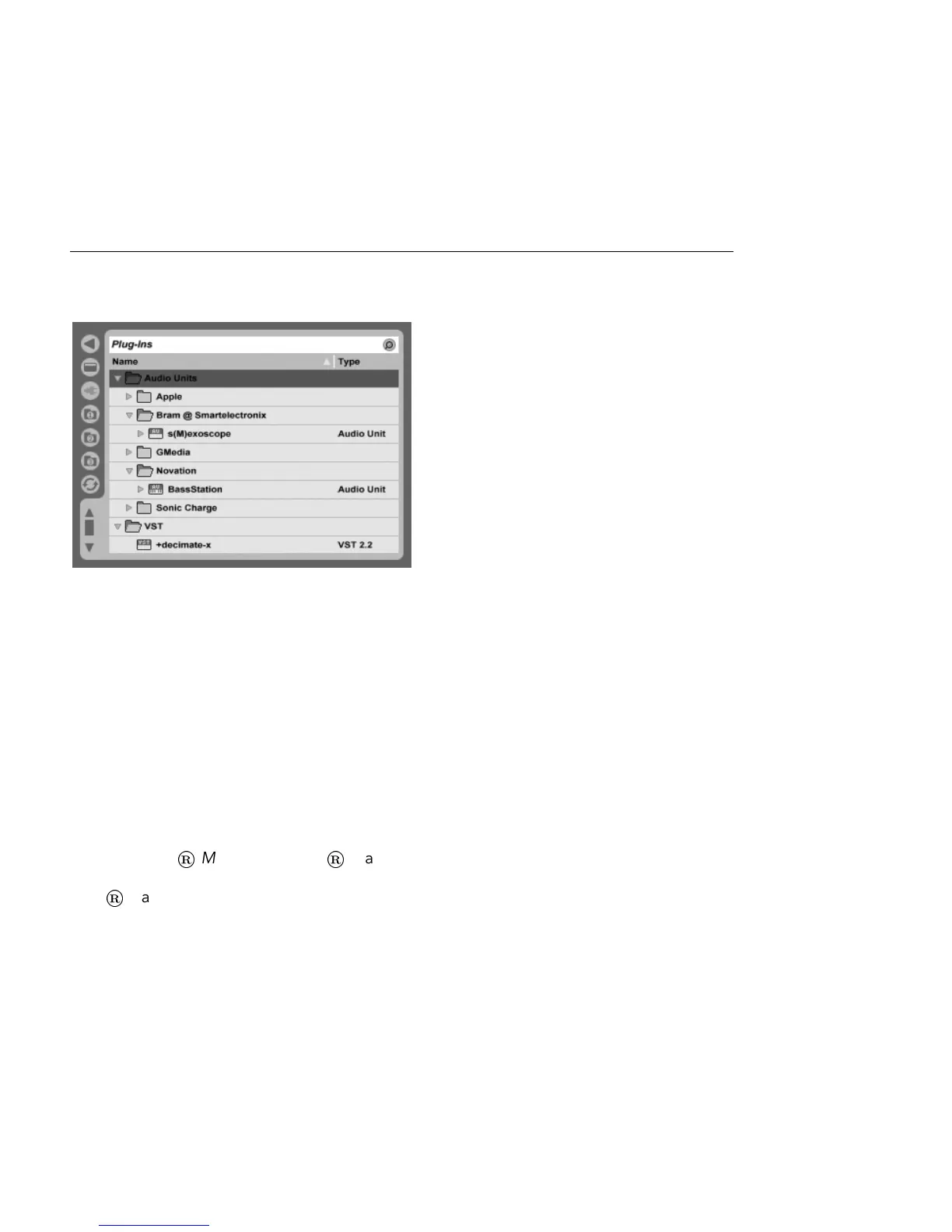
The Plug-In Device
Browser.
Audio Units and VST Plug-ins are browsed and imported using the Plug-In Device Browser,
which is accessed via its selector. Plug-in instruments can be differentiated from plug-in
effects in the Browser, as they appear with a keyboard icon.
The Browser's search functionality is only available for Audio Units Plug-ins, as is loading
presets directly from Track View devices via the Hot-Swap button. In some instances, factory
presets for Audio Units will only appear in the Browser once the device has been placed in
a track and its Hot-Swap button activated.
Note: The rst time you start Live, no plug-ins will appear in the Plug-In Device Browser,
as you must rst activate your plug-in sources. Activating your plug-in sources tells Live
which plug-ins you want to use and where they are located on your computer. Information
on activating (and deactivating) plug-in sources can be found later in this chapter, in the
sections on the VST Plug-in folder and Audio Units Plug-ins.
Note for Intel
®
Mac users: Intel
®
Mac computers cannot natively run VST or AU plug-
ins that have been written for the PowerPC platform. Only plug-ins of type (Universal) or
(Intel
®
) can be used in Live.
If you install/de-install a plug-in while the program is running, Live will not detect your
changes or implement them in the Plug-In Device Browser until the next time you start the
program. Use the Rescan button in the File/Folder Preferences to rescan your plug-ins while



 To Next Page