CHAPTER 19. CLIP ENVELOPES 267
19.5.1 Programming a Fade-Out for a Live Set
Let us start with a straightforward example. Suppose you are setting up a Live Set and wish
to program a fade-out over eight bars to occur when a specic clip is launched but all you
have is a one-bar loop.
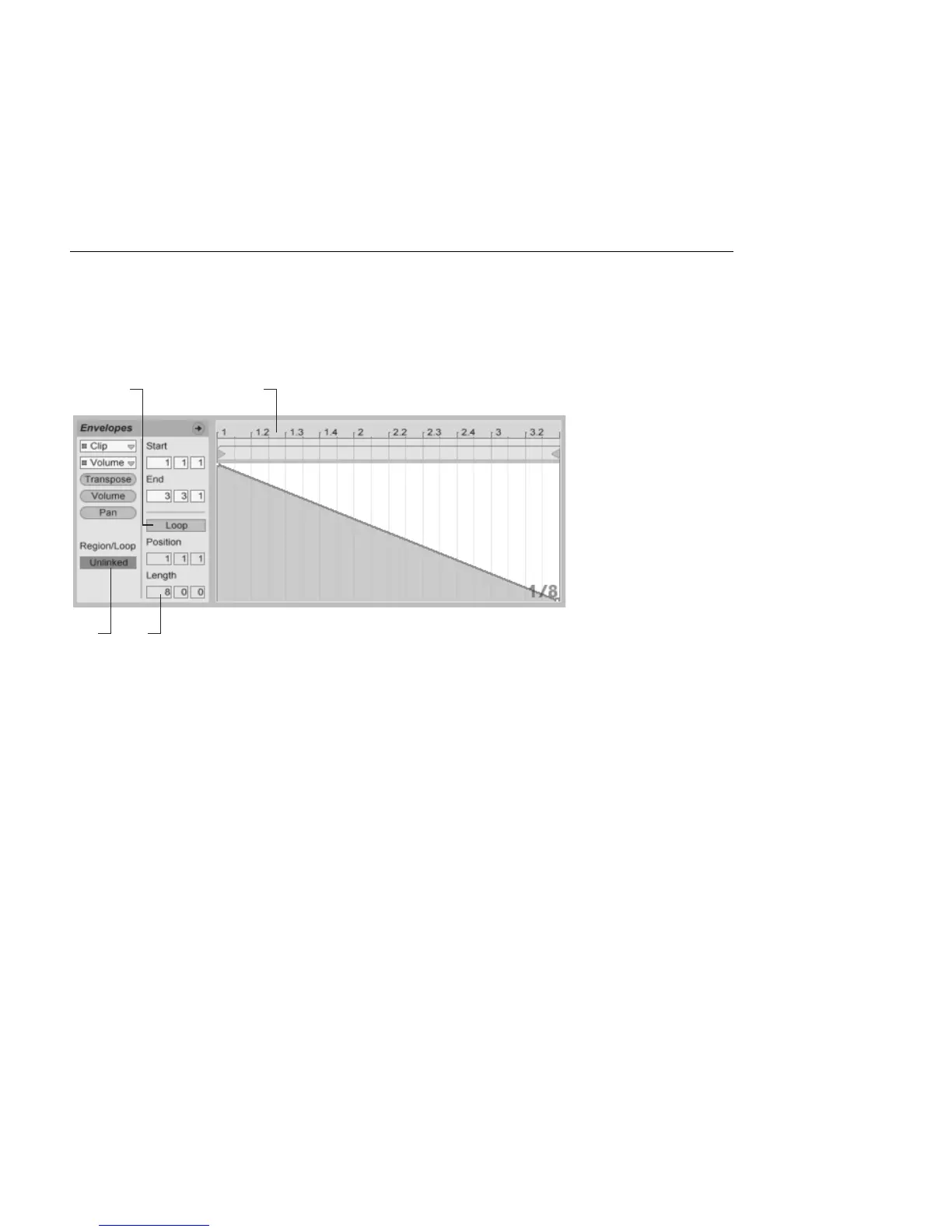
Using a Clip Envelope to
Create a Fade-Out Over
Several Repetitions of a
Loop.
1. Choose the Clip Volume envelope, and unlink it from the sample.
The clip envelope's loop braces now appear colored to indicate this envelope
now has its own local loop/region settings. The loop/region controls in the
Envelopes box come to life.
2. Make sure the clip envelope's Loop switch is off. Notice the Sample box's Loop
switch is not affected. The sample will keep looping although the envelope is
now playing as a one-shot.
3. Type 8 into the leftmost envelope loop-length value box.
4. Zoom the envelope display out all the way by clicking on the Envelope's time
ruler and dragging upwards.
5. Insert a breakpoint at the region end and drag it to the bottom (zero percent).
Now, as you play the clip, you can hear the one-bar loop fading out over eight bars.
Please note: toggling Linked Mode changes the envelope data. Toggling back and forth



 To Next Page