CHAPTER 7. SESSION VIEW 94
... Monitoring the
Input...
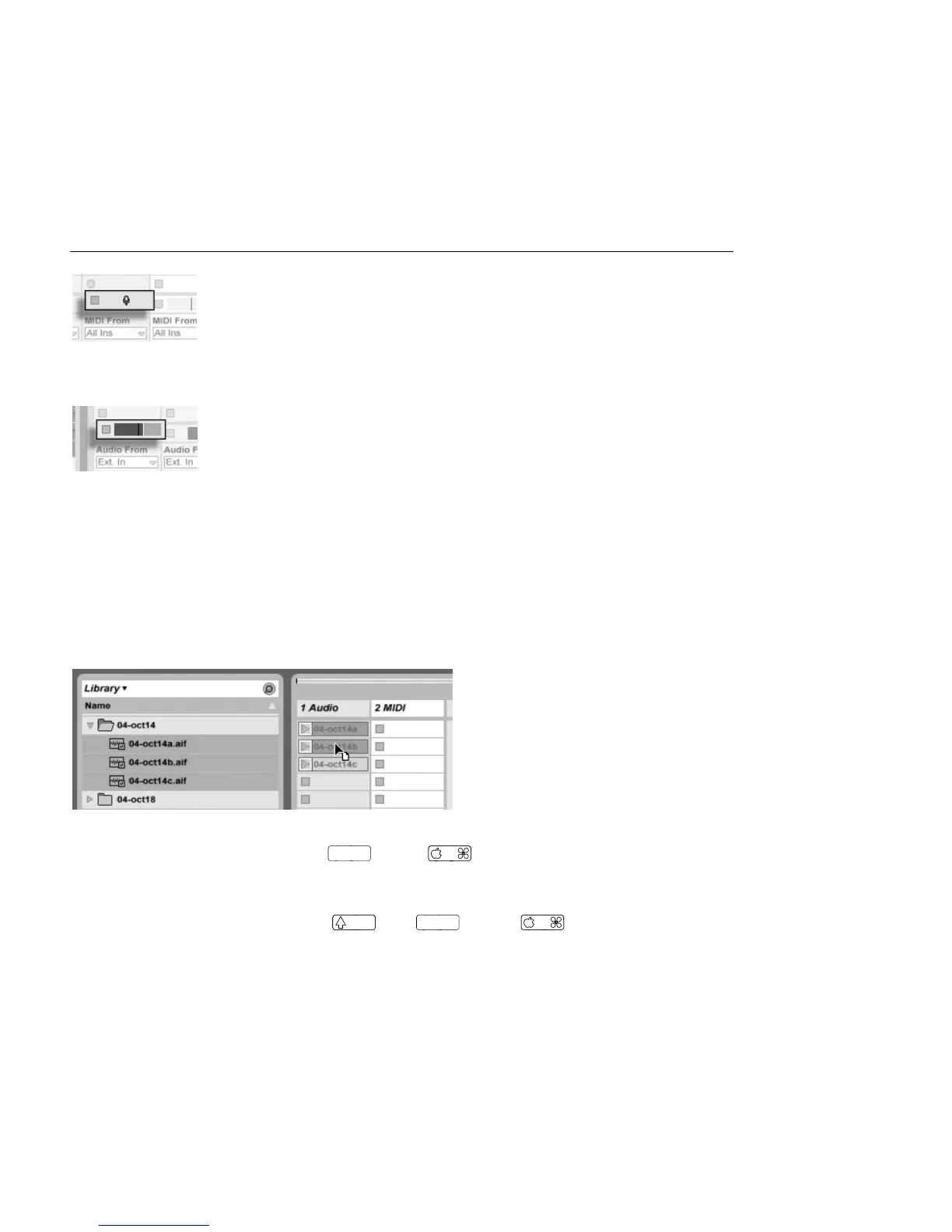
A microphone icon appears in an audio track that is set to monitor its input. A keyboard
icon appears in a MIDI track under these same circumstances.
... Playing the
Arrangement.
If the track is playing clips from the Arrangement, a miniature display representing the
Arrangement clips being played appears.
7.4 Setting Up the Session View Grid
Clips arrive in the Session View by being imported from the File Browsers or through
recording.
Dropping Multiple Clips
Into the Session View.
If you are dragging multiple clips into the Session View, Live defaults to arrange them
vertically, in one track. Hold down
(PC) / (Mac) prior to dropping them so as
to lay the clips out in one scene.
Clips can be moved around the Session grid by drag-and-drop. To move several clips
at once, select them by using the - or
(PC) / (Mac)-modier before
dragging. You can also click into an empty slot and rubber-band select from there.



 To Next Page