CHAPTER 5. MANAGING FILES AND SETS 40
Rename les and folders using the Edit menu's Rename command or the
(Mac), and then
selecting the Create Folder command.
Delete les and folders using the Edit menu's Delete command or your computer's
or
key. Deleting items within Live moves them to the system trash; if
necessary, you can recover items from the system trash via your computer's operating
system.
5.1.7 Hot-Swap Mode
In addition to the drag-and-drop method of loading les from the Browser, Live offers a
Hot-Swap Mode to save you mouse travel. Hot-Swap Mode establishes a temporary link
between the Browser and, for example, a virtual instrument. While in Hot-Swap Mode,
you can step through samples or presets to audition them in place, that is, within the
instrument. Hot-swapping for presets is covered in the Live Device Presets section. Let's go
through an example of hot-swapping samples:
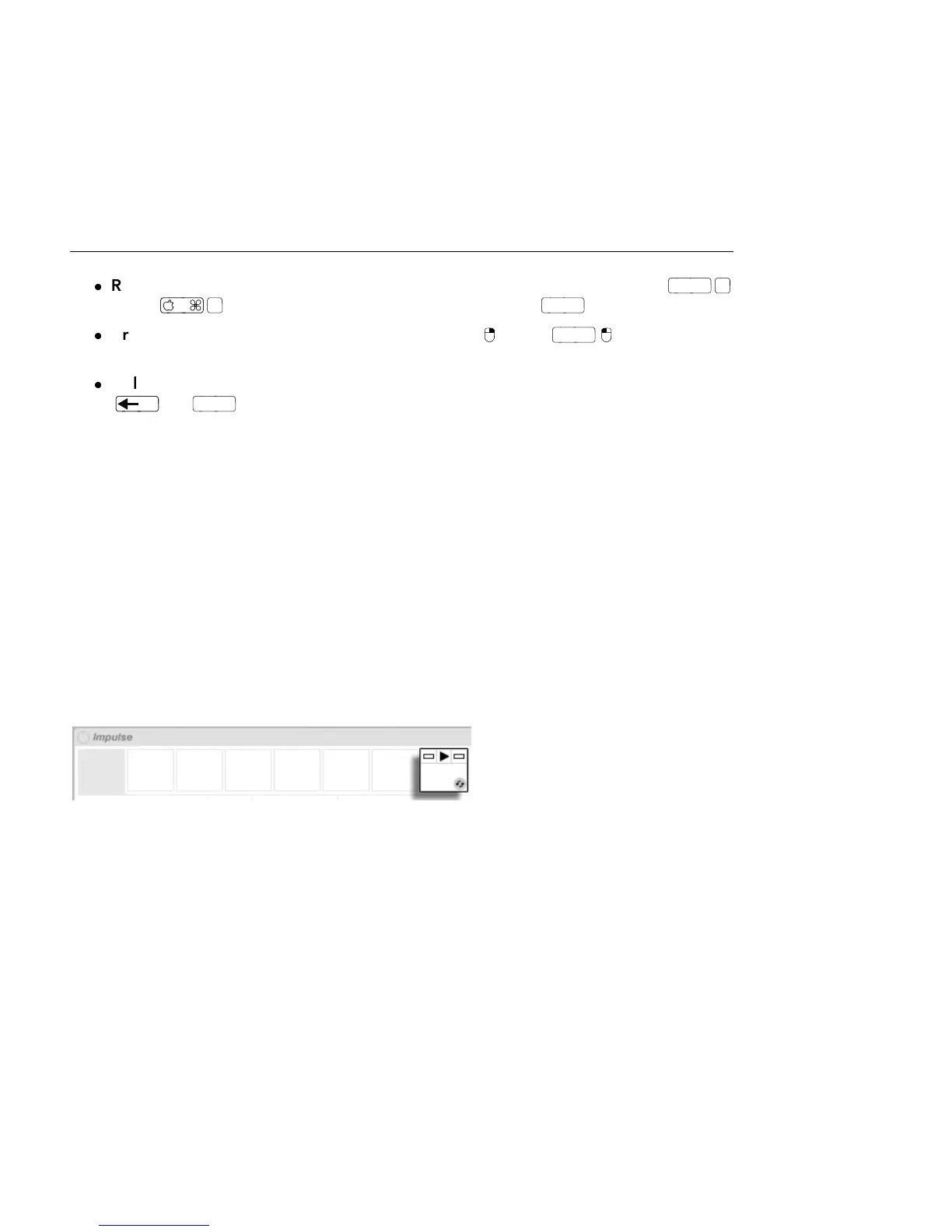
Live's built-in Impulse instrument features eight sample-player slots that can be lled by
dropping samples into them. Alternatively, we can click the Hot-Swap button that appears
as we move the mouse over a slot.
The Hot-Swap Button in
an Impulse Slot.
Clicking the Hot-Swap button engages Hot-Swap Mode: Live's Hot-Swap Browser opens,
and the Hot-Swap icon appears next to one of the les shown.



 To Next Page