CHAPTER 5. MANAGING FILES AND SETS 41
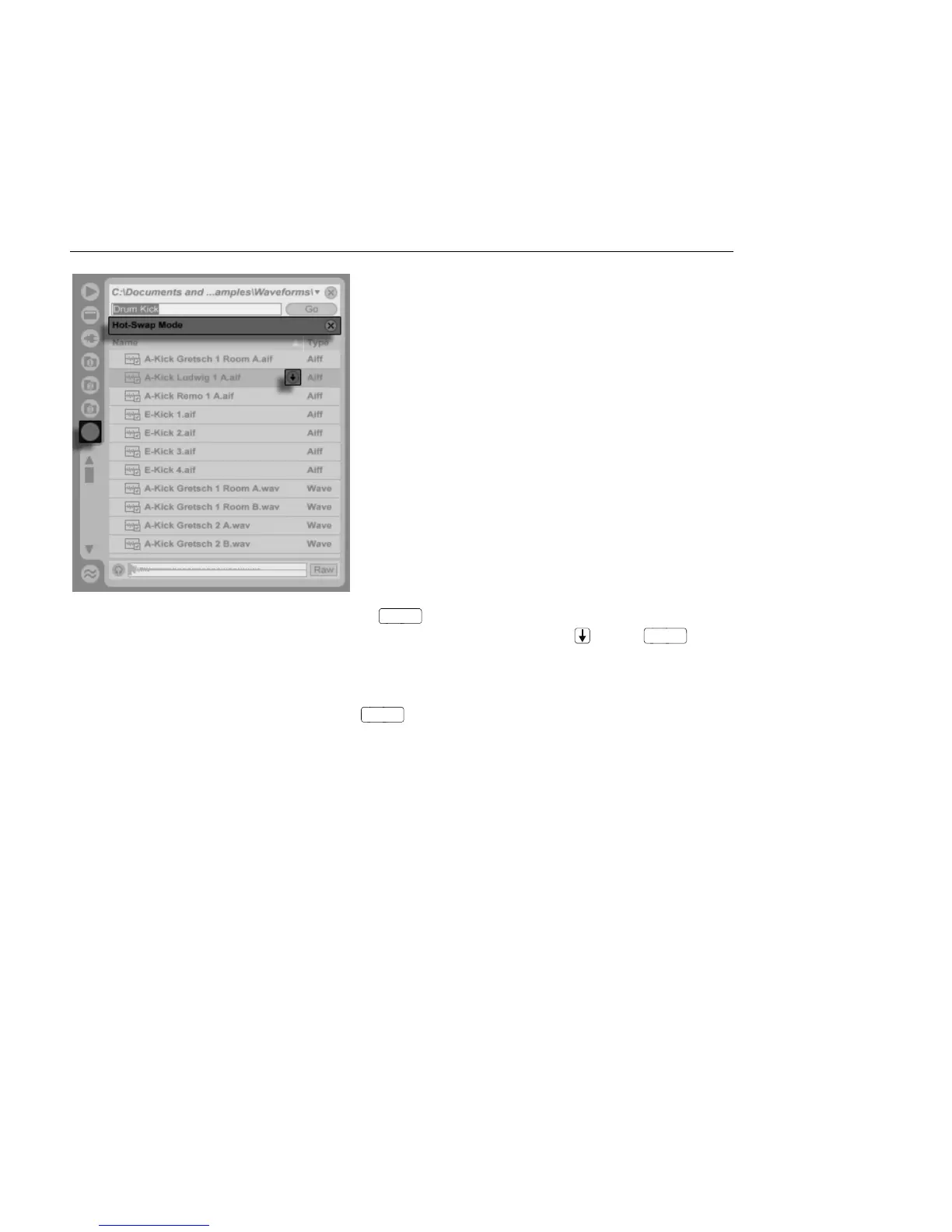
The Hot-Swap Browser.
While in Hot-Swap Mode, pressing the
key loads that le into the Impulse slot
(presumably while Impulse is playing incoming MIDI notes); pressing , then
loads
the next sample, and so on. Instead of using the keys, we can also click on the le's Hot-
Swap icon to load it. The link between the Browser and the instrument will be broken if a
different view is selected, or if the Hot-Swap button is pressed again. Hot-swapping can
also be cancelled with a press of the
key or by pressing the close button in the
Hot-Swap bar at the top of the Browser.
When Hot-Swap Mode is re-entered, the Hot-Swap Browser will try to reconstruct what you
saw when you loaded the current le into the Impulse slot. If, for instance, the current
le was found by searching for gretsch kick, the Hot-Swap Browser will come up with
that search string in the search eld. In our example, we were hot-swapping for an empty
Impulse slot, so Live came up with something appropriate: a search for Drum Kick in
Library/Samples/Waveforms.



 To Next Page