CHAPTER 16. WORKING WITH INSTRUMENTS AND EFFECTS 224
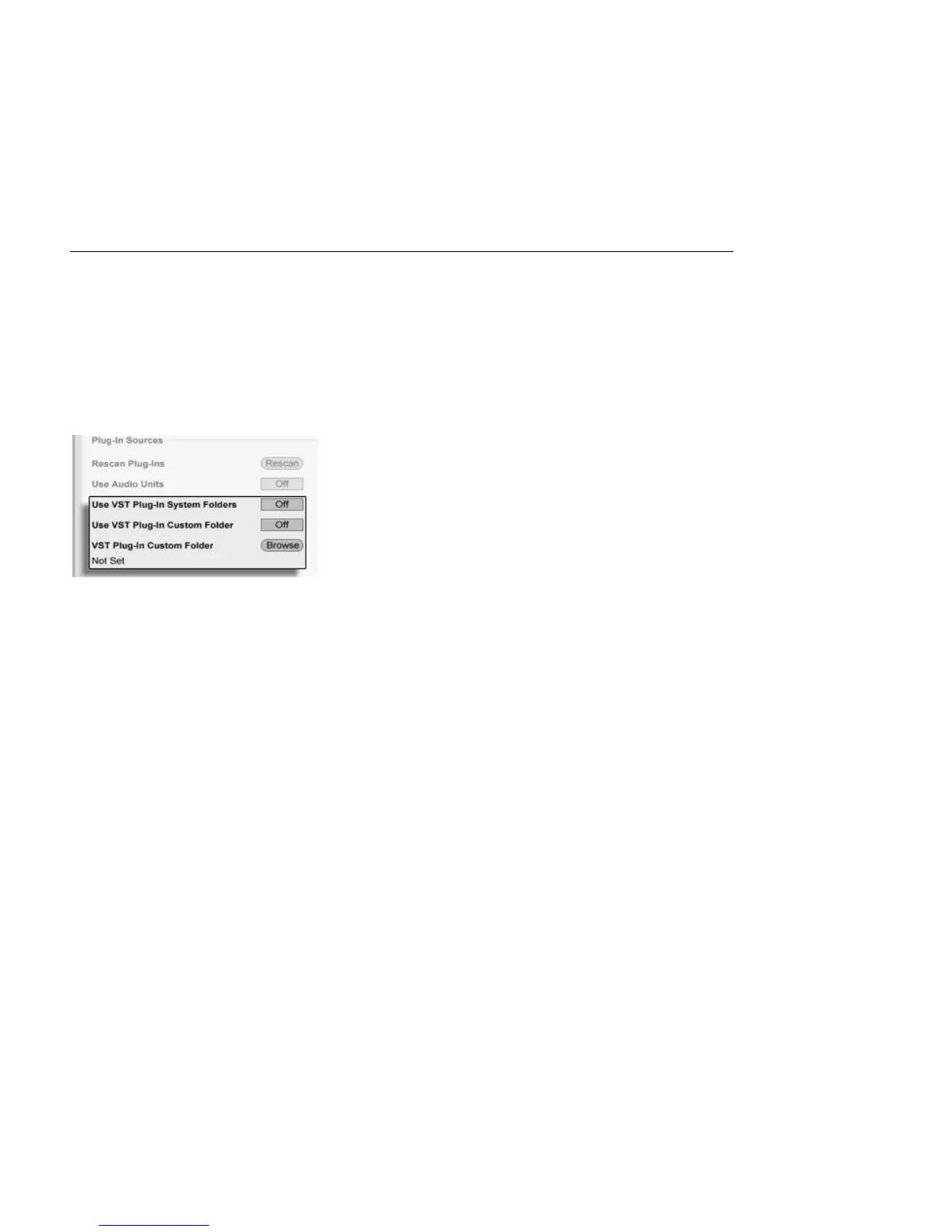
2. Once you have selected a VST Custom Folder and Live has scanned it, the path
will be displayed. Note that, on Windows, Live may have found a path in the
registry without the need for browsing.
3. Make sure that the Use VST Plug-In Custom Folder option is set to On, so
that your selected folder is an active source for VST Plug-ins in Live. Note that
you can choose not to use your VST Plug-ins in Live by turning off the Use VST
Plug-In Custom Folder option.
Setting up VST Plug-In
Sources for Mac OS X.
Set up your VST Plug-ins under Mac OS X by doing the following:
1. Your VST Plug-ins will normally be installed in the following folder in your home
and local directories: /Library/Audio/Plug-Ins/VST. You can turn Live's use of
these plug-ins on or off with the Use VST Plug-ins in System Folders option.
2. You may have an alternative folder in which you store your VST Plug-ins (perhaps
those that you use only with Live). You can use VST Plug-ins in this folder in addi-
tion to, or instead of, those in the System folders. To tell Live about the location
of this folder, click the Browse button next to the VST Plug-In Custom Folder
entry to open a folder-search dialog for locating and selecting the appropriate
folder.
3. Note that you can turn off your VST Plug-ins in this folder using the Use VST
Plug-In Custom folder option.
Once you have congured your Plug-In Preferences, the Plug-In Device Browser will display
all plug-ins it nds in the selected VST Plug-in folder(s) as well as any sub-folders.
It is also possible to use VST Plug-ins stored in different folders on your computer. To do
this, create a Mac OS or Windows alias of the folder where additional VST Plug-ins are
stored, and then place the alias in the VST Plug-In Custom folder (or in the VST Plug-In



 To Next Page