CHAPTER 5. MANAGING FILES AND SETS 38
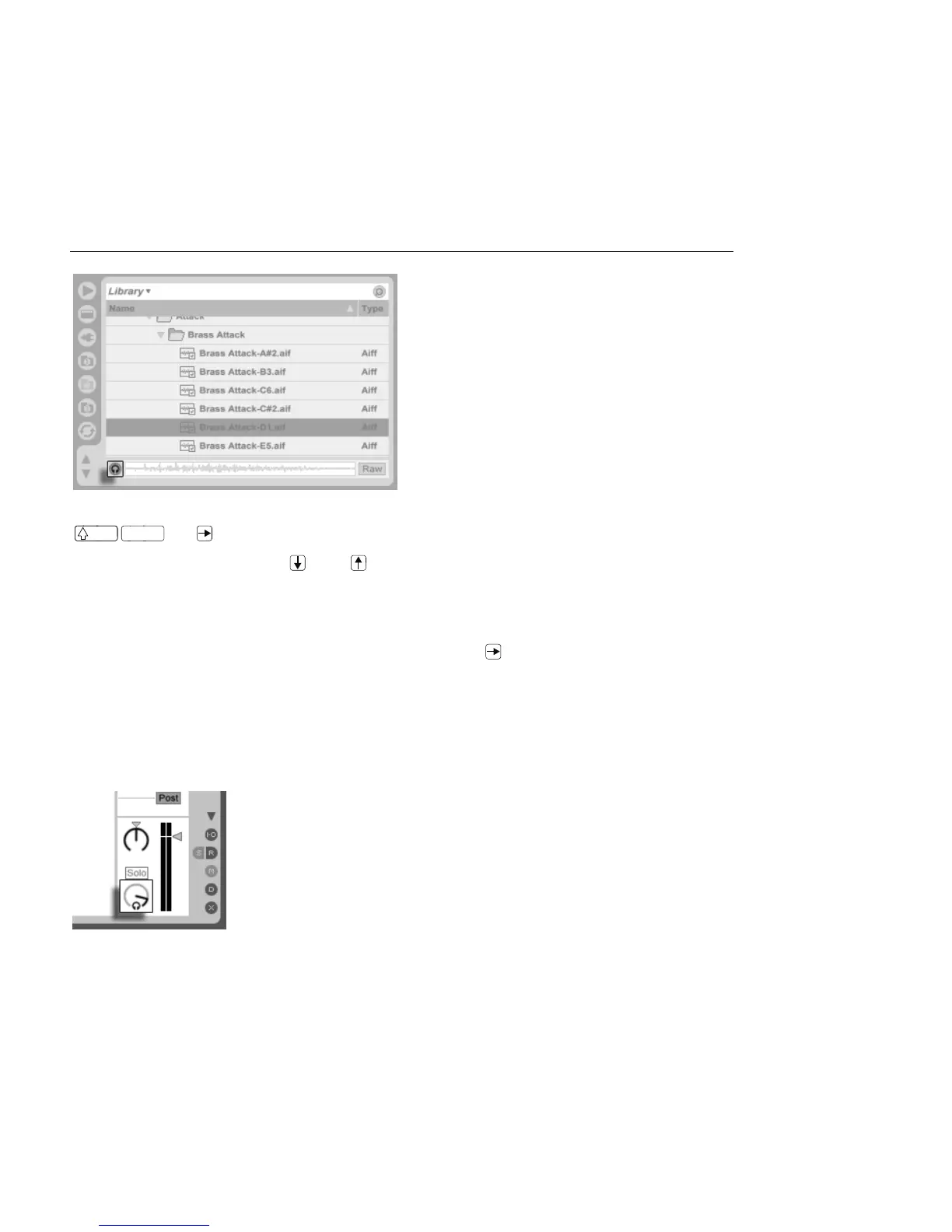
The Preview Switch.
Hint: You can preview les even when the Preview switch is not activated by pressing
or .
Click on a sample le (or use and ) to select it. Click in the Tab's scrub area to make
playback jump to that point. (Note that it is not possible to scrub clips that have been saved
with Warp turned off.)
You can also select Live Clips in the Browser to load them into the Preview Tab, but they will
not play automatically. You can click on the tab or press to preview them.
W ith the Raw button enabled, les will preview at their original tempo and will not loop.
W ith Raw disabled, Live will try to preview les in sync with the current Set, so that you can
better judge which samples will work for you. Please note that scrubbing is not possible
when Raw is enabled.
The previewing volume can be adjusted using the mixer's Preview Volume knob.
The Preview Volume
Knob.
If your audio hardware offers multiple audio outs, you can privately audition, or cue, les
via headphones connected to a separate pair of outs while the music continues to play.



 To Next Page