CHAPTER 5. MANAGING FILES AND SETS 46
Audio Rendering Options
Audio Rendering
Options.
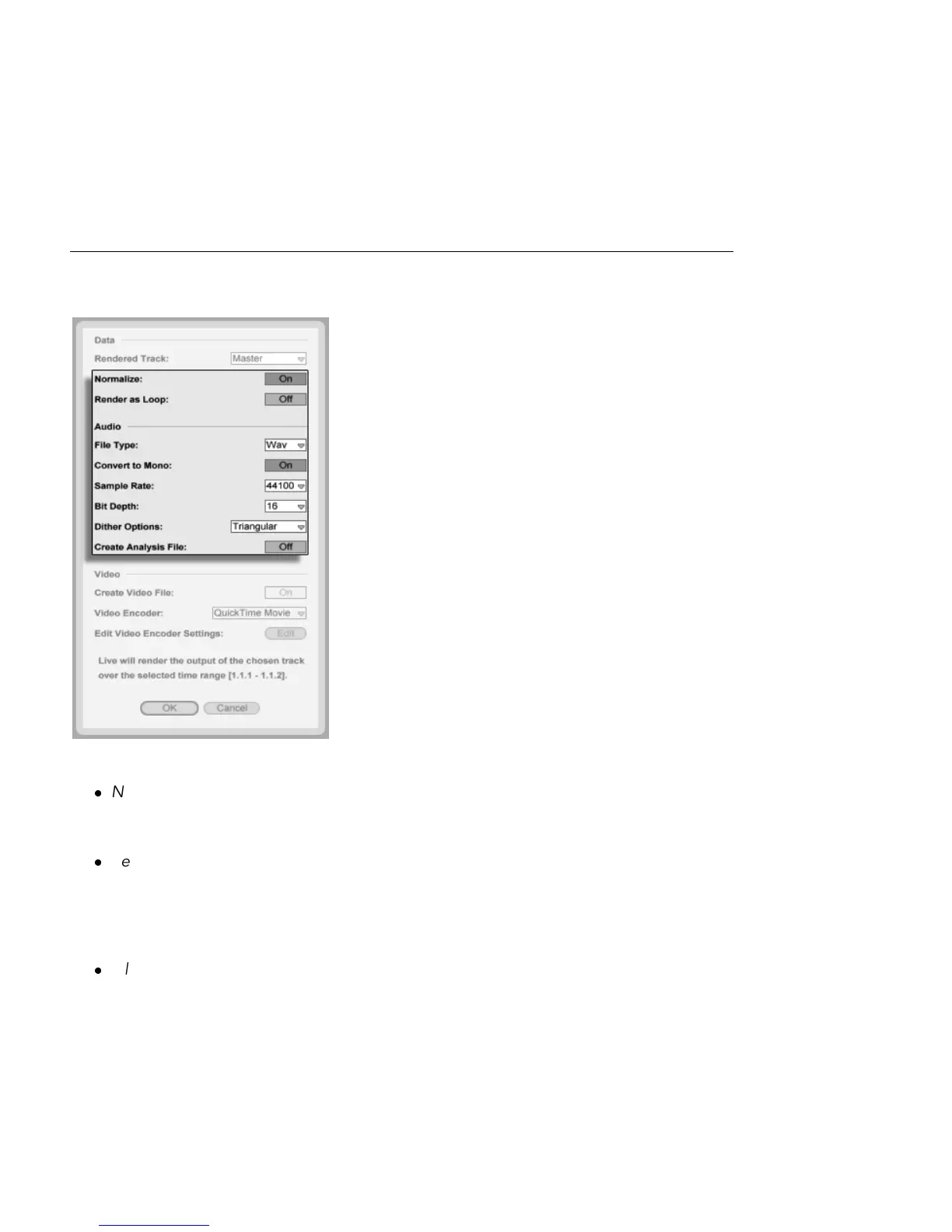
The Export dialog offers several audio rendering options:
Normalize If this is activated, the sample resulting from the render process will be
normalized (i.e., the le will be amplied so that the highest peak attains the maximum
available headroom).
Render as Loop If this is activated, Live will create a sample that can be used as a
loop. For example, suppose your Live Set uses a delay effect. If Render as Loop is on,
Live will go through the rendering process twice: The rst pass will not actually write
samples to disk, but add the specied delay effect. As the second pass starts writing
audio to disk, it will include the delay tail resulting from the rst pass.
File Type, Bit Depth, Sample Rate These options specify the type of sample to be



 To Next Page