38
RTCA SP Instrument Operator’s Manual
C
C
Set up the Layout page
This page determines the experiment layout and records experiment details about each
well, including: name and number of cells, name and concentration of compounds
added into wells, etc.
Select the wells to be edited:
To select a single well, move mouse cursor over the well to be selected, and
left-click. The selected well is highlighted. The well ID of the selected well is
automatically fi lled into the Well IDs section. If, for example, the well D1 is selected,
then the Well IDs section reads: ”D1:D1”.
To select multiple wells, move the cursor over the fi rst well to be selected, left-click
and hold the mouse. Drag the mouse across the other wells, to the last well to be
selected. Release the mouse button. All selected wells are highlighted, the well’s
ID, for example A1:D2, is automatically fi lled into the Well IDs section, if all wells
between A1 and D2 are selected.
Note that the text in the Well IDs section has the format First well ID:
Last well ID.
To select an entire row(s) or column(s), move the mouse to the row ID (e.g. A or E)
or column ID (e.g. 1 or 3), and left-click. To select adjacent multiple-rows
or multiple columns, left-click and drag across row IDs or column IDs.
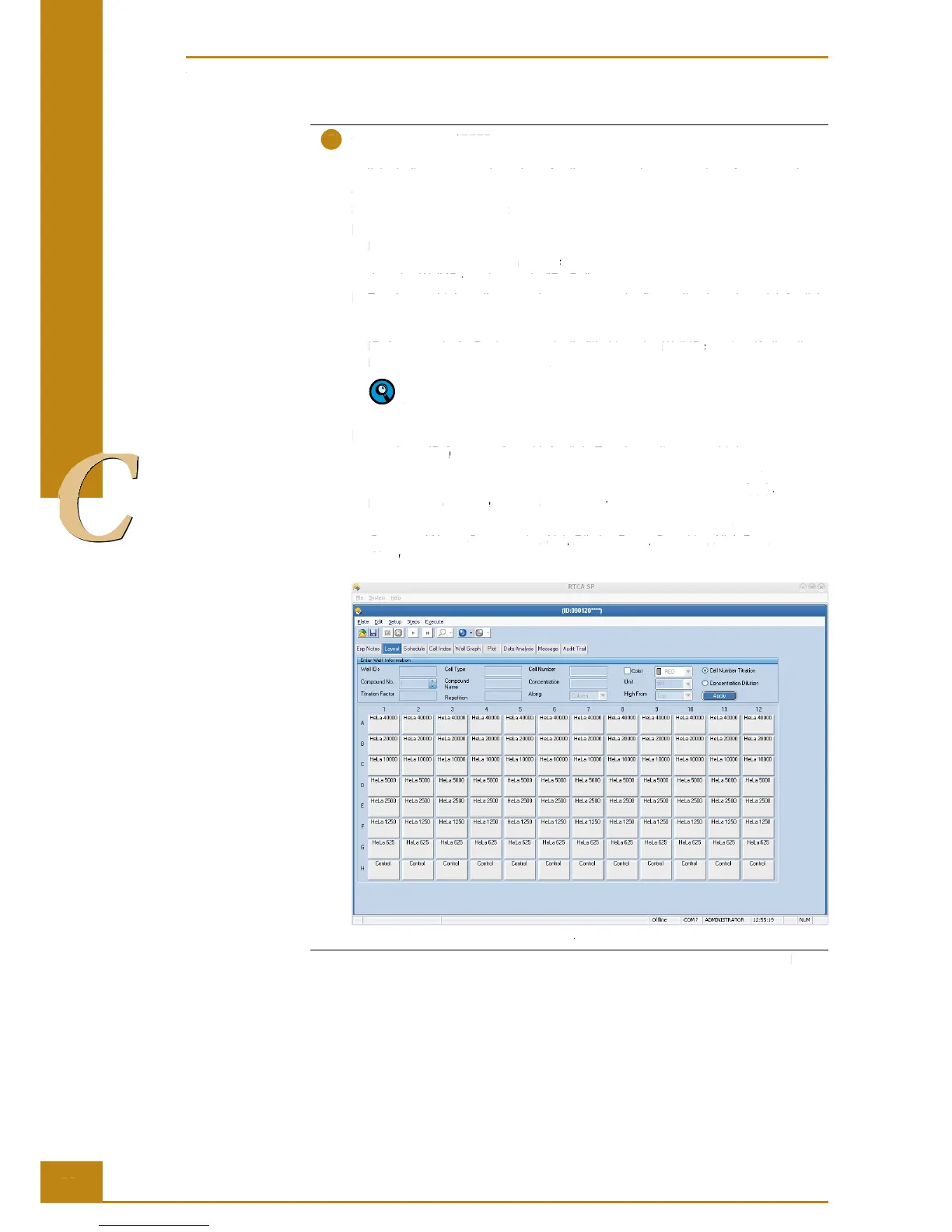
Enter information into appropriate information edit boxes, and click Apply.
For example: Cell Type – HeLa; Cell Number – 40000.
For a detailed description of other fi elds, including Compound No.,
Compound Name, Concentration, Unit, Dilution Factor, Repetition, High From,
Along please refer to the RTCA Software Manual.
Figure 24: Example of a programmed Layout page.
Preparing and Starting a Run on the RTCA SP Instrument
Running a Quick Experiment
RTCA SP Instrument Operator’s Manual
This page determines the experiment layout and records experiment details about each
well, including: name and number of cells, name and concentration of compounds
Select the wells to be edited:
To select a single well, move mouse cursor over the well to be selected, and
left-click. The selected well is highlighted. The well ID of the selected well is
automatically fi lled into the
section. If, for example, the well D1 is selected,
Well IDs section. If, for example, the well D1 is selected, Well IDs
Well IDs section reads: ”D1:D1”. Well IDs
To select multiple wells, move the cursor over the fi rst well to be selected, left-click
and hold the mouse. Drag the mouse across the other wells, to the last well to be
selected. Release the mouse button. All selected wells are highlighted, the well’s
ID, for example A1:D2, is automatically fi lled into the
Well IDs section, if all wells Well IDs
between A1 and D2 are selected.
Note that the text in the Well IDs section has the format First well ID:
To select an entire row(s) or column(s), move the mouse to the row ID (
or column ID (e.g.or column ID (
1 or 3), and left-click. To select adjacent multiple-rows
or multiple columns, left-click and drag across row IDs or column IDs.
Enter information into appropriate information edit boxes, and click
Cell Type – HeLa; Cell Type
Cell Number – 40000. Cell Number
For a detailed description of other fi elds, including
Dilution Factor, Dilution Factor
please refer to the RTCA Software Manual.
Along please refer to the RTCA Software Manual.Along
Figure 24: Example of a programmed
Preparing and Starting a Run on the RTCA SP Instrument
Running a Quick Experiment


 To Next Page