5-32 – Main Rotor Track & Balance 5 Revision 3, Oct 2012
adjustment, the trim tab adjustment would be skipped and only the pitch change link
adjustment would be made.
As stated earlier, the solutions presented by the analyzer are based on the charts defined in the
setup and the measurements acquired for the current run. These influences will be updated
each time the analyzer is used. For the updates to be accurate, you must enter exactly the
adjustments performed, or skipped. If the analyzer presents a solution and you choose not to
apply it on the current run, you are required to zero out the adjustment entries in the recording
screen for that particular adjustment. If you believe that the current ICFs are correct and the
impact of one adjustment on another will be minimal, it is possible to make multiple
adjustments during a single run by pressing the [F1] “All Adj” key.
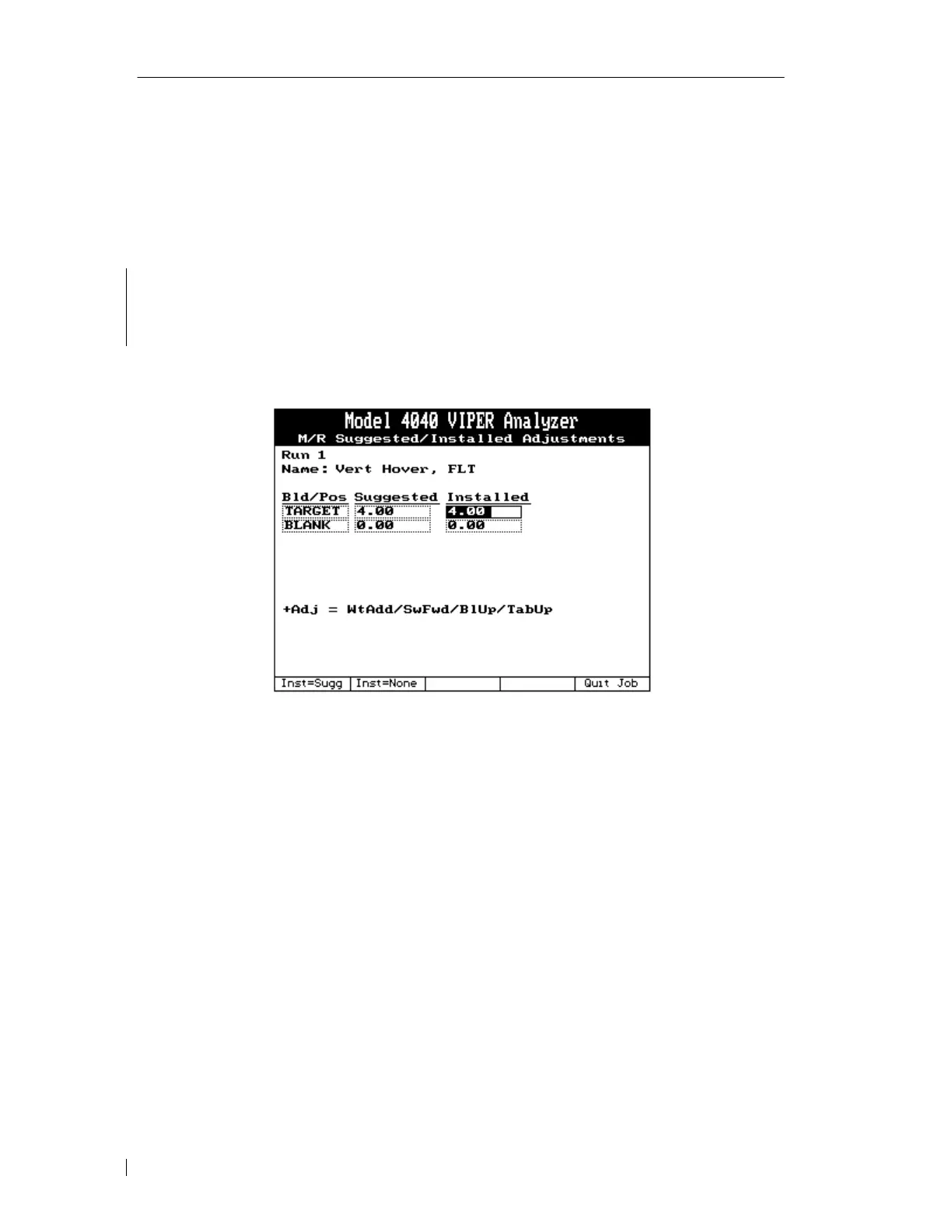
5.3.12.1. – Example Solution Screen #1
For our sample job, the first adjustment given is for a vertical measurement at hover. The
adjustment type to be applied is “FLT” or flats of a pitch change link. The line at the bottom
of the screen serves as a reminder that a positive adjustment is intended to move the blade up.
For this measurement, the analyzer’s recommended adjustment is to raise the Target blade by
4.00 flats. This solution has been automatically entered in the appropriate “Installed” field. If
you are able to make this adjustment exactly as entered, all that is necessary to continue is
pressing the [ENTER] key. If an adjustment is made other than raising the Target blade 4.00
flats, you must enter this in the appropriate “Installed” field using the keypad.
• Pressing the [F1] “Inst=Sugg” key will return any “Installed” field that has been edited to
the original values presented by the analyzer.
• Pressing the [F2] “Inst=None” key will delete all “Installed” field entries. This function is
used when a particular adjustment is to be skipped on the current run.
• Pressing the [F5] “Quit Job” key will exit the current job and store it as complete.
Warning
Using the [F5] “Quit Job” function will close the job and not allow resuming at a later



 To Next Page