VP-8-V2 and VP-16-V2 Series Encoder
·
User Manual
28
It will ask you to reboot the device to activate the settings.
4.3.3 Configuring DDNS Settings
If your device is set to use PPPoE as its default network connection, you may set Dynamic DNS (DDNS) to be used
for network access.
Prior registration with your DDNS Provider is required before configuring the system to use DDNS.
Steps:
1.
Click the
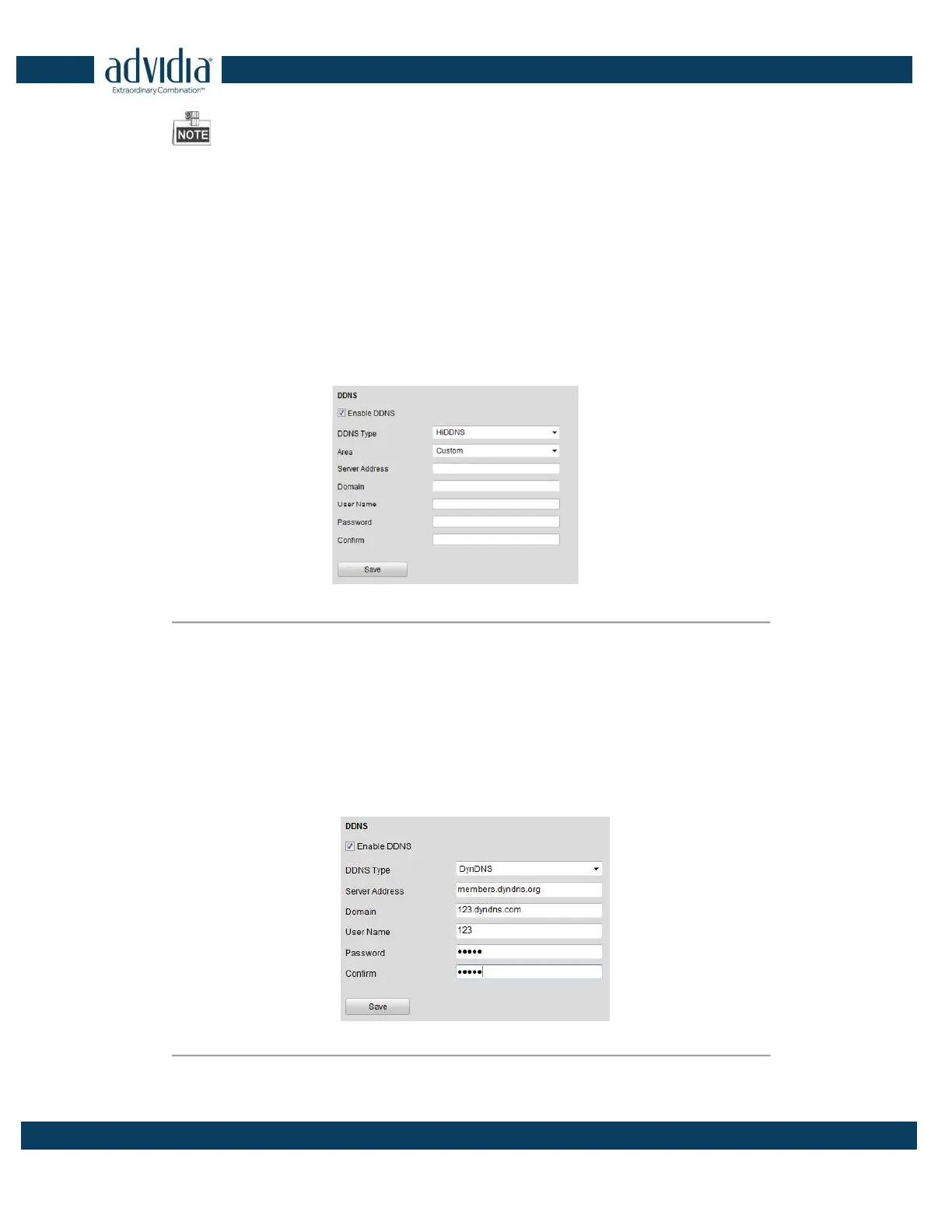
Remote Configuration > Network Settings > DDNS Settings to enter the DDNS Settings interface:
www.hiddns.com
Figure 4. 11 DDNS Settings
2. Check the Enable DDNS checkbox to enable this feature.
3. Select DDNS Type. Five different DDNS types are selectable: IPServer, DynDNS, PeanutHull, HiDDNS, and
NO-IP.
•
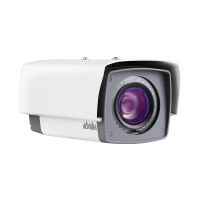
DynDNS:
(1) Enter Server Address for DynDNS (e.g., members.dyndns.org).
(2) In the Device Domain Name text field, enter the domain obtained from the DynDNS website.
(3) Enter the User Name and Password registered in the DynDNS website.
(4) Click Save to save the settings.
Figure 4. 12 DynDNS Settings
•
IPServer:


 To Next Page