VP-8-V2 and VP-16-V2 Series Encoder
·
User Manual
39
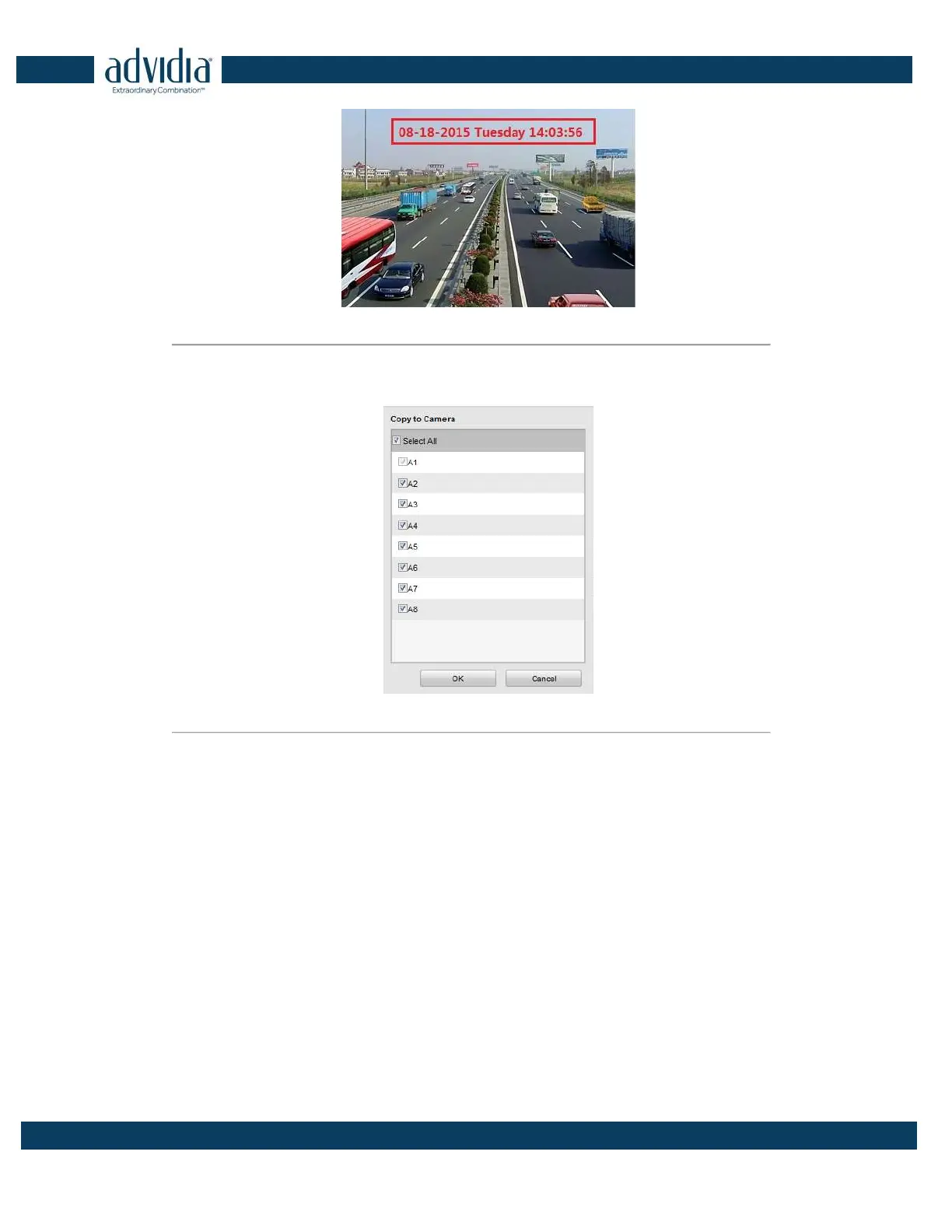
Figure 5. 3
Adjust OSD Location
7. If you want to copy the display settings of the current camera to other cameras, spread the Copy to Camera
panel and select the camera(s) to copy, or click Select All to select all cameras.
Figure 5. 4
Copy to Camera
8. Click OK to validate the above settings.
5.1.2 Configuring Text Overlay
Steps:
1.
Click the
Remote Configuration >Camera Settings > Text Overlay Settings to enter the Text Overlay Settings
interface.
2. Select the camera from the drop-down list.
3. Edit the user-defined text content.
Click the checkbox in the text box below and then input the characters. Up to 8 character strings can be
edited.
4. Click Save, and the edited text is shown on the image.
5. On the preview image, you can adjust the Text location on the screen by moving the text frame.


 To Next Page