VP-8-V2 and VP-16-V2 Series Encoder
·
User Manual
51
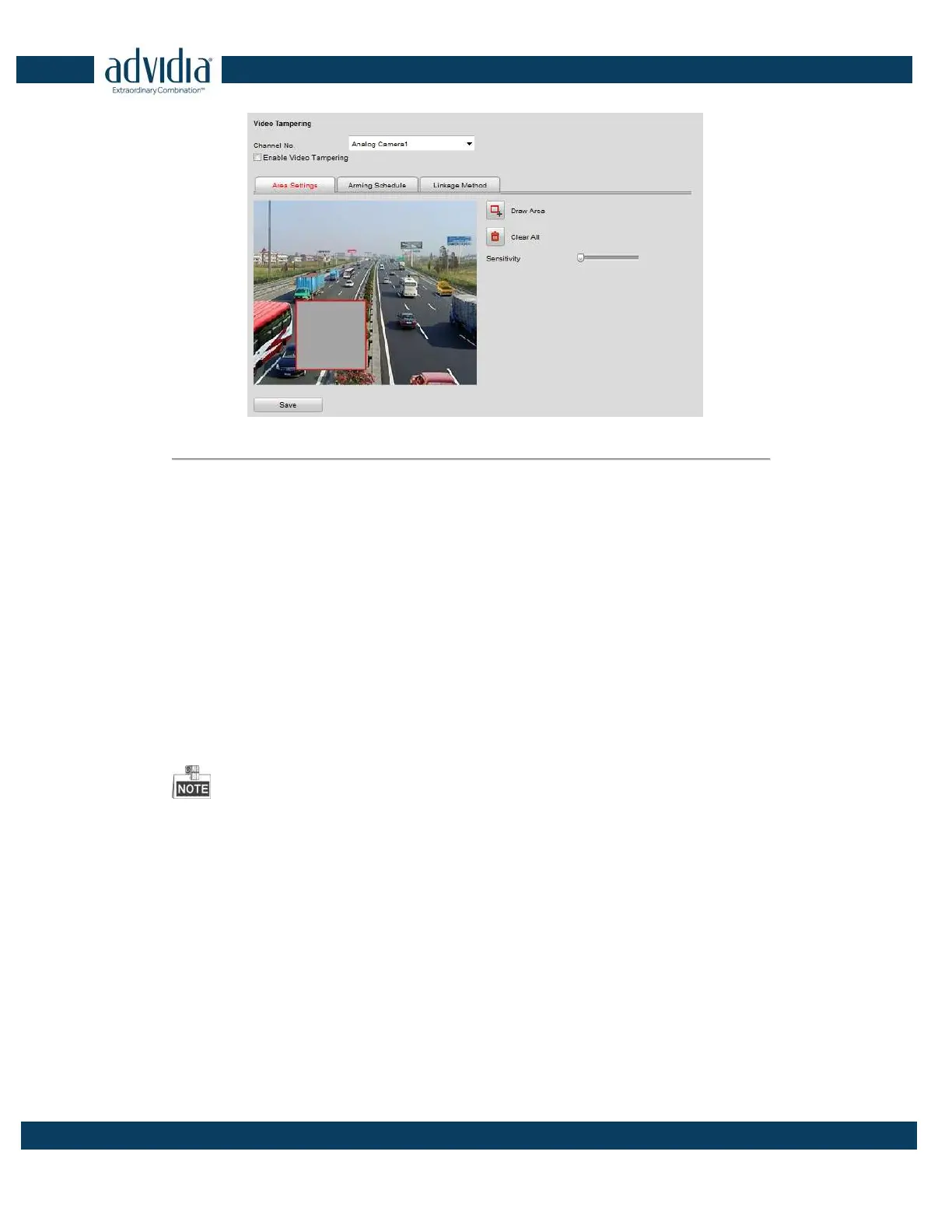
Figure 5. 21 Video Tempering Alarm Settings
3. Click checkbox of Enable Video Tempering.
4. Set the tamper-Proof area. Please refer to Step 1 Set the Motion Detection Area in Chapter 8.3.1.
5. Click Edit to edit the arming schedule for tamper-proof. The arming schedule configuration is the same as
the Setting of the Arming Schedule for Motion Detection. Please refer to Step 2 Set the Arming Schedule for
Motion Detection in Section Configuring Motion Detection.
6. Click the Linkage Method tab to set the actions taken for the tamper-proof alarm. Please refer to Step 3 Set
the Alarm Actions Taken for Motion Detection in Section Configuring Motion Detection.
5.3.7 Handling Exception
The exception type can be HDD full, HDD error, network disconnected, IP address conflict, illegal access, video
standard mismatch, video signal exception, record/capture exception and video resolution mismatch.
When the selected resolution under Remote Configuration > Camera Settings >Video Settings and the actual
video input resolution are mismatched, the exception alarm will occur. Please refer to Section Configuring Video
Settings.
Steps:
1. Click Remote Configuration > Alarm Settings > Exception to enter the Exception Settings interface.
2. Check the checkbox to set the actions taken for the Exception alarm. Please refer to Step 3 Set the Alarm
Actions Taken for Motion Detection in Section Configuring Motion Detection.


 To Next Page