4
116 AhnLab TrusGuard Installation Guide
Login with OTP
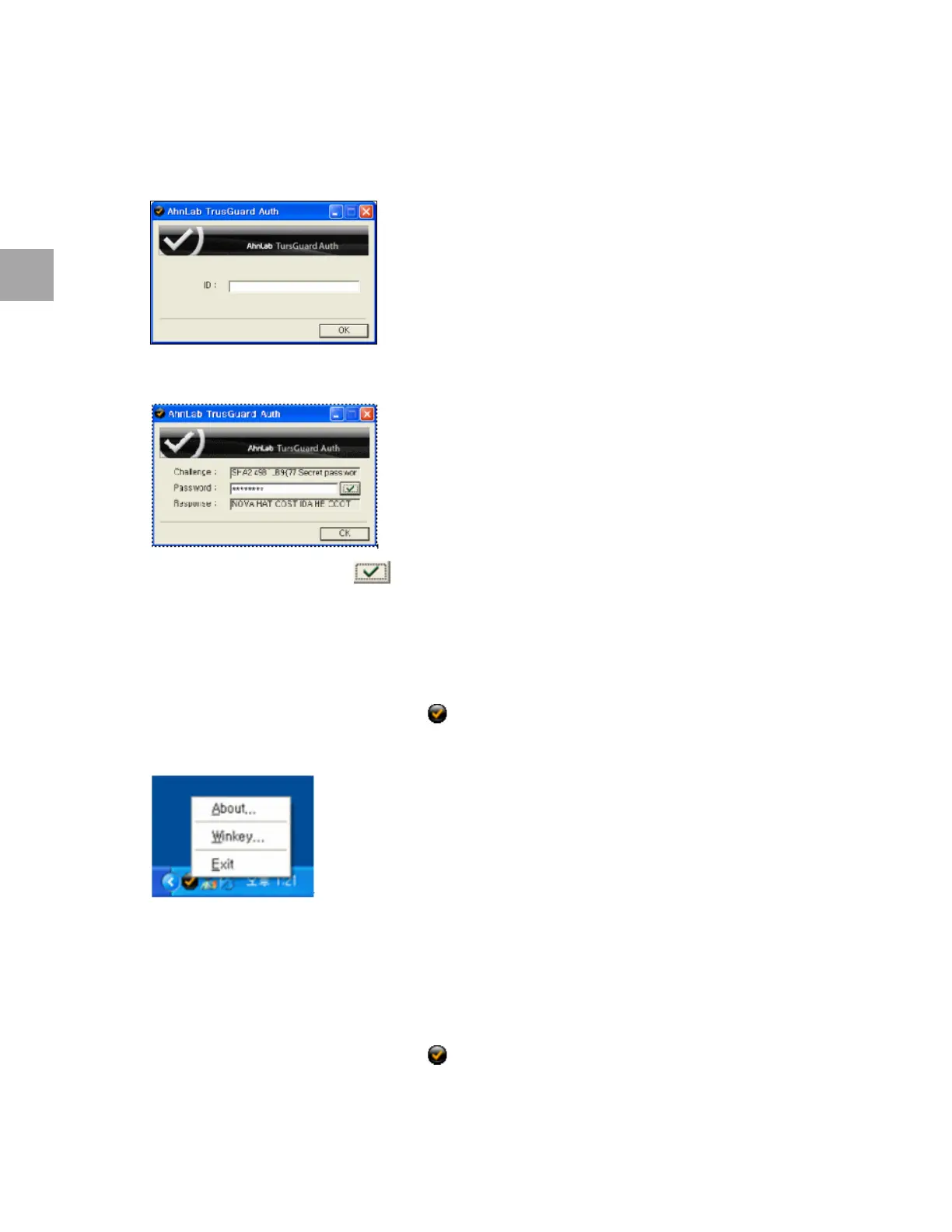
1 The authentication window will appear when TrusGuard Auth starts.
2 En
ter the ID, and click OK.
3 The Password window will appear.
4 Enter the Password and click .
5 When the
hash value appears in the Response field, click OK.
Login with OTP after Logout
The session will time out after 30 minutes of inactivity. You can log back in.
1 Righ
t-click on the TrusGuard Auth icon ( ) in the Windows notification area.
2 Click Winkey from the popup menu.
3 Proceed with the method of logging in with OTP.
Login to Other Applications (Connect to FTP in Terminal)
Before logging in with remote user account, you need to go through the authentication process with
the proxy user’s account to connect to the proxy.
1 Righ
t-click on the TrusGuard Auth icon ( ) in the Windows notification area.
2 Click Winkey from the popup menu.


 To Next Page