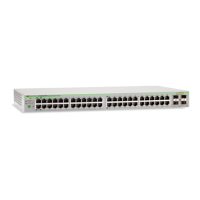
GS950 PS Series Command Line Interface User’s Guide
15
Starting a Command Line Management Session
Please review the following information before starting a command line
management session with the switch:
The switch comes with the default IPv4 address 192.168.1.1 and
subnet mask 255.255.255.0. You have to use the default address
to establish the initial management session.
The initial management session requires changing the IP address
of your workstation to the same subnet as the switch’s default
address. For example, you might change the workstation’s IP
address to 192.168.1.4. Refer to the computer’s documentation of
instructions on how to set its IP address.
The command line interface requires the Telnet protocol. The
switch does not support Secure Shell.
If you or another technician has already assigned the switch an
IPv4 or IPv6 address, use that address to establish your
management sessions with the unit.
The switch has IPv4 BOOTP and DHCP clients as well as an IPv6
DHCP client, but the clients are initially disabled. You can enable
them during the initial management session if you want to assign
the switch an IP address configuration from a BOOTP or DCP
server on your network.
To start a command line management session with the switch, perform the
following procedure:
1. Start the Telnet protocol client on your workstation.
2. Enter the IP address of the switch in the Telnet client. Use the default
address 192.168.1.1 if this is the initial management session.
Your Telnet client should display the prompt in Figure 1.
Figure 1. Login Prompt for the Command Line Interface
3. Enter the manager name. The default name is “manager”. The name is
case sensitive.
AT-GS950/28PS Gigabit Ethernet WebSmart Switch
Command Line Interface
Firmware Version: AT-S126 V1.0.0 (1.00.015)
Copyright (C) 2015 Allied Telesis. All rights reserved.
AT-GS950/28PS login:


 To Next Page
 Loading...