Routine Service NiteHAWK Internet Jukebox
6-2 22022613 Rev B
Touchscreen Calibration
The following procedure describes how to calibrate the touchscreen:
1. Power on the jukebox and allow it to complete the startup sequence.
2. Open the door of the jukebox.
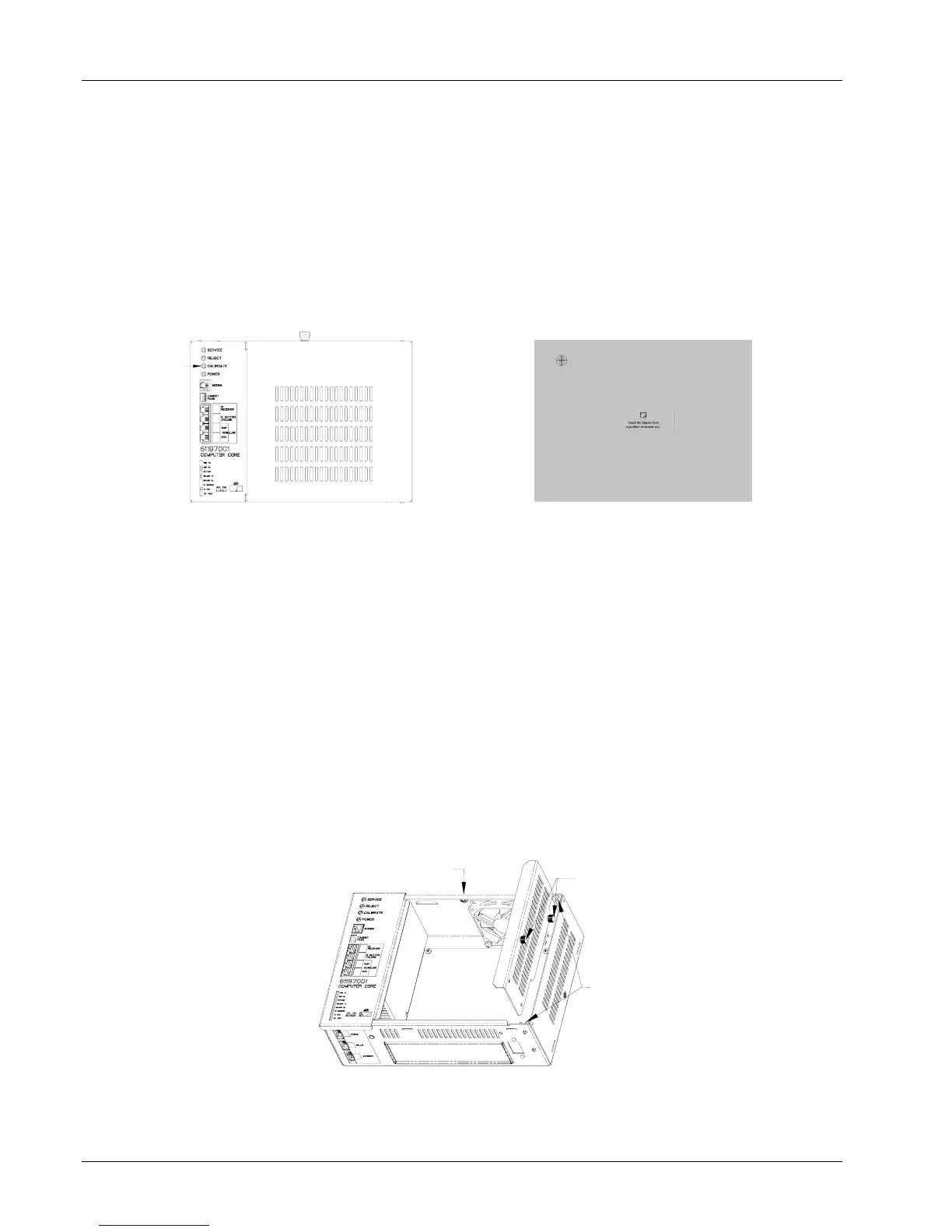
3. Locate the “Calibrate” button on the Computer Core. Refer to Figure 6–1.
Press the button once to launch the calibration program. This will override the jukebox
application while the calibration program runs. Refer to Figure 6–2.
4. Close the door and make sure it locks.
5. Follow the directions on the screen, touching the center of the targets, and then touching “YES”.
CALIBRATE
Figure 6–1 – Calibrate Button Figure 6–2 – Calibration Screen
Hard Drive Replacement
1. Turn off and unplug the jukebox.
2. Loosen the thumbscrew securing the cover on the Computer Core and slide the cover off
(see Figure 6-3).
3. Carefully slide the hard drive tray out of the assembly as far as cabling will allow.
4. Disconnect the SATA power and data cables from the drive.
5. Remove the two thumbscrews securing the hard drive to the tray.
6. Secure the new hard drive to the tray using the same 2 thumbscrews (see Figure 6-3).
7. Connect the SATA power and data cables to the new hard drive.
8. Slide the hard drive assembly back into the plastic bracket guides in the Computer Core
(see Figure 6-4). Make sure not to pinch any cables while doing so.
9. Replace the Computer Core cover and secure it with the existing thumbscrew.
Figure 6–3 – Computer Core
THUMBSCREW SECURING
COMPUTER CORE COVER
THUMBSCREWS SECURING
HARD DRIVE TO BRACKET
PLASTIC
BRACKET
GUIDES



 To Next Page