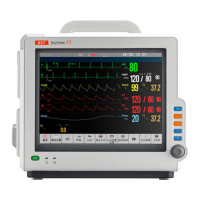
Patient monitor User’s manual
Chapter 6-4
with your current patient’s data.
2. Moving the patient using EMS as the transport monitor.
3. At the new monitoring location, connect the EMS to the new host monitor.
4. After that, an asking window will be popped up on the new host monitor’s
screen. Select【Continue EMS】in the options, this will upload the patient info,
the measurement settings and trend data stored in the EMS to the monitor.
5. Verify that the settings for patient category and paced mode are correct.
6. Till now, the process of transferring patients with EMS has been finished.
6.5.2 Resolving Patient Information Mismatch
When you connect the EMS to a monitor, the monitor compares patient
category, paced status, and other patient information that is internally stored in
both the EMS and the monitor. The monitor gives out a prompt message of
“Different patients in EMS and Monitor.” If the information is not identical. At
this time, an asking window will be popped up and the user shall select the
information required to resolve the mismatch.
Warning: After resolving a patient mismatch, check that the patient
information (especially patient type, paced status and alarm
limits) are correct for the patient.
6.5.3 Resolving Patient data Mismatch
If there is a patient data mismatch between EMS and monitor, you may
resolve the mismatch by following methods:
1. If One Set of Patient Data is Correct
In the asking window you can select:
——
【
Continue Monitor
】
: to continue with the patient data, trend data and
settings in the monitor. This discharges the patient in EMS and clears all data in
EMS, and resets all EMS settings to the defaults currently active for the
monitor.
——【Continue EMS】: to upload the patient data, trend data and measurement
settings stored in the EMS to the monitor. This clears all data in the monitor,
resets the monitor to the default setting of EMS, and discharges the patient in
the monitor.



 To Next Page