24
10.5 CARD READER
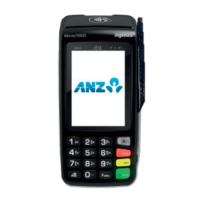
Magnetic Stripe Card Reader
A card can be read via the Magnetic Stripe Card Reader located on the right hand side of
the terminal.
A card can be read by swiping from the top to the bottom of the terminal with the
magnetic stripe facing down towards the terminal. Use a regular movement to ensure a
reliable card reading.
Chip Card Reader
Insert the Chip Card horizontally into the bottom of the terminal with the metal chip
facing upwards. Leave the Chip Card in this position throughout the transaction.
The Chip Card can be removed from the terminal when signature verication is required
or as instructed by the terminal.
Contactless Reader
Tap the contactless-enabled card, Smartphone or wearable within 4cm of the
contactless reader on the ANZ POS Move terminal.
All 4 LEDs at the top of the terminal screen will be illuminated from the time the card
reader is activated, until completion of the ‘Contactless’ transaction.
When the ‘Contactless’ card is presented, the other 3 LED indicators will be quickly
illuminated in sequence at dierent stages of the ‘Contactless’ transaction processing
until all 4 are lit.
When all four status lights are illuminated, the terminal will emit an audible tone
signalling that the transaction has been successfully completed.
The LED will revert to ashing at regular intervals after completion of the transaction and
terminal returns to its ‘Idle/Ready state’.
10.6 HOW TO LOAD PRINTER PAPER
• Open the paper compartment by lifting the catch located at the rear of the terminal
and pull the cover to the rear of the terminal.
• Insert the paper roll into the compartment.
• Pull the paper up to the top of the terminal.
• Maintain the paper and close the cover.
• Press simultaneously on both upper corners of the paper compartment, as shown by
red arrows below, until it clips into position.
Note: Do not tamper with or remove the terminal housing.


 To Next Page