12
SETTING
- Access the selected menu
- Confirm changes and go back to previous menu
- Go back to previous menu
- Quit without confirming the changes
Pressed in sequence:
- Scroll the pages of a menu
- Change a value (increase)
Move the cursor during a change (press a
few times)
PROGRAMMING KEYSPROGRAMMING KEYS
10 SETTING
10.1 Tests and checks before setting
Before setup, check:
• that all components are correctly installed;
• the correct connection to the power source;
• the component connection.
Failure to correctly connect system components or to use specified components might damage the device or its components.
10.2 Controls in the menu
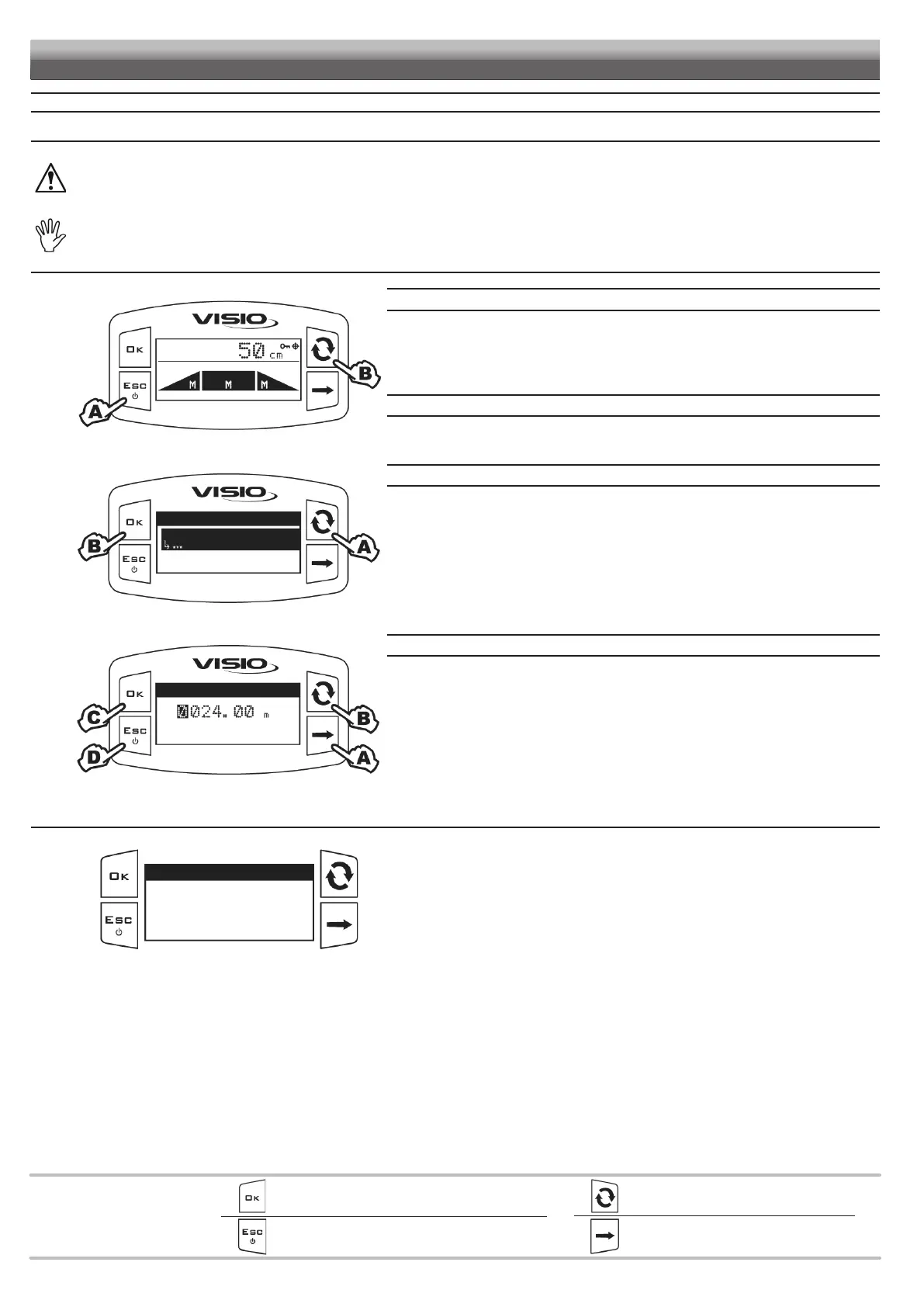
Fig. 20
SWITCHING ON
A
Press the key for 1 second.
B Press the key to view the various values in extended mode, in a sequence (on display central part).
Every time the device is switched on, it will shortly show a page with the name of device and
software version.
SWITCHING OFF
A
Press the key for 2 seconds.
Fig. 21
Setup menu
BLC settings
...
Options
Setup management
SELECTION AND ACCESS TO MENU ITEMS
A
Press a few times to scroll through items (selected item is indicated by a black line)
B Press to open the selected menu item
The three dots under an item indicate presence of another setup menu.
Fig. 22
Boom width
Min value 0.01
Max value 1000.00
EDITING A VALUE
A
Press to move through digits
B Press a few times to edit the highlighted digit
C Press to confirm modification. The display goes back to previous page.
D Press to exit page without confirming modification.
Edited value must fall within the range shown.
10.3 Automatic detection upon system switching on
Fig. 23
WARNING (IBX FW)!
V3.6.0 WRONG!
Update IBX to V4.3.x
[OK] Continue
Upon switching on, Visio checks the compatibility of the connected hydraulic control unit (IBX100).
• Obsolete firmware version (example at the side): the control unit must be updated, the system inhibits
the use of the device and allows only the update and switching off functions.
Contact the service center for the update.
• Hardware not compatible: the IBX100 control unit is not compatible with the BLC application.


 To Next Page