25
SETTING
- Access the selected menu
- Confirm changes and go back to previous menu
- Go back to previous menu
- Quit without confirming the changes
Pressed in sequence:
- Scroll the pages of a menu
- Change a value (increase)
Move the cursor during a change (press a
few times)
PROGRAMMING KEYSPROGRAMMING KEYS
12.5 IBX100 Hydraulic Update
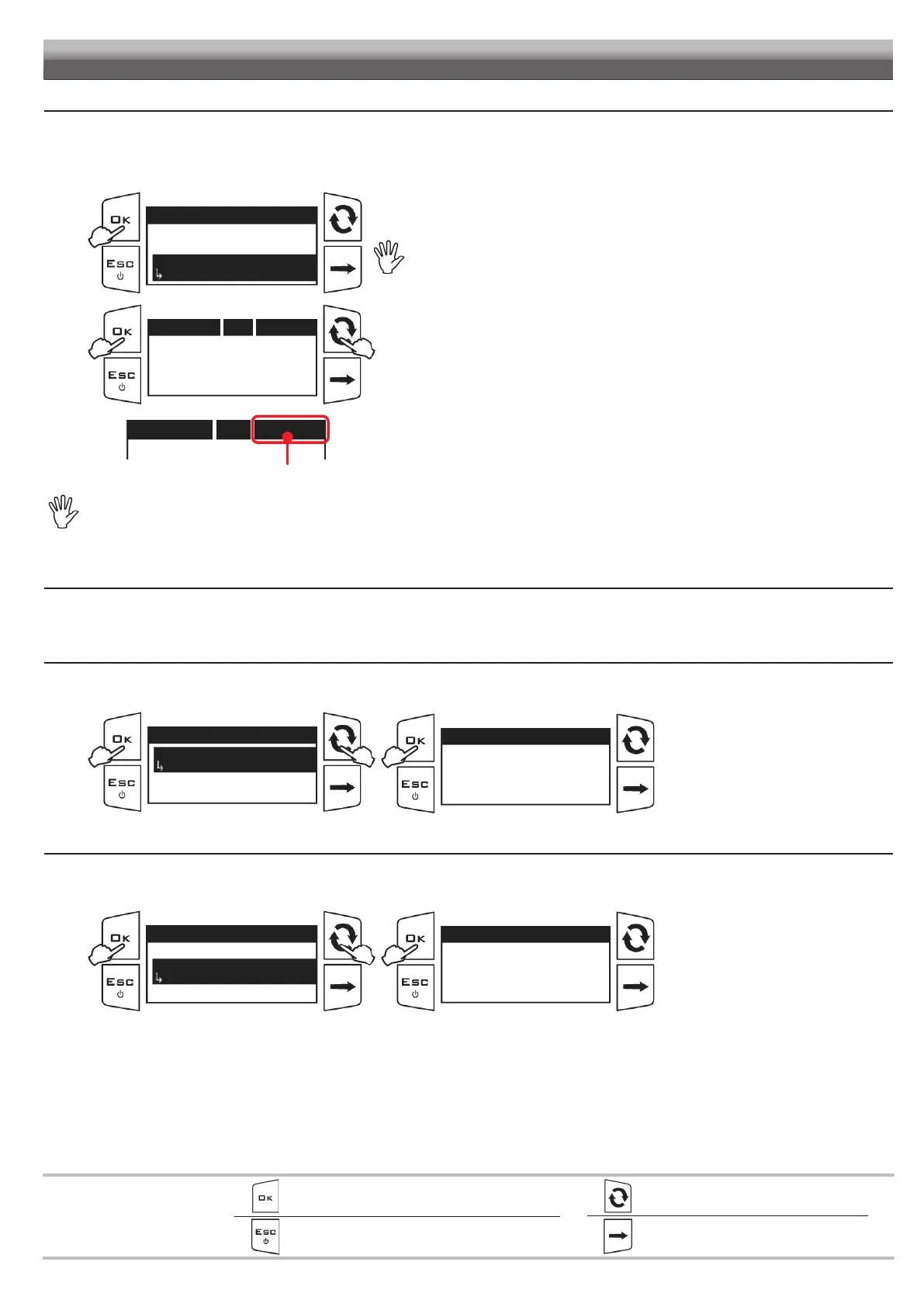
It allows selecting an update file (.s19) saved on the USB pendrive* and to update the IBX100 unit.
To be able to use the following functions it is necessary to insert a USB pendrive in the relevant port at the bottom of BLC VISIO.
*USB pendrive not included in the kit; the USB must be formatted in FAT32 mode.
Fig. 66
Setup menu
Setup management
Test
IBX update
...
1
1
Access the Setup menu > IBX update. Use of the keys at the bottom of the page.
WARNING:
By loading the update (s19) file from the USB pendrive to the IBX100 unit, all current
settings will be lost.
The file can be loaded only if it is saved in the USB pendrive root directory.
Fig. 67
Details 2/2 Start?
HYDRAU~1.S19
IBX100
Fw: V2.1.1
Type: Hydraulic Arag
23 - 43 - 4
2
Press the key on the side to scroll the update files:
the system recognizes and signals the unsuitable files (
Fig. 68).
3 Press OK to start the update.
4 Confirm with OK. Wait for the update to be completed.
During the procedure do not turn the device off and do not disconnect it from the power supply!
At the end of the operation the device will reboot automatically.
Fig. 68
Details 1/2 Wrong!
SW0130~1.S19
Example of unsuitable file selected
After every IBX unit firmware update, we recommend resetting the control unit using function IBX restore (par. 12.6.2).
Then repeat the settings relating to hydraulic boom - from par. 12.1.2 to par. 12.1.4 - and reset the BLC system by entering the
suitable data.
12.6 Factory default
It resets the selected device factory settings (BLC VISIO or IBX100).The use of the keys is explained at the bottom of the page.
12.6.1 VISIO restore
The VISIO BLC settings are reset - from par. 12.2.1 to par. 12.2.7.
Fig. 69
Factory default
VISIO restore
...
IBX restore
23
VISIO restore
Confirm?
4
1
Access the Setup menu >
Factory default
.
2 Select the VISIO restore menu.
3 Start the procedure with OK.
4 Confirm with OK.
The message Reset completed! will
appear at the end of the procedure.
VISIO sets back to the work screen.
12.6.2 IBX restore of 100 Hydraulic
After every IBX unit firmware update (par. 12.5) we recommend resetting the control unit with this procedure.
The hydraulic boom settings are reset - from par. 12.1.2 to par. 12.1.4.
Fig. 70
Factory default
VISIO restore
IBX restore
...
23
IBX restore
Confirm?
4
1
Access the Setup menu >
Factory default
.
2 Select the IBX restore menu.
3 Start the procedure with OK.
4 Confirm with OK.
The message Reset completed! will
appear at the end of the procedure
VISIO sets back to the work screen.
Then set the BLC system by entering the suitable data, or load the previously-saved configurations (par. 12.3.4).


 To Next Page