32
Computer input
Manual adjustment via PC
Some computers employ special signal formats which may not be tuned by Multi-scan system of this
projector. Manual PC Adjustment is provided for you to precisely adjust several parameters to match
those signal formats. The projector has five independent memory areas to store those parameters
manually adjusted, which allows you to recall the setting for a specic computer.
1 Press MENU button to display the on screen
menu. Press
to select the PC Adjustment
icon and press
or OK button.
2 Press
button to select the item to be
adjusted and then SELECT to pop up the
corresponding dialog box. Press
to set the
value.
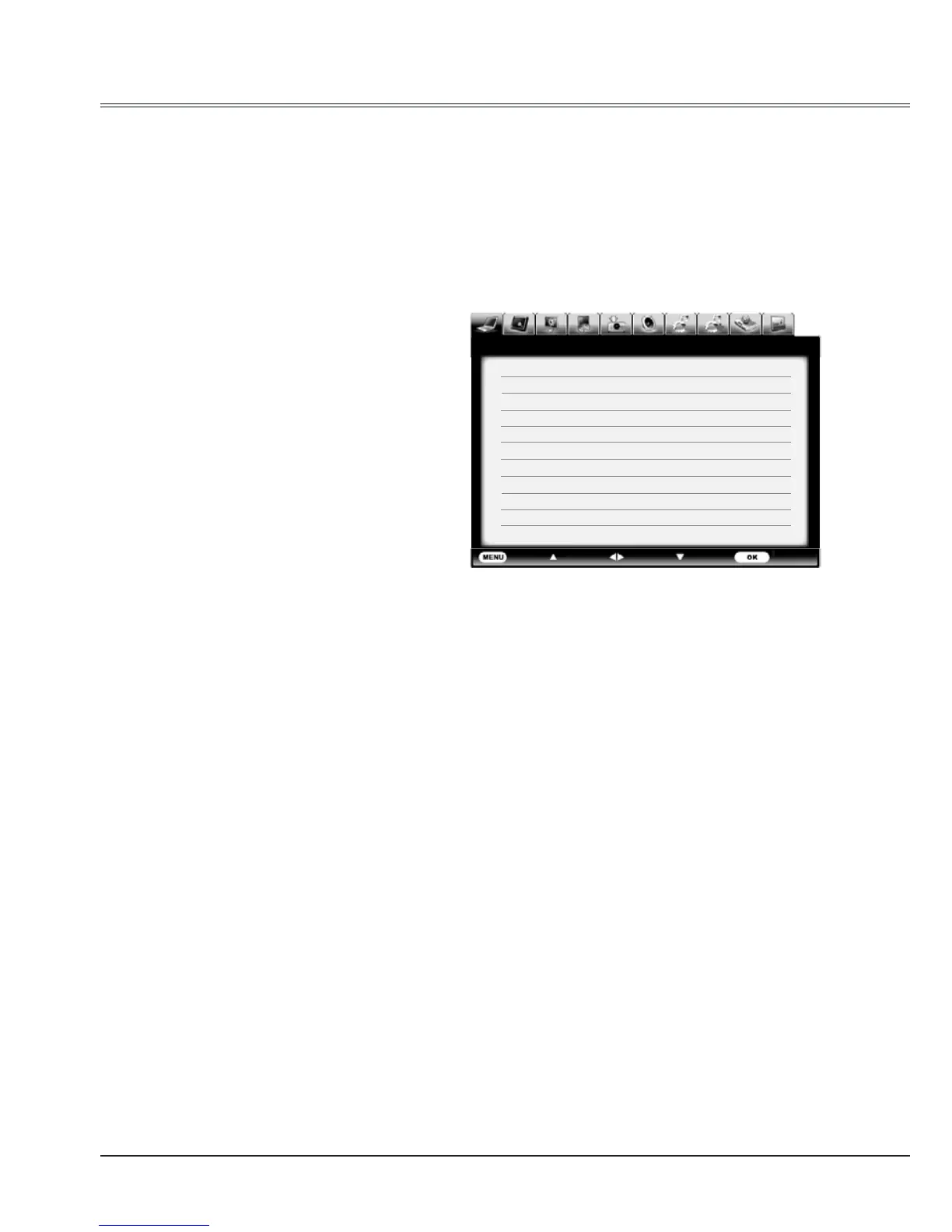
PC adjustment menu
Exit Move Next Next
- - - -
PC adj.
Auto PC adj.
Fine sync 16
Total dots 1344
Horizontal 296
Vertical 35
Clamp 1
Display area H 1024
Display area V 768
Reset
Mode free
Stored
Fine sync
To cut off flicker from the image displayed by
pressing
to adjust the value.(from 0 to 31).
Total dots
Press
to adjust the total dots for a cycle so
that it can match the image on computer.
Horizontal
Press
to adjust the horizontal picture position.
Vertical
Press
to adjust the vertical picture position.
Clamp
Press
to adjust the clamp level. When
the image has dark bars, try this function for
adjustment.
Display area H
Press
to adjust the horizontal area displayed
by the projector.
Display area V
Press
to adjust the vertical area displayed by
the projector.
Reset
To reset the adjusted data, select Reset and
press SELECT . A conrmation box appears and
then select Yes. All adjustments will return to their
previous gures.
Mode free
To clear the adjusted data, select Mode free and
then press ► or SELECT .Move ► or SELECT
to highlight the Mode you want to clear and then
press SELECT.
Store
To store the adjusted data, select Store and then
press ► or SELECT. Move the red arrow indicator
to one of the Mode 1 to 5 in which you want to
store, and then press SELECT.
√ Note:
If you select 480i, 575i, 480p, 575p, 720p, 1035i
or 1080i from the system menu, the functions of
both horizontal image and vertical image will be
disabled.


 To Next Page