35
Screen size adjust
The screen size can be reset to the value as
you desire.
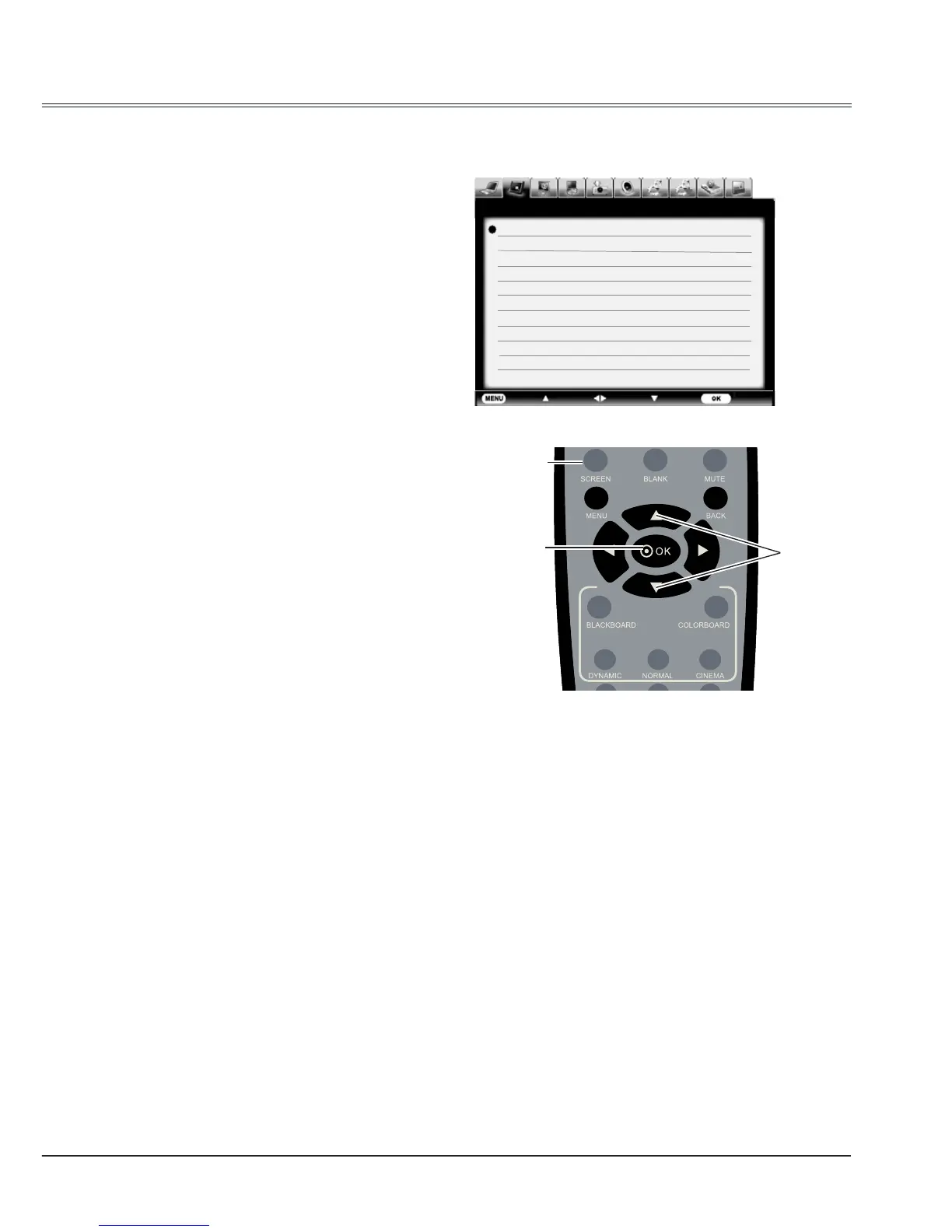
Screen menu
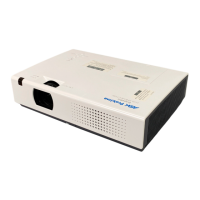
Remote control
SCREEN
button
button
OK
button
Normal
To project images in the same aspect ratio with
the input signals.
True
Provide images in original size. When
the original image size is larger than the
screen size (1024x768(E2425/E2465)) or
1280x800(E2425W)), the projector enters
display area selection mode automatically.
Press
to select a display area.
The arrow turns red upon adjustment and
disappears upon the maximum limit.
Wide
To provide an image with an aspect ratio of
16:9 by expanding the image width uniformly.
Full
To provide an image to t the screen.
Custom
Adjust the proportion and position of the screen
manually.
When selecting this item, press
and the
corresponding interface appears on the screen.
Press
button to adjust your required item.
H/V scale: Adjust the horizontal/vertical screen
scale.
H&V: When set to “On”, the aspect ratio is
fixed. The Scale V appears dimmed and
becomes unavailable. Adjust Scale H, and
then the screen scale is automatically modied
based on the aspect ratio.
H/V position: Adjust the horizontal/vertical
screen position.
Common: Save the adjusted scale to all the
inputs. Press OK at Common to display a
conrmation box. To save the scale, press OK.
When Custom is selected, the saved scale is
used.
Reset: Reset all the adjusted values. Press OK
at Reset to display a conrmation box. To set,
press OK at “Yes”.
1 Press MENU button to display thescreen
menu. Press
button to select screen icon
and then press
or OK button.
2 Press
to select your required item and
then press SELECT button.


 To Next Page