33
Image Select
Direct operation
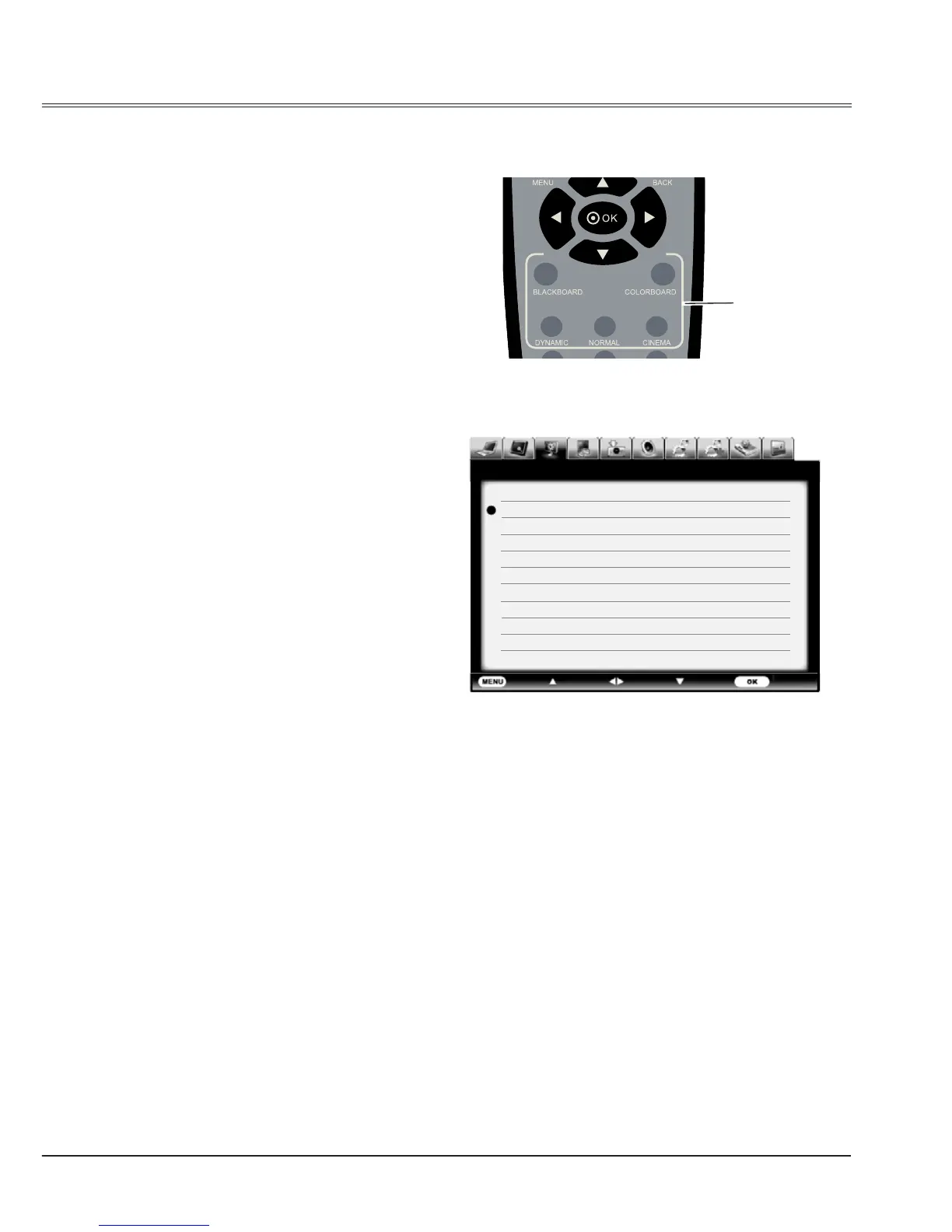
Press the image mode buttons on the remote
control to select your required image quality.
Dynamic
For viewing images in a bright room.
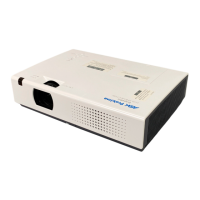
Image select menu
Image mode
buttons
Remote control
Normal
Normal image quality preset by the system on
the projector.
Cinema
For watching movies with multiple gray scale
levels.
Blackboard (Green)
For viewing the image projected on a
blackboard (green). by enhancing the image
quality. This is mainly effective on a green
colored board instead of a black colored board.
Colorboard
For images projected onto the red, blue, yellow,
or green wallpaper.
User Image
Image quality preset by the user in the Image
adjustment menu.
Menu operation
1. Press the MENU button to display the
screen menu. Press
to select the Image
select icon and press
or OK button.
2. Press
to select your required image
mode and then press OK.
Exit Move Next Next- - - -
Image select
Dynamic
Normal
Cinema
Blackboard(Green)
Colorboard
User Image
Computer input


 To Next Page