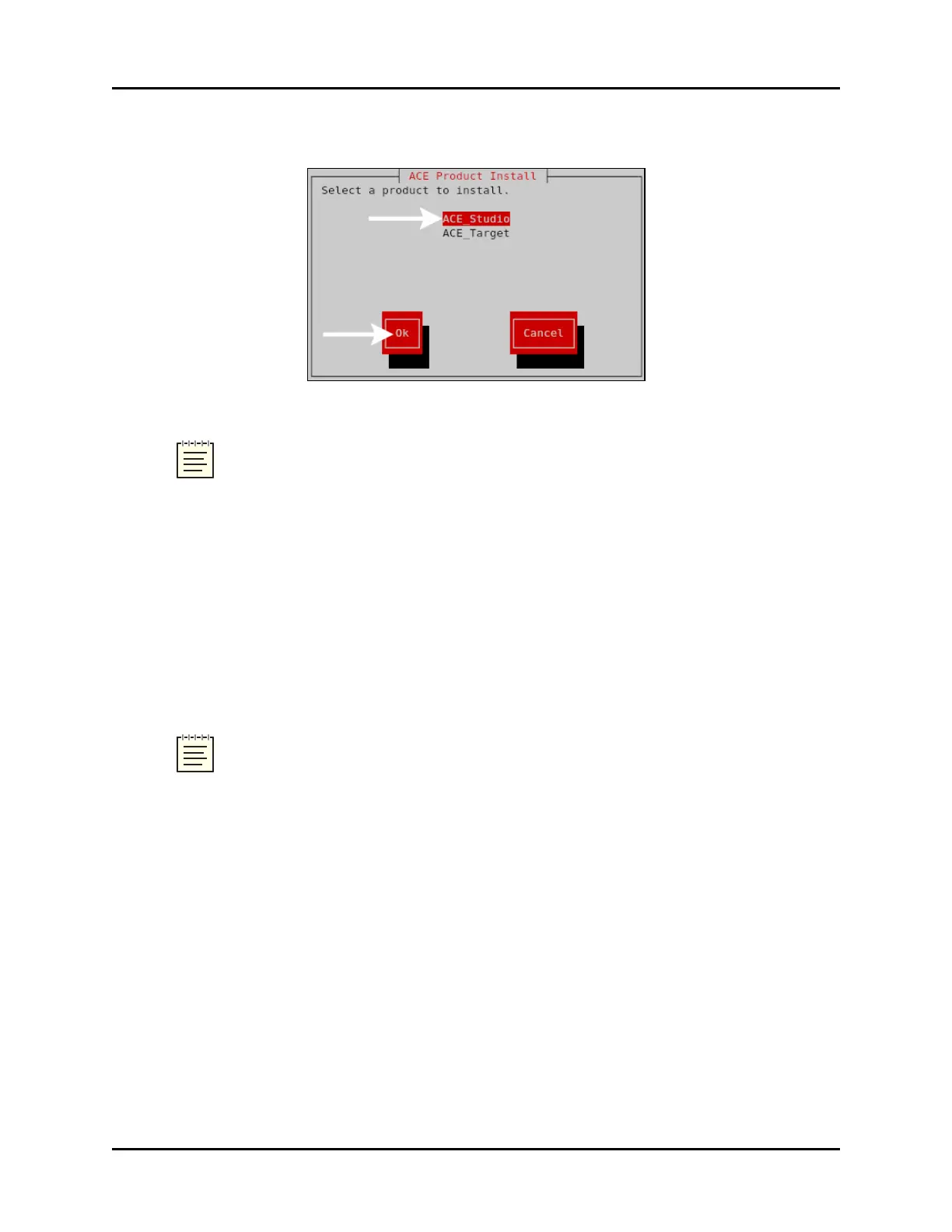
6. The prompt reads, “Select a product to install.” To select ACEStudio, press the Up and
Down Arrow keys. To select Ok, press the Tab key or the Right Arrow key.
Figure 27: ACE Product Install screen
Note: To install ACEStudio on a virtual machine, see the ACE Studio VM Quick
Start Guide.
7. The prompt reads, “Do you wish to install ACEStudio?” Select Yes. Wait for the install-
ation to complete.
8. Type eject /media, and press Enter.
9. Remove the DVD from the drive.
10. To activate the changes, type reboot, and press Enter.
11. To set up your IP address, continue to Section 10.1.3, "ACEStudio 4.X development
workstation setup" on page 39.
Note: For instructions on installing ASTi Information Assurance (IA) software, see
the IASoftware Installation Guide.
38 Copyright © 2018 Advanced Simulation Technology inc.
ACE Target and Studio Cold Start Guide (Rev. B, Ver. 0)



 To Next Page