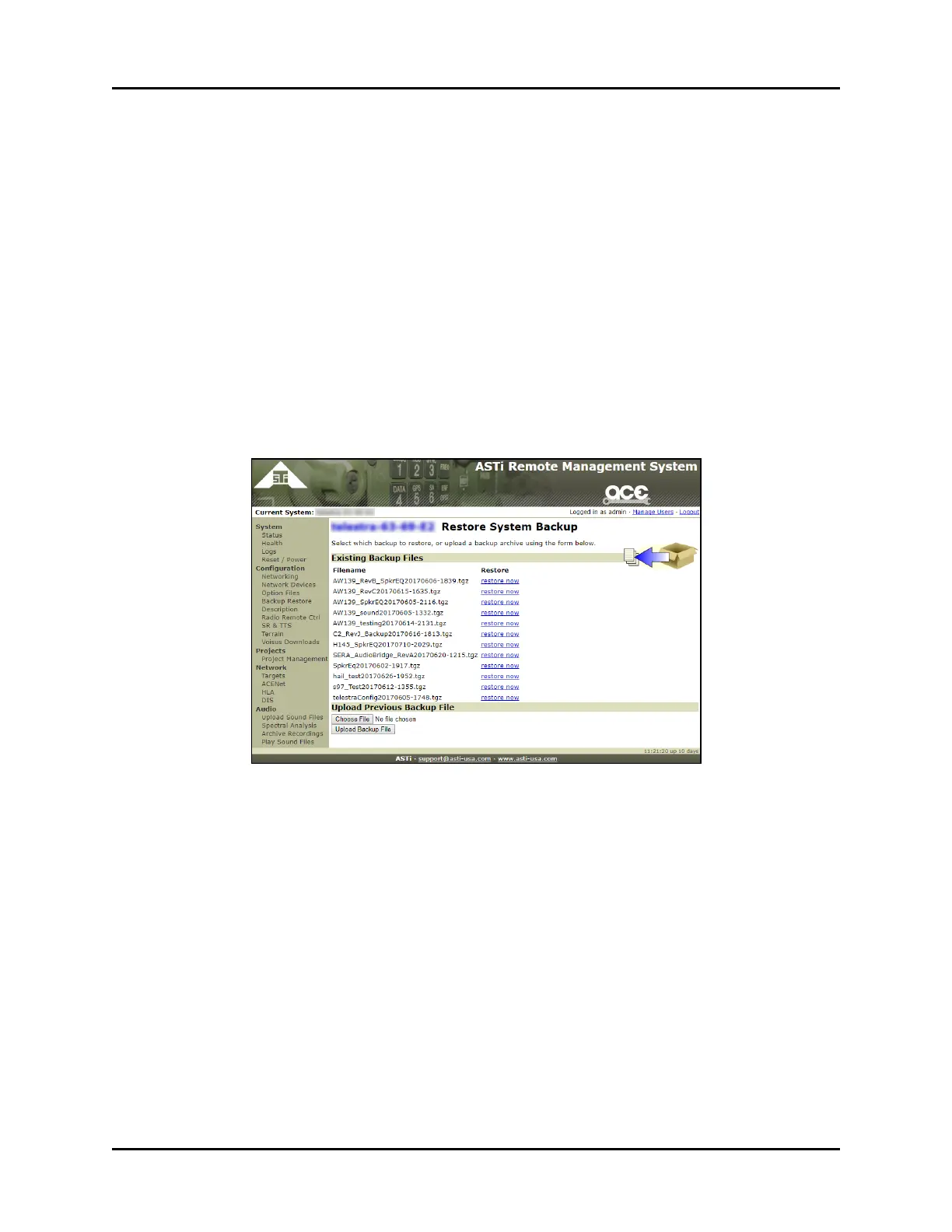
11.0 Restore system backup
In the Remote Management System (RMS), the Restore System Backup page allows you to
restore a model archive that exists on the Telestra Target. You can also choose to upload a
backup file is saved to the local development workstation.
To restore your system backup files, follow these steps:
1. From the vertical left menu, under Configuration, click Backup Restore.
2. On the System Backup/Restore page, click Restore System Configuration.
3. To transfer the backup from your local system, upload the backup file to the development
workstation. In the Upload Previous Backup File area, click Choose File. Browse to
the file location on your computer, and select your system backup.
4. Click Upload Backup File, and wait for the upload to complete.
Figure 35: Restore System Backup
5. The backup appears in the Existing Backup Files area. To start the installation, locate
your backup name in the list, and click the restore now link.
46 Copyright © 2018 Advanced Simulation Technology inc.
ACE Target and Studio Cold Start Guide (Rev. B, Ver. 0)



 To Next Page