4.0 Configure the BIOSsettings
To ensure the cold start procedure runs properly, configure the BIOS as outlined below. To
identify your system's BIOS version, follow these steps:
1. To reboot the server, press the Reset button on the front of the chassis.
2. To enter the BIOS Setup Utility, immediately press the Delete key as the system boots.
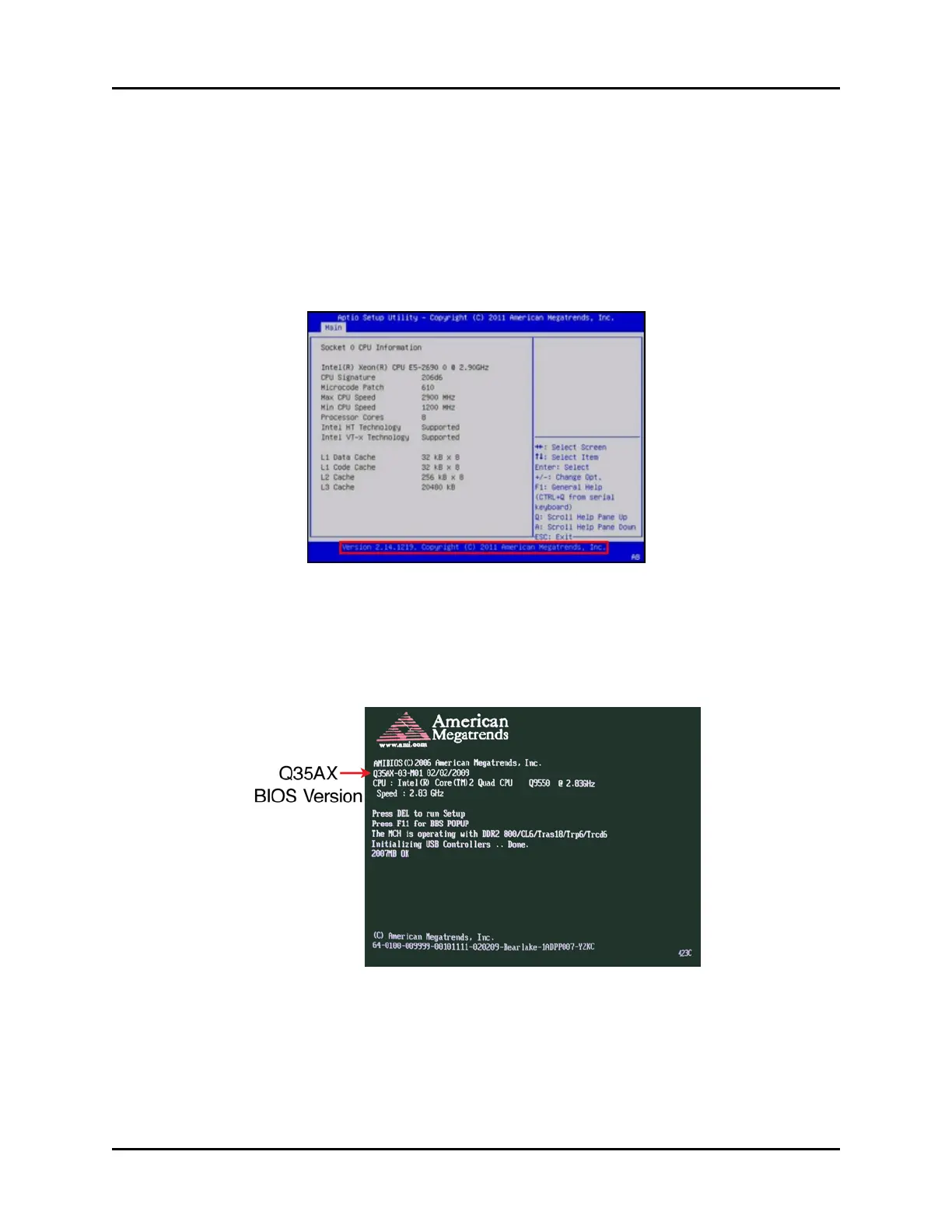
Your system's BIOS version displays at the bottom of the BIOS Setup Utility screen.
Figure 4: BIOS version on utility screen
If the BIOSversion does not display at the bottom of the screen, your system may be
using BIOSversion Q35AX American Megatrends. Reboot the server, wait for the beep
sound, and press the Pause | Break key to pause your screen and confirm the BIOS ver-
sion, as shown below:
Figure 5: BIOS version display
Copyright © 2018 Advanced Simulation Technology inc. 5
ACE Target and Studio Cold Start Guide (Rev. B, Ver. 0)



 To Next Page