4. Remove the Telestra Studio Software Installation DVD when it ejects from the drive.
5. Insert the Red Hat 6 Installation DVD, and select OK. Wait 10–15 minutes for the install-
ation to complete.
6. When the Red Hat 6 Installation DVD ejects from the drive, insert the Telestra Studio
Software Installation DVD. Press Enter.
7. Wait several minutes for the installation to complete, and press Enter.
8. Remove the Telestra Studio Software Installation DVD when it ejects from the drive.
9. To reboot the server, press the Reset button on the front of the chassis.
10. When the ACEStudio login screen appears, click on the aceuser account, and type the
following password: aceuser. The ACEStudio interface appears.
10.2.2 Set up ACEStudio 6.X development workstation
To set up your development workstation, you will need the following hardware:
l Monitor
l Keyboard
l Mouse
l ACEStudio development workstation
l Category 5e cable or better
l Network connection from ACEStudio to Telestra Target
The ACEStudio development workstation does not have an IP address without a DHCP net-
work connection. To set up the ACEStudio development workstation and assign an IP address
to the system, follow these steps:
1. Connect the monitor, keyboard, and mouse to the development workstation.
2. Connect the development workstation to the same network as the Telestra Target.
3. Power on the development workstation, and allow it to boot.
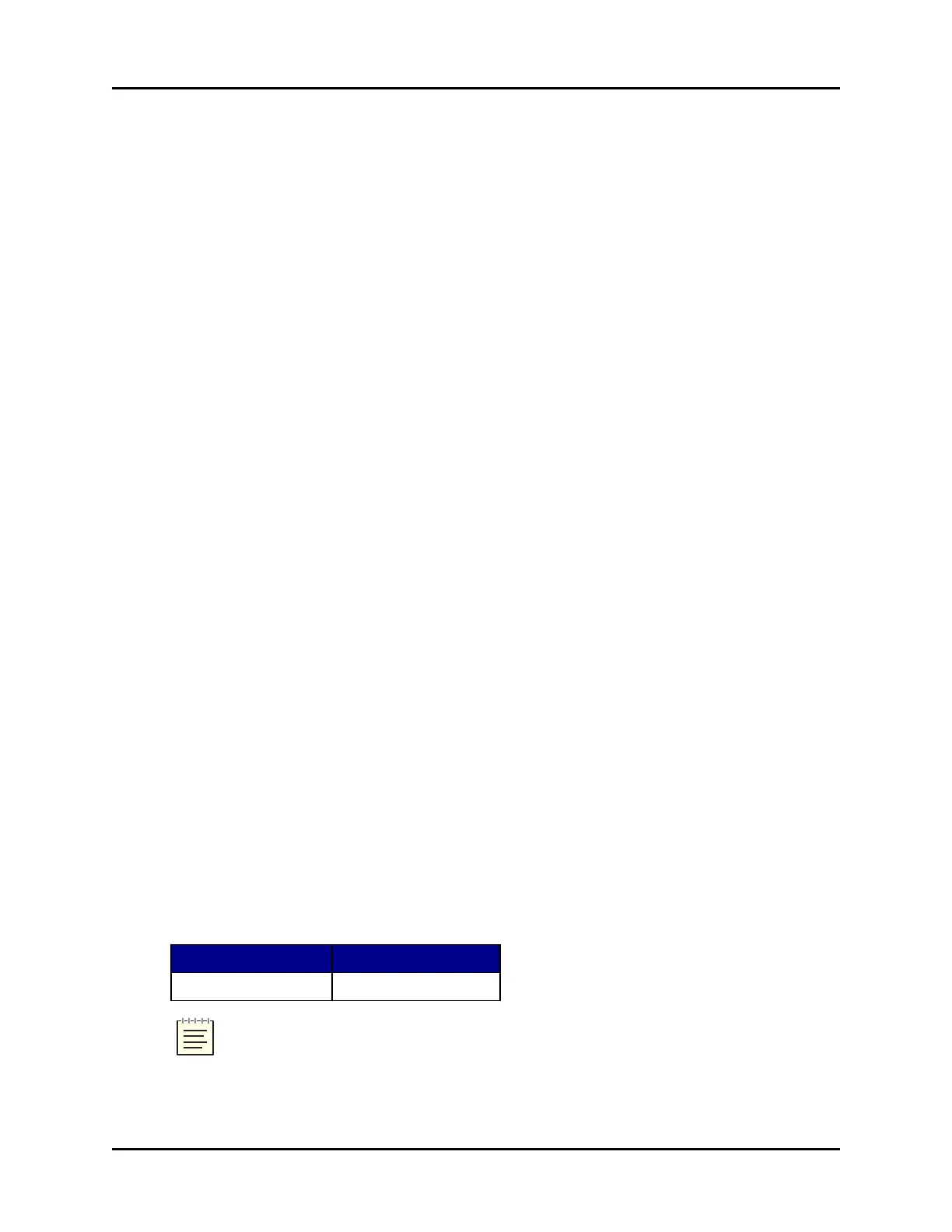
4. Log into ACEStudio using the following default credentials:
Username Password
aceuser aceuser
Note: If your organization changed these default credentials, check with your IT
administrator for an updated username and password.
42 Copyright © 2018 Advanced Simulation Technology inc.
ACE Target and Studio Cold Start Guide (Rev. B, Ver. 0)



 To Next Page