15
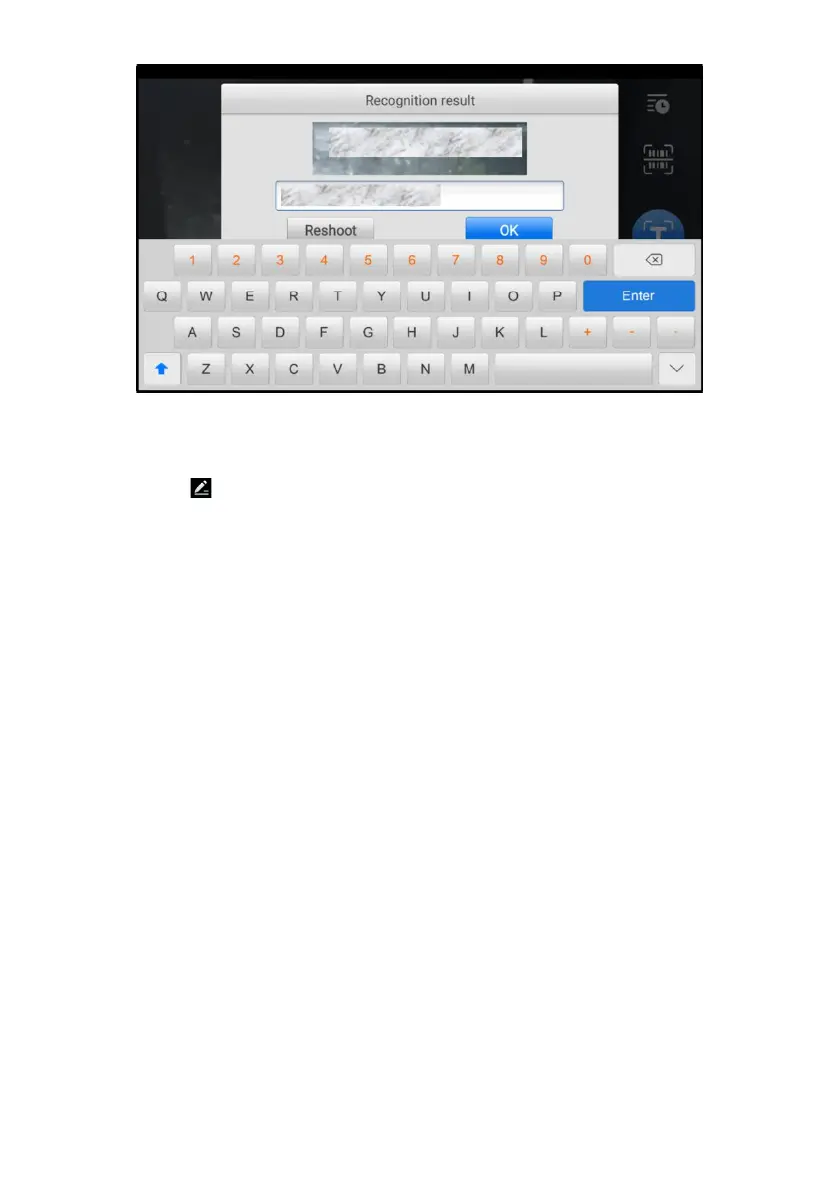
Figure 4-3 Scan VIN/License
6. If the VIN or license number cannot be scanned, you can input manually. Tap
the button on the bottom-right corner of the screen to display the screen for
manually input. After entering the correct VIN, tap OK to continue.
7. Follow the on-screen instructions to complete the operation and advance to the
vehicle Diagnostics Menu screen.
4.2.4 Manual Vehicle Section
When the vehicle’s VIN is not automatically retrievable through the vehicle’s ECU, or the
specific VIN is unknown, you can select the vehicle manually.
Step-by-step Vehicle Selection
This mode of vehicle selection is menu-driven. Select a vehicle manufacturer on the
Vehicle Menu screen and the Select Diagnostic Type screen displays, then tap the
Manual Selection button. Select the vehicle information like the Brand, Model, Capacity,
Engine type, and Model year on the same screen. The ESC button at the lower-right
corner of the screen will bring you back to the previous screen. Tap the Reset button to
reselect the vehicle information if needed.
4.2.5 OBDII Direct Entry
Occasionally, the tablet may not be able to identify a vehicle. For these vehicles, the user
may perform a generic OBDII or EOBD diagnostic. See Generic OBDII Operations for
additional information.











 To Next Page