50
➢ To edit the Test History
1. Tap Data Manager on the MaxiPRO Job Menu.
2. Select Vehicle History.
3. Select the specific vehicle record thumbnail from the main section. The vehicle
test record sheet will appear.
4. Tap Edit (a pen icon) to edit the record.
5. Tap each item to enter information or attach data files or images.
NOTE
The vehicle VIN number, license number, and the customer account information are
correlated by default. Vehicle records will automatically be correlated using this vehicle
and customer identification.
6. Tap Add to Customer to correlate the Test History with an existing customer
account, or add a new associated account to be correlated with the test vehicle
record. See Customer for more information.
7. Tap Done to save the updated record, or tap Cancel to exit without saving.
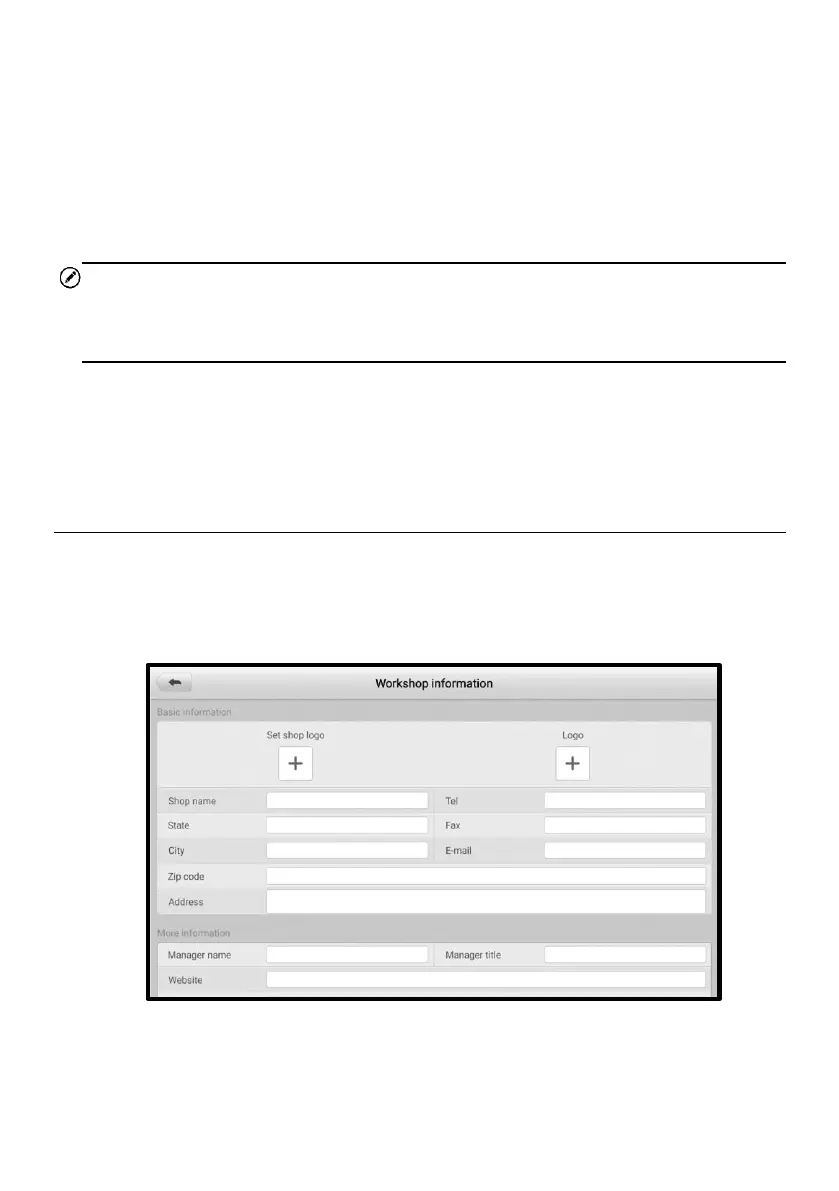
6.2 Workshop Information
The Workshop Information form allows you to enter, edit, and save detailed workshop
information, such as shop name, business address, phone number, and other remarks,
which, when printing vehicle diagnostic reports and other associated test file, will display
as the header of the printed documents.
Figure 6-4 Workshop Information Sheet











 To Next Page