23
1. Diagnostics Toolbar Buttons — see Table 4-2 Diagnostics Toolbar Buttons for
detailed descriptions for the operations for each button.
2. Main Section — the left column displays the item names, and the right column shows
the specifications or descriptions.
3. Function Button — in this case, only the ESC button is available. Tap it to exit after
viewing.
4.4.3 Trouble Codes
A. Read Codes
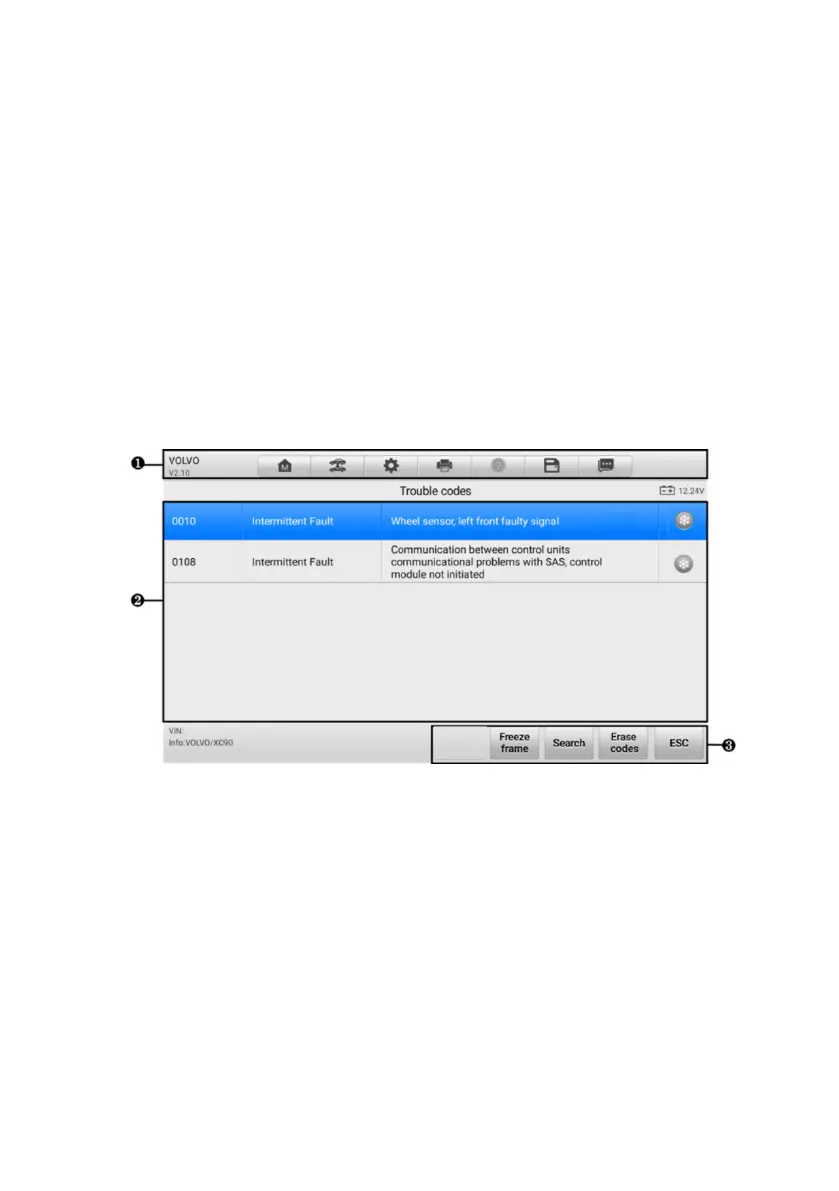
This function retrieves and displays DTCs from the vehicle’s control system. The
Read Codes screen varies for each vehicle being tested. On some vehicles, freeze
frame data can also be retrieved for viewing. A sample Read Codes screen displays
as below:
Figure 4-8 Read Codes Screen
1. Diagnostics Toolbar — see Table 4-2 Diagnostics Toolbar Buttons for details.
2. Main Section
⚫ Column 1 — displays the retrieved codes from the vehicle.
⚫ Column 2 — indicates the status of the retrieved codes.
⚫ Column 3 — detailed descriptions for the retrieved codes.
⚫ Snowflake Icon — only displays when freeze frame data is available for viewing.
Tap the icon to display the data screen, which is similar to that of the Read
Codes interface and shares similar operations.











 To Next Page