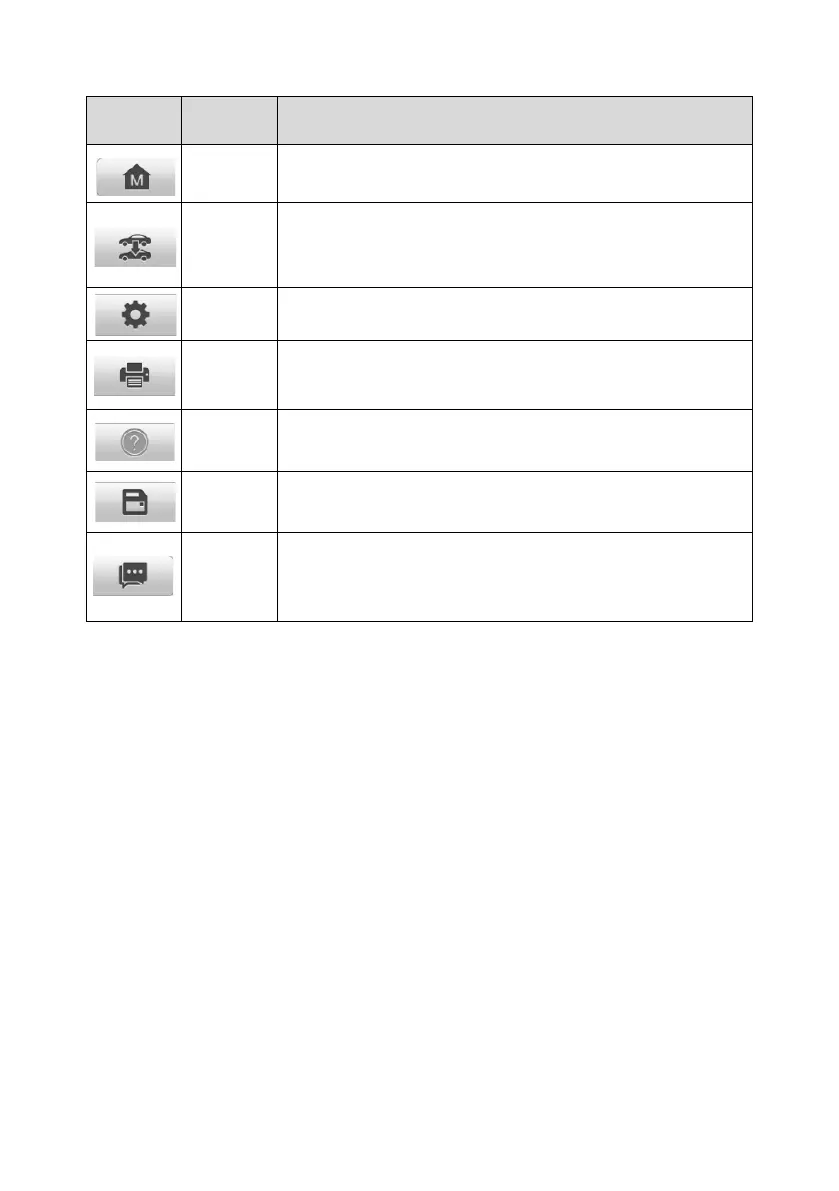
Exits the diagnostics session of the currently identified
test vehicle and returns to the vehicle menu screen.
Tap to display the error options. Select a specific error
type and a submission form will appear to let you enter
the report information.
➢ To print data in Diagnostics
1. Tap the Diagnostics application button from the MaxiPRO Job Menu.
2. Tap Print and a drop-down menu displays. The Print button on the diagnostics
toolbar is available throughout the Diagnostics operations.
⚫ Print This Page — prints a screenshot of the current screen.
⚫ Print All Data — prints a PDF file of all displayed data.
3. A temporary file will be created and sent via the computer to the printer.
4. When the file is transferred successfully, a confirmation message will appear.
➢ To submit Data Logging reports in Diagnostics
1. Tap the Diagnostics application button from the MaxiPRO Job Menu.
2. Tap the Data Logging button to display the error options. The Data Logging
button on the diagnostics toolbar is available throughout the Diagnostics
operations.











 To Next Page