39
⚫ Via the functions on the Diagnostics Toolbar
The diagnostic report can also be viewed from such diagnostic function screens as
Auto scan and Trouble codes. There are two ways to view the saved reports:
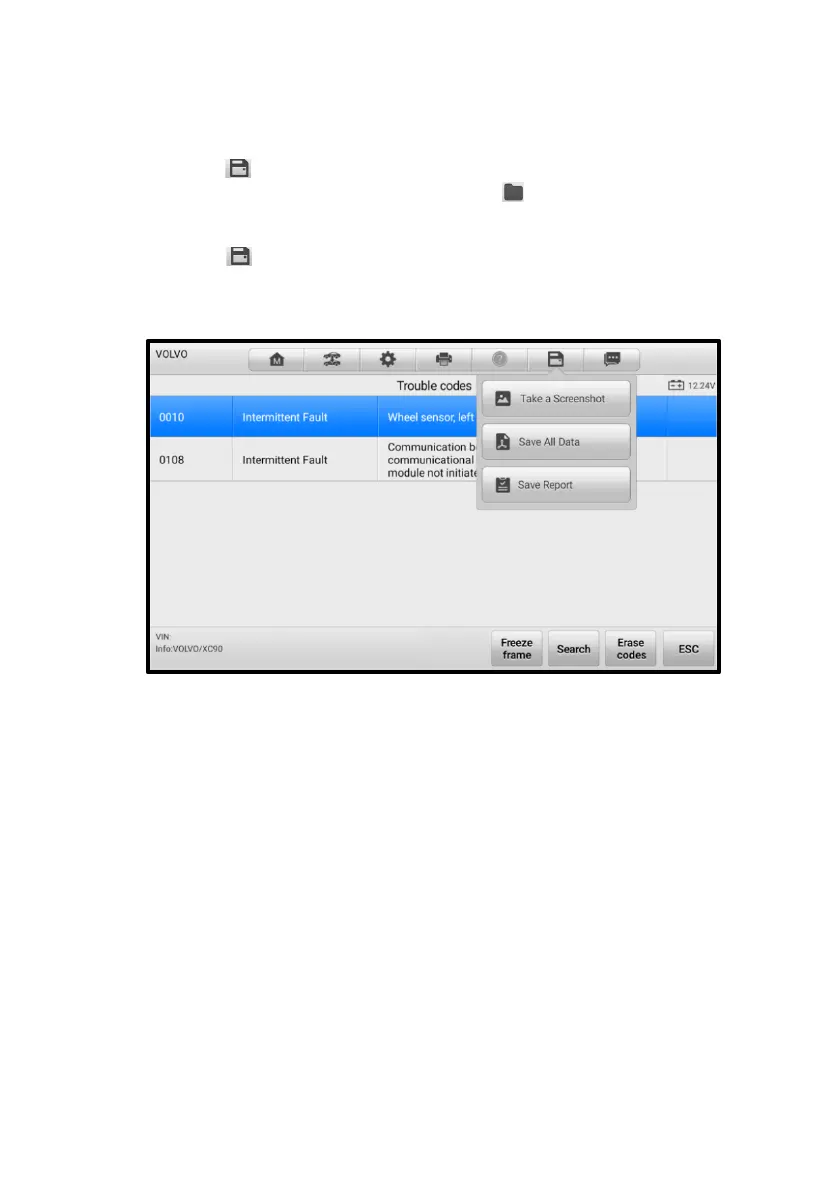
Tap the button in the diagnostics toolbar and select Save All Data. Enter
the license number and tap Save. Tap the button on the upper-right of the
screen to view the report.
Tap the button in the diagnostics toolbar and select Save Report. Enter
the license number and current mileage. Tap Save > View Report and then
select a report to view.
Figure 4-19 Trouble Codes Screen
4.6.2.2 Diagnostics Report Viewing
All the saved reports can be viewed in the Data Manger application.
Tap Data Manager > Vehicle History. Select a vehicle history record and then tap
View PDF in the upper-right corner to view the report.
Once you saved the reports by tapping the Save All Data button, tap Data Manager >
PDF to view these reports.
Once you saved the reports by tapping the Get Report or Save Report button, tap
Data Manager > Cloud Report to view these reports saved to the Autel cloud
platform.











 To Next Page