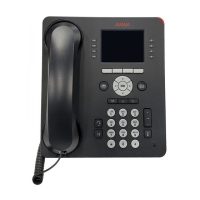
8410D User’s Guide
10 of 37
Inspect Shows you call-related information for an incoming call when you are already active on a
call. Use to identify and screen new calls.
Normal See “Exit.”
Stored Number Allows you to check the number stored on an Abbreviated Dialing button or as
an item on an Abbreviated Dialing list. Also lets you see what number you last dialed (via Last
Number Dialed feature). Use to verify Abbreviated Dialing list items before placing a call or
reprogramming a number, and to make sure the Last Number Dialed feature is appropriate to
use.
Time/Date Shows you the date and time. Use as a handy calendar and clock.
Timer Allows you to measure elapsed time. Use in order to keep track of time spent on a call or
task.
How to Use the Features
The procedures which appear in the sections, Voice Feature Procedures and Display Feature
Procedures, give short, step-by-step instructions for using each feature. For your convenience,
the features in each section are listed alphabetically.
General Instructions
Use the following special instructions for operating your voice terminal.
• The first time you use these procedures, you will need to customize them for yourself by obtaining the
following information from your system manager:
¾ Your system manager may assign call appearances or features to the 10 call
appearance/feature buttons on your voice terminal. To the right of each feature name in this
section is a box. For each feature you have on your voice terminal or feature you can access
with the softkeys (see “Note” below), mark a 9 in the blank box as a reminder. [The
Conference, Drop, Hold, Message, Mute, Select Ring, Test, and Transfer voice features, for
all sets, and the Normal Mode/the Exit display feature (labeled
Exit on the 8410D voice
terminal) are already marked for you.] You may also be able to use the Speakerphone (and
Reset Speakerphone) or the Speaker feature. Check with your system manager to see what
other features you can use with a DEFINITY ECS. Note: If you are using an 8410D voice
terminal, you may also be able to use up to 12 additional features accessed with the softkeys
and display control buttons. Check with your system manager to see which softkey features
are available on your voice terminal and then put a checkmark in the box beside each of those
features.
¾ Any feature not appearing on a button or accessed with the display and softkeys can be
activated or canceled by dialing a 1-, 2-, or 3-digit feature access code. If a code for a feature
you need/use is not listed in the provided blanks, ask your system manager for those feature
access codes, and then write the assigned code number in the provided blanks in each feature
procedure.
• If you receive an intercept tone (high-pitched, alternating high and low tone) while attempting to operate
any feature, you have taken too much time to complete a procedural step or have made a dialing error.
Hang up, get dial tone, and begin again at Step 1.



 To Next Page