8410D User’s Guide
12 of 37
Using the Display, Softkeys and Display Control
Buttons
If you are using an 8410D voice terminal, the following information will help you use the display,
the softkeys, and the display control buttons.
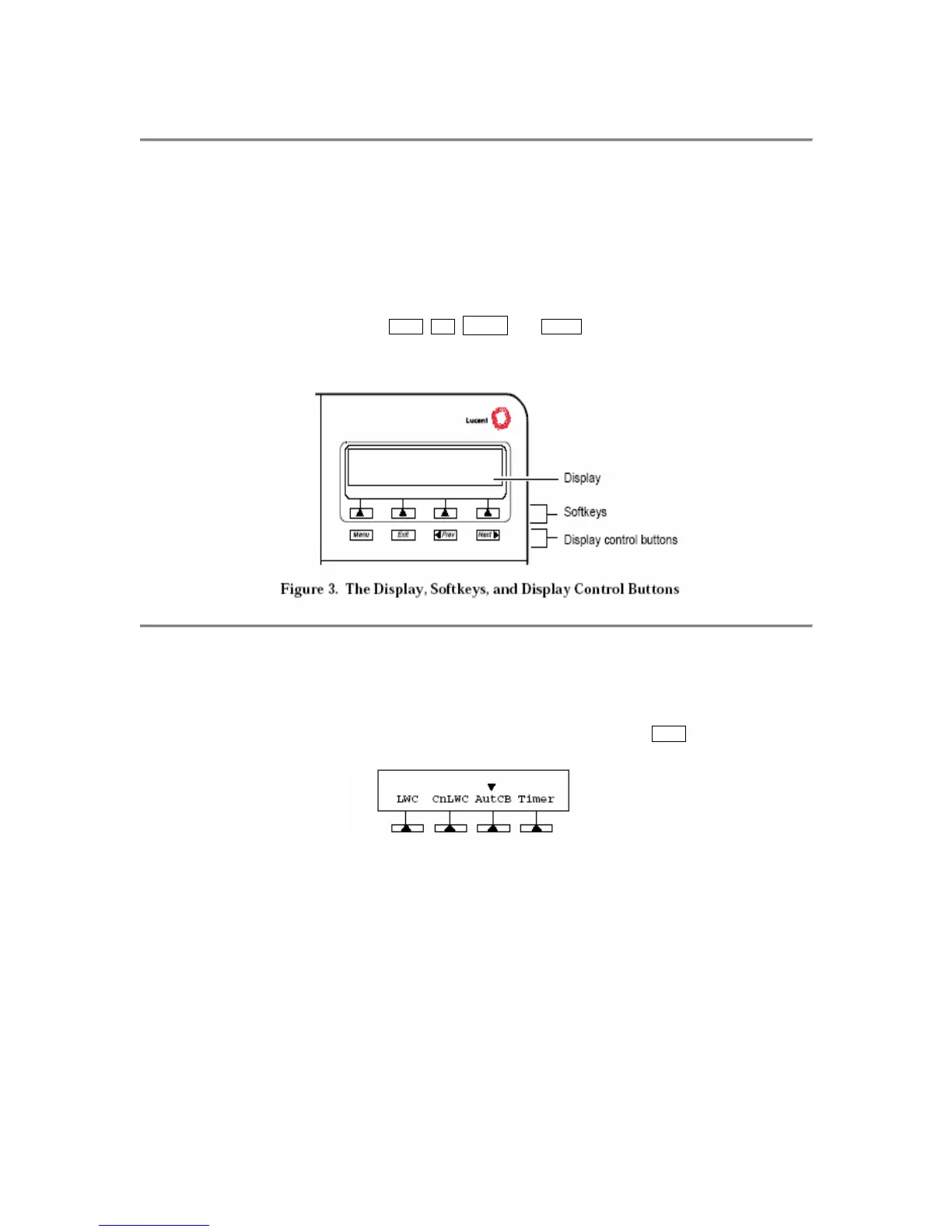
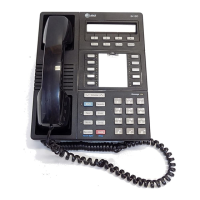
The softkeys are the four keys labeled with arrows () located directly below the display. The
four display control buttons, labeled
Menu, Exit, Prev, and Next are located under the softkeys.
Figure 3 shows the location of the softkeys in relation to the display above the softkeys and the
display control buttons below them.
Entering Softkey Mode and Viewing the Three Feature Option Screens
There are three separate feature option screens. Each of these screens allows you to select from
four different features.
You can enter Softkey Mode by pressing the display option button labeled
Menu. The following is
an example of a feature option screen.
The top line of each feature option screen shows you the status of each of the four features. An
arrow appears above the feature name or abbreviation if that feature is active. If there is no arrow
above the feature, the feature is not active. In the above example, the Automatic Callback feature
is active because there is an arrow above that feature abbreviation.
Note: If the feature requires you to dial a telephone number or extension, such as Call
Forwarding, you will temporarily see the digits you are dialing, rather than the arrow, above the
feature name.
The second line on each feature option screen shows the features you can access. To use any of
these features, you must press the softkey below the feature name or abbreviation. For example,
on the feature option screen shown above, you can leave a message for another extension to call
you back by pressing the softkey below LWC (the Leave Word Calling feature). If you want to
cancel the message, press the softkey below CnLWC (the Cancel Leave Word Calling feature).


 To Next Page