8410D User’s Guide
13 of 37
To see the next set of four features, press the display control button labeled
Next; to move back
a screen, press the display control button labeled Prev. Press Next or Prev until the feature
you want to use appears on the second line.
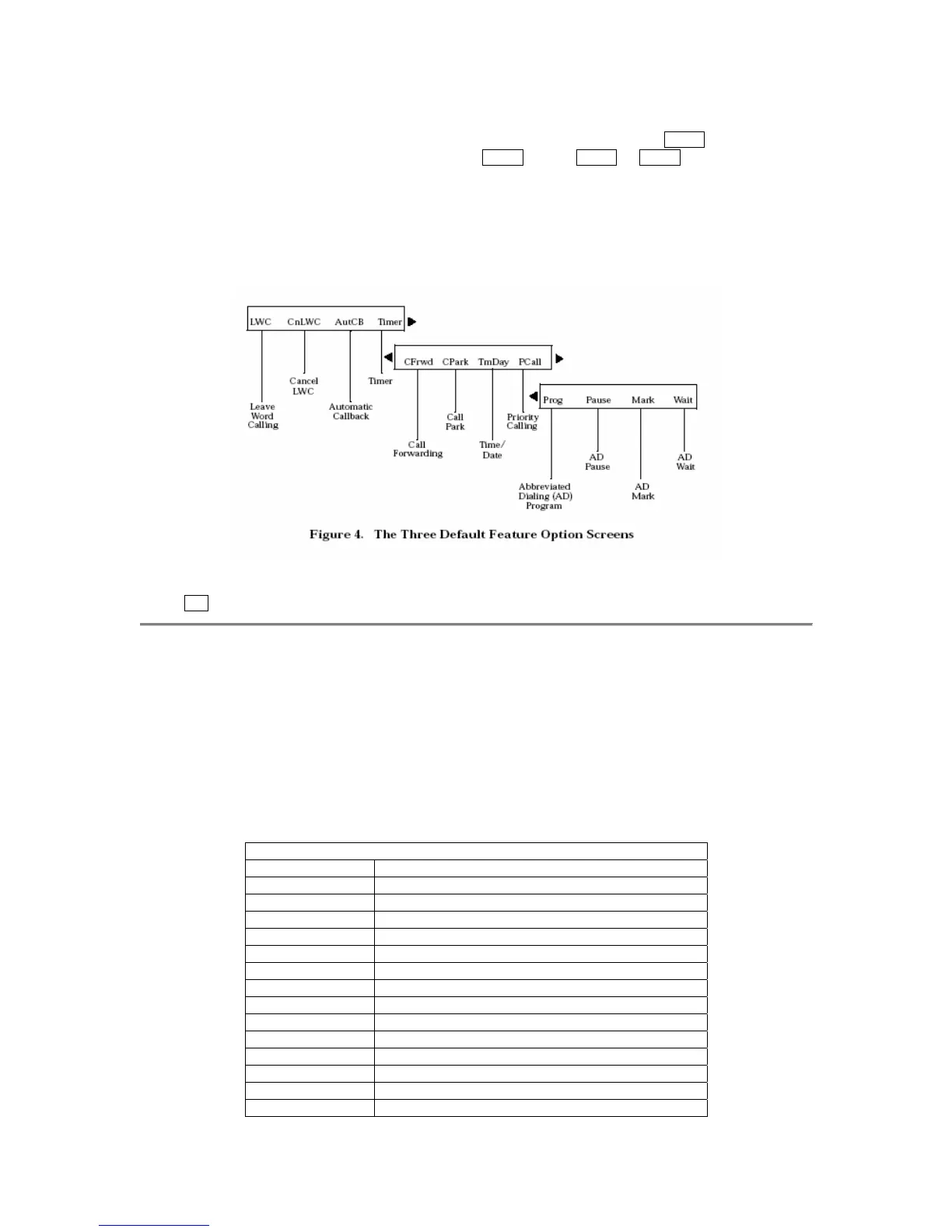
The following flowchart (Figure 4) shows the default features for the three feature option screens.
These are the 12 softkey features available when the voice terminal (with display) is shipped from
the factory. Also, see “Other Softkey Features That May Be On Your Display” in this section.
[Note: These are not the default features for the Diocese.]
Note: An error tone (one beep) sounds when you have made a mistake in your softkey entries.
Press
Exit at any time to exit softkey mode and return to Normal (call-handling) Mode.
Other Softkey Features That May Be On Your Display
Figure 4 above shows the 12 default softkey features, those features that can be accessed with
the softkeys when the 8410D voice terminal is initially installed. However, if the voice terminal is
connected to a DEFINITY G3V3 (or later), the system manager may substitute other softkey
features in their place. The following table is a list of some of these alternate features and the
feature abbreviation associated with each.
Note: The DEFINITY ECS, Release 5 (and later releases) may provide additional alternate
softkey features.
Alternate Softkey Features
Abbreviation Feature
AD Abbreviated Dialing buttons (can be multiple buttons)
BtnVw Button View
Cnslt Consult
CPkUp Call Pickup
Dir Directory*
Excl Manual Exclusion
HFAns Internal Auto Answer
IAuto Automatic Intercom
IDial Dial Intercom
Inspt Inspect
Last Last Number Dialed
RngOf Ringer Off
SAC Send All Calls
SFunc Abbreviated Dialed Special Function


 To Next Page