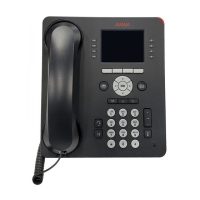
8410D User’s Guide
29 of 37
Display Feature Procedures
This section includes the procedures for seven display features you may use with the 8410 voice
terminal equipped with a display. However, note that the display, along with the softkeys and
display control buttons, can also be used for accessing up to 12 softkey features. For procedures
on using the display and softkeys and a list of the features that can be accessed with the
softkeys, see “Using the Display, Softkeys, and Display Control Buttons” earlier in this guide.
Note: All features may not be available.
Call Information
You may have as many as 10 call appearance buttons. Beginning with the first button in the
upper left hand corner of your faceplate and going down, the display identifies the buttons in the
left column as a through e. The buttons in the right column are identified as f through j. When the
display shows a= it represents call information for the first call appearance button. The next
button down would be shown as b= , and so on, continuing through j= if all 10 of the
buttons are used for call appearances.
When you dial an extension, that number is shown then replaced by the called party’s name and
extension.
When a call is received from another extension, the caller’s name is shown; when a call is
received from outside, “OUTSIDE CALL” or “CALL FROM” is shown, followed by the calling
party’s number.
The display remains in Normal (call-handling) Mode until you activate one of the other display or
softkey features. After using any of these features, return to Normal (call-handling) Mode by
pressing
Exit.
Directory
You can access this feature with the softkeys only if your voice terminal has a display and if the
feature’s abbreviation, Dir, appears on the second line of one of the feature option screens.
If the Directory feature is used while any of the (softkey) feature option screens are displayed, the
directory information is displayed for five seconds, and then the display reverts back to the
previous softkey display.
To search the directory
for a name
1 Press Menu and then press the softkey below Dir
or, if Dir is not available on your display, press
Directory
2 Key in the selected name with dial pad keys: search by last name
3
Press Next Msg for each successive directory name you wish to see
• To search for a new name, press the softkey below Dir or press
Directory and go through the above sequence again
4 When you are ready to exit the directory, press Exit



 To Next Page