EM200 installation
If you mounted one or two EM200 modules for the purpose of expanding the Branch Gateway,
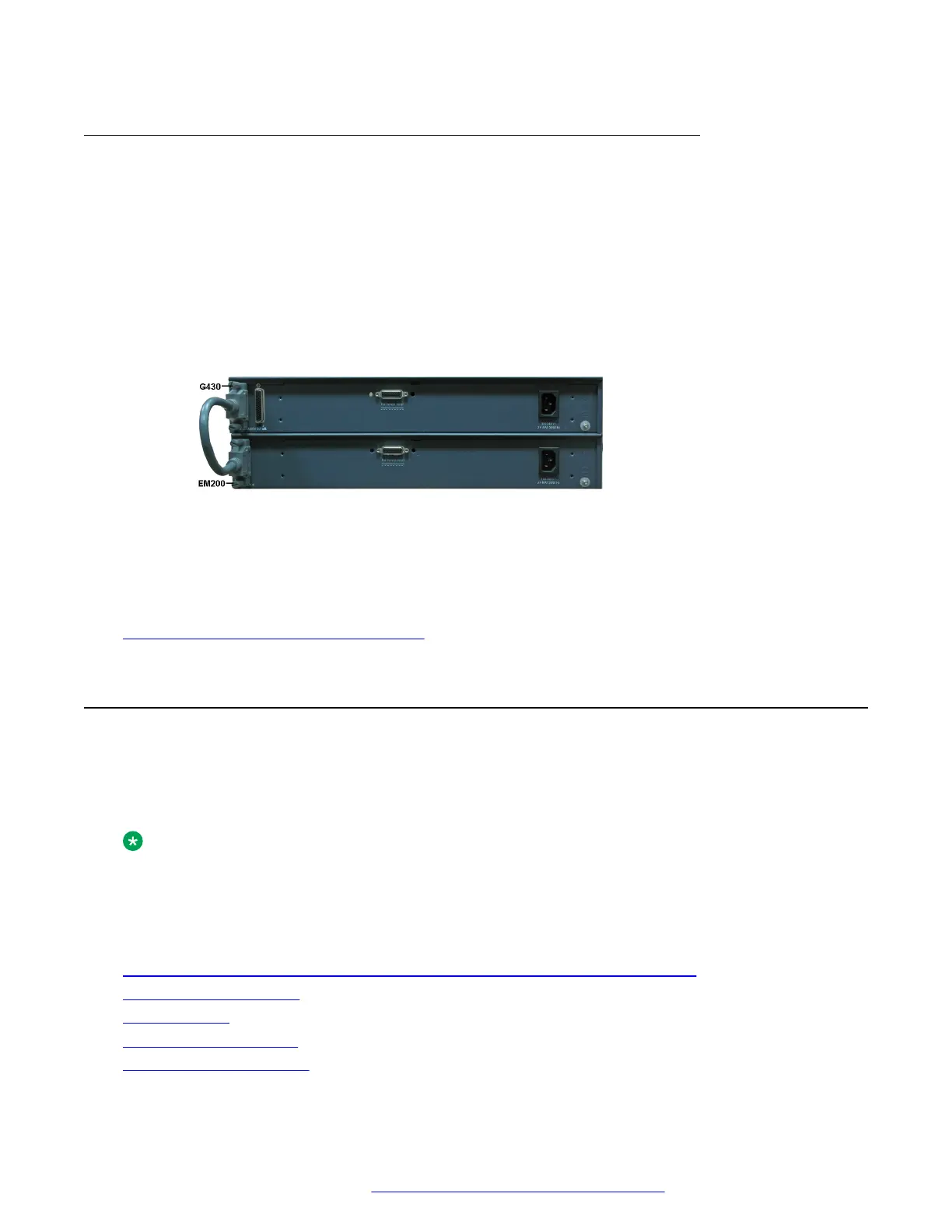
connect each EM200 to the G430 using the expansion cable supplied with each EM200.
• If you mounted one EM200:
1. Connect one end of the expansion cable to the CONNECTOR OUT 1 connector on the
rear of the G430.
2. Connect the other end of the expansion cable to the CONNECTOR IN connector on the
rear of the EM200.
Figure 2: Connecting an EM200 to the G430
• If you mounted two EM200 modules, connect one EM200 to the CONNECTOR OUT 1
connector on the rear of the G430, and one EM200 to the CONNECTOR OUT 2 connector
on the rear of the G430.
Related links
Mounting the EM200 expansion module on page 27
Installing the media modules
When the Branch Gateway chassis and optionally the EM200 module(s) are installed, you can
insert the media modules. Each module is shipped with two thumb screws for securing the module
in the Branch Gateway or EM200 chassis.
Note:
The required media modules are sometimes pre-installed in the Branch Gateway or EM200
chassis. If this is the case, skip this step. Read this section only if the media modules are not
pre-installed, or if you want to replace modules or add new media modules.
Related links
Before inserting media modules into the Branch Gateway or EM200 chassis on page 29
Combination limitations on page 29
Slot allocation on page 29
Inserting S8300 Server on page 31
Inserting media modules on page 32
Installing the Branch Gateway and EM200
July 2018 Deploying and Upgrading Avaya G430 Branch Gateway 28
Comments on this document? infodev@avaya.com



 To Next Page