Run the Upgrade Tool to upgrade the primary controller, LSPs, and G700 media gateways
Issue 9.1 June 2006 333
Installing updated authentication files
Log into each LSP remotely if possible, and then the primary controller, to install the
authentication files:
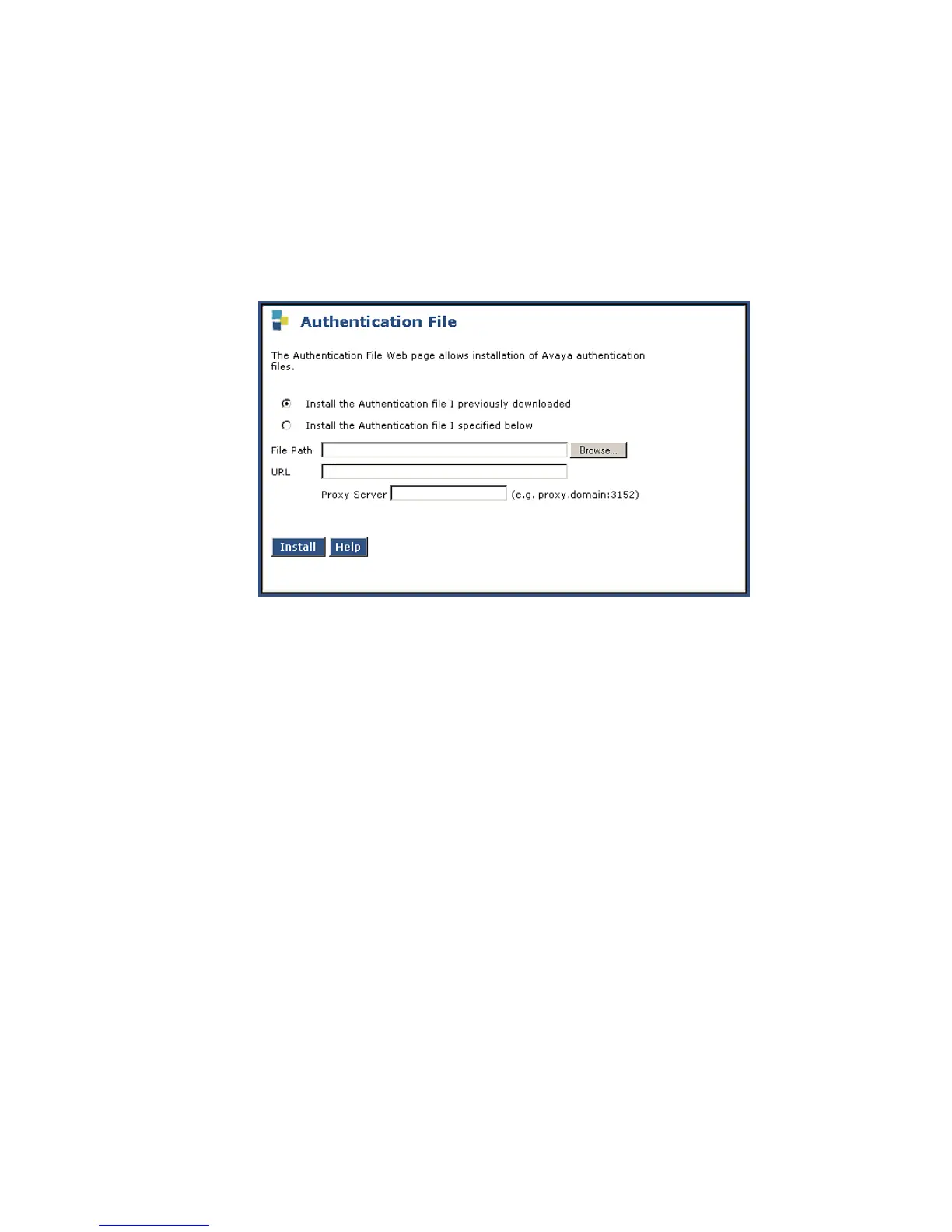
1. On the Maintenance Web Interface menu under Security, select Authentication File.
The Authentication File screen displays.
Authentication File screen
2. Select Install the Authentication file I previously downloaded and click Install.
The system tells you the authentication file is installed successfully
Saving translations
(only if new license and/or authentication files installed)
Skip this procedure if the S8300 is an LSP.
To save translations
1. Access the server’s command line interface using an SSH client, like PuTTY, and an IP
address of 192.11.13.6.
2. Open a SAT session, and log in as craft (or dadmin).
3. At the SAT prompt, type save translation and press Enter.
When the save is finished, the system displays the message,
Command successfully completed.




 To Next Page