Upgrading the S8300A
Issue 9.1 June 2006 641
To verify media server configuration
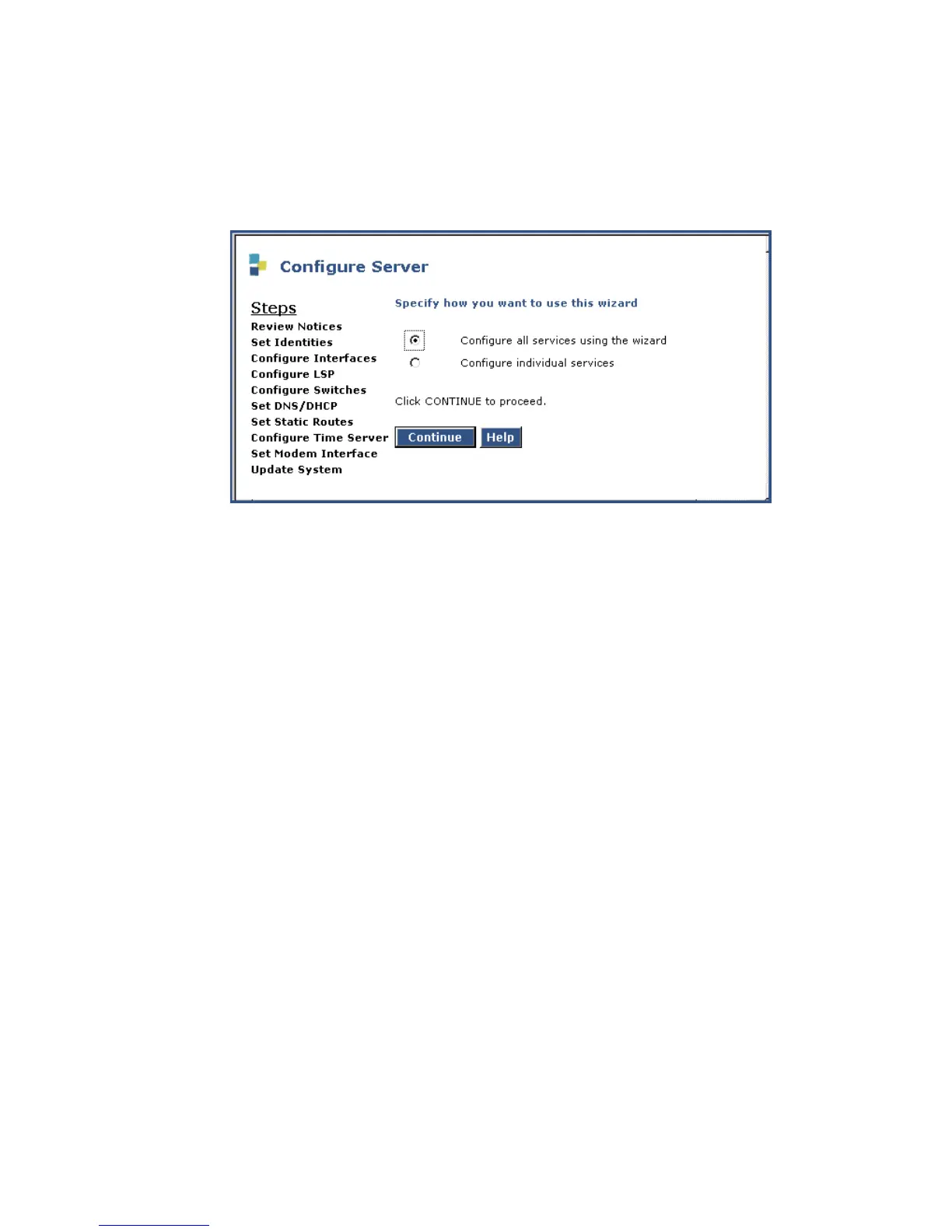
1. Under Server Configuration click Configure Server to start the configure server process.
Click Continue until you reach the screen titled Specify how you want to use this wizard.
Specify how you want to use this wizard screen
2. Select Configure all services using the wizard.
3. Click Continue through all the screens.
Check for new screens and new fields on existing screens as mentioned in the planning
forms.
Note:
Note: You must click Continue through all the screens whether there are changes or
not. You do not need to enter Static Network Route information.
4. Click Continue on the Update System screen.
The Updating System Files screen displays each configuration task as it completes. When
done, the screen displays the line All configuration information was entered.
5. Click Close Window.
6. Access the server’s command line interface using an SSH client, like PuTTY, and an IP
address of 192.11.13.6.
7. Type /opt/ws/drestart 1 4 to capture the configuration data.
You should see the response, Killed.





 To Next Page