AVerTV 6
47
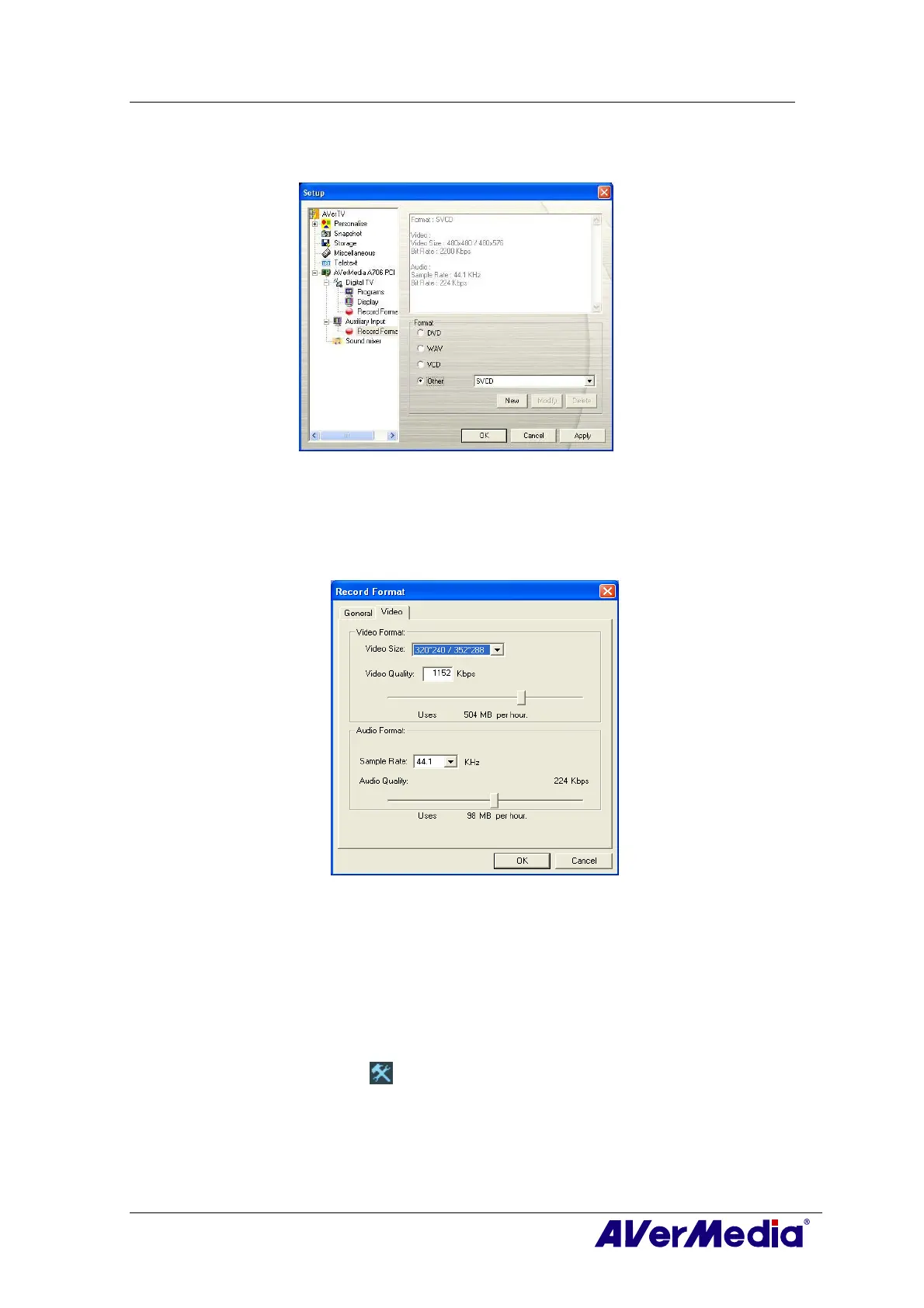
3. Determine the video file format to use for saving the recorded video file.
4. You can use the default format or select Other to create your own file format.
(This picture is only for reference.)
5. Click New and the Format dialog box appears. Then select the file format you want
and enter the desired name in the text box.
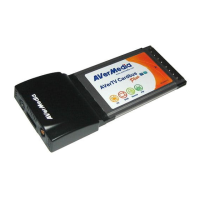
6. In the Video dialog, you can also select the Video Size or Sample Rate.
(This picture is only for reference.)
7. If you want to change the setting of your own file format, click Modify. Or click
Delete to remove the unwanted file format that you created.
8. Click Apply to save the setting and click OK to exit the current dialog box. To abort
this operation, click Cancel.
To adjust the quality of the Auxiliary Input display:
1. Click the Setup
button and in the Setup dialog box, click Auxiliary Input icon on
the left pane.
2. Then you can adjust the Brightness, Contrast, Hue and Saturation sliders until
you get an accurate color.
Click Save to create your own settings. Next time, you can simply click Setting
Preference to get your preferred settings.




 To Next Page