DADman Software 22
Monitor Controls
MTRX Studio lets you have up to three defined monitor paths: one for the Control Room, and two for cues (Headphone Outputs
1 and 2).
Monitor Label
You can click the Monitor label to type a new name.
Sources
Under Sources, all available monitoring sources are listed (as configured in the Monitor Profile Configuration window). Click to
select the desired input source. When
Switch is enabled, click to select the desired source for monitoring. When Sum is enabled,
all selected sources are summed for monitoring.
Switch/Sum
Click to toggle between switching between available sources or summing all selected sources. When Sum is enabled,
an additional
All button appears that lets you select (or deselect) all sources. When Sum is enabled and All is disabled, you can se-
lected any combination of sources.
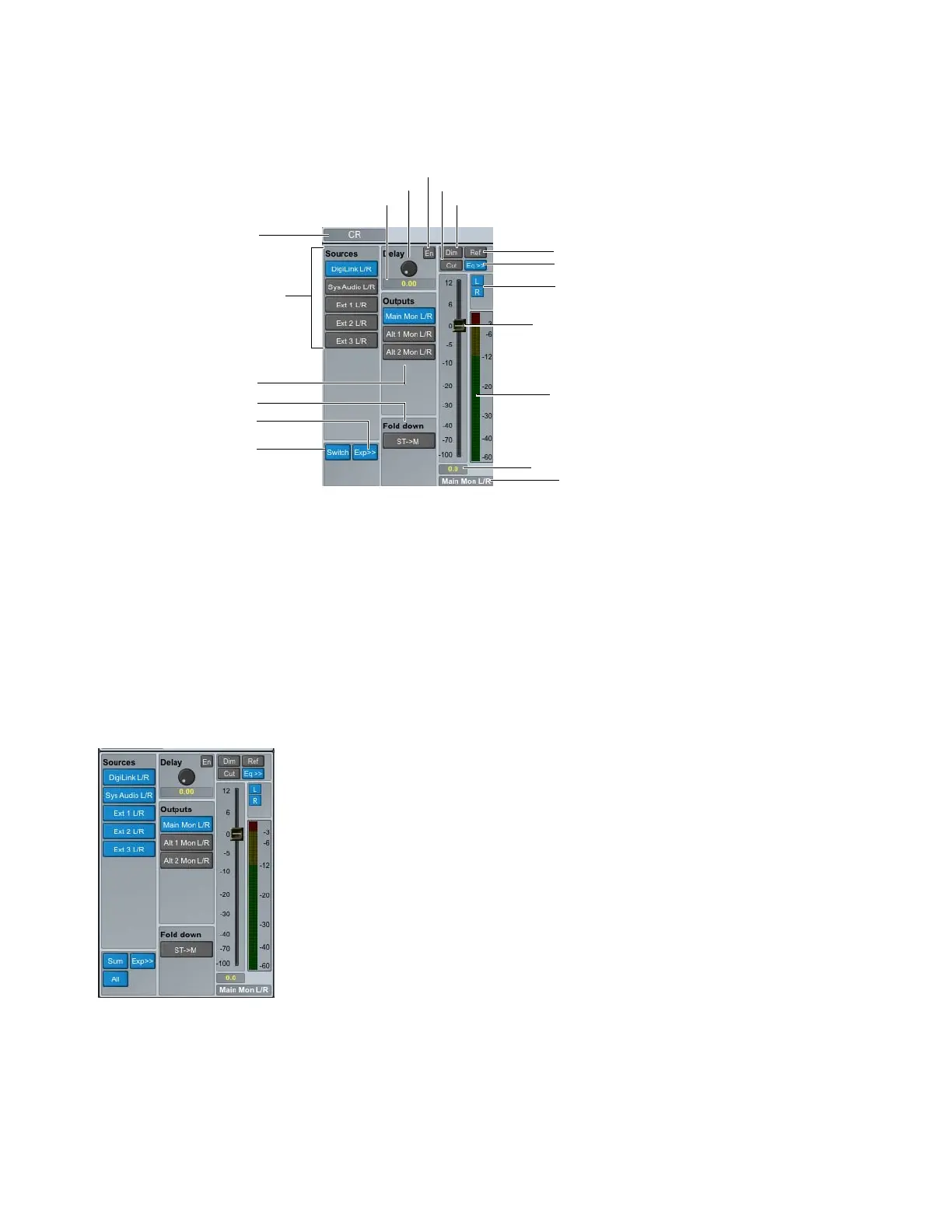
Monitor controls
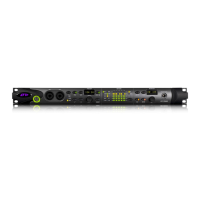
All sources selected and summed for monitoring
Output label
Level in dB
Output Level meter
Output Level fader
Channel enable
Switch/Summed
Exp/Col
Fold Down
Outputs
Sources
Monitor label
Eq expand/collapse
Reference set
Dim
Delay enable
Cut
Delay time display
Delay time



 To Next Page